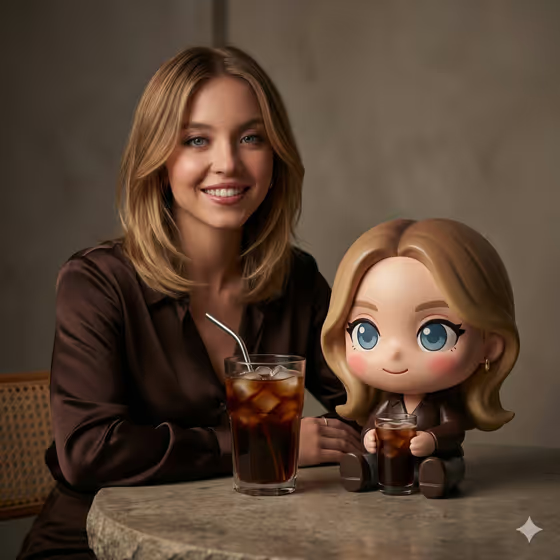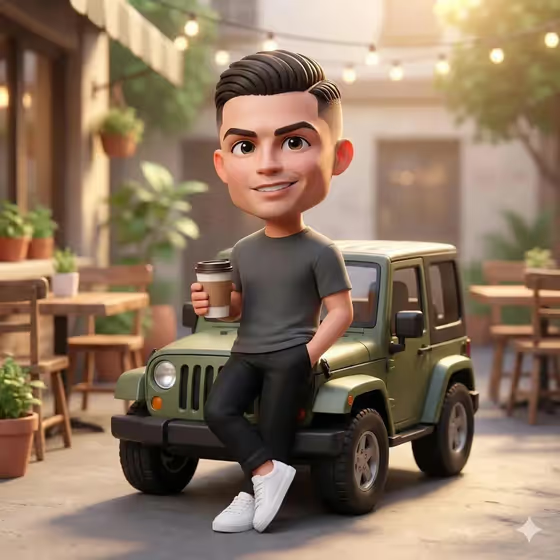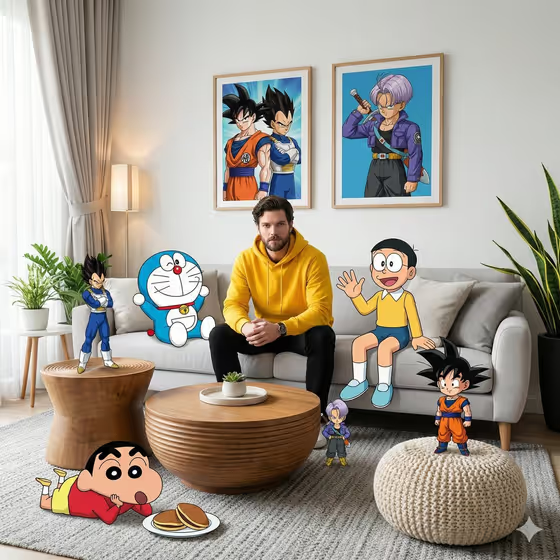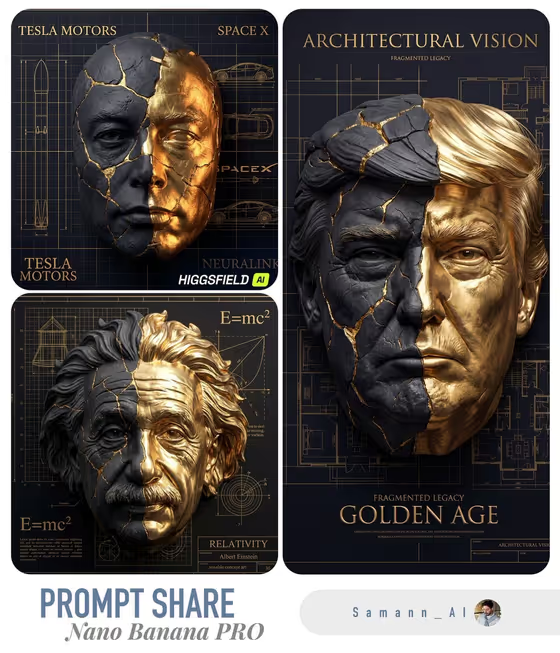
Anime Live Action turns an anime or illustrated character into a photorealistic, fashion-editorial style portrait. It keeps the original framing and composition, then re-renders the character with realistic skin texture, lifelike hair and premium-looking fabrics under studio-quality lighting.
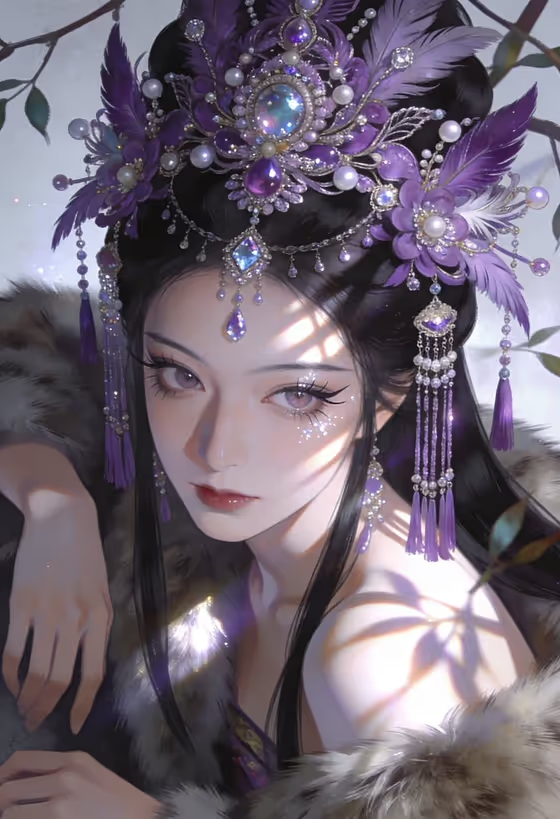
It suits fans who want to see a favorite character as a real person, artists who want a live-action take on an original character, and anyone building a portrait series from illustrated references. The cover example shows how detailed headpieces, jewelry and fur trim carry over into a refined, filmic portrait.
What works best as input
- For the "anime character character subject" slot, upload the exact artwork or reference of your character, or type a short description such as "an original character". The template asks for 2 or more photos, so add additional views or references if you have them.
- Pick artwork where the face and costume are clearly visible and not cropped awkwardly. Because the template preserves the original framing, the crop you upload is the crop you get back.
- Choose references with distinctive details like headpieces, jewelry, hair color or fabric. Those are the features the template works hardest to keep intact.
- Avoid heavily cluttered or low-resolution art, since small details are harder to translate into realistic materials.
How to use it
- Open the Anime Live Action template in Phosphene.
- In "anime character character subject", upload your character reference or describe the character in text, using the examples as a guide.
- Set "Character staging" to choose how the portrait is framed, such as a collectible character portrait, a full-body scene or an environmental story moment.
- Generate the image, then review the 3:4 result for how well the face, costume and framing match your source.
Tips for a better result
- Match the staging choice to your source art. A close portrait reference pairs naturally with the portrait-style framing, while a full-figure illustration suits a full-body option.
- If you describe the character in text instead of uploading, mention key traits like hair color, accessories and clothing so the defining look stays recognizable.
- Run the same character with different staging options to compare a tight portrait against a wider scene.
- Use clean, well-lit source art when you can. Clear reference detail gives the realistic skin, hair and fabric rendering more to work from.
Common mistakes
- Uploading a heavily cropped or off-center image and expecting a recentered result. The template preserves the original framing exactly.
- Leaving the character description vague, for example only "anime girl", which gives the result little to hold onto for the defining look.
- Expecting text or logos in the output. The direction specifically excludes text and logos, so any lettering in your source will not carry over.
FAQ
Can I use text instead of a photo?
Yes. The character slot accepts a written description or an uploaded reference, though the template lists a 2 or more photo upload requirement, so check the input prompts when you open it.
Will it change my character's composition?
No. The template is set to preserve the original camera framing and composition, converting the look rather than rearranging the scene.
What kind of look does the result have?
A photorealistic live-action portrait in a modern cinematic, high-fashion style, with natural contrast, realistic skin texture and lifelike hair.
What shape is the output?
The result is a still image in a 3:4 aspect ratio.