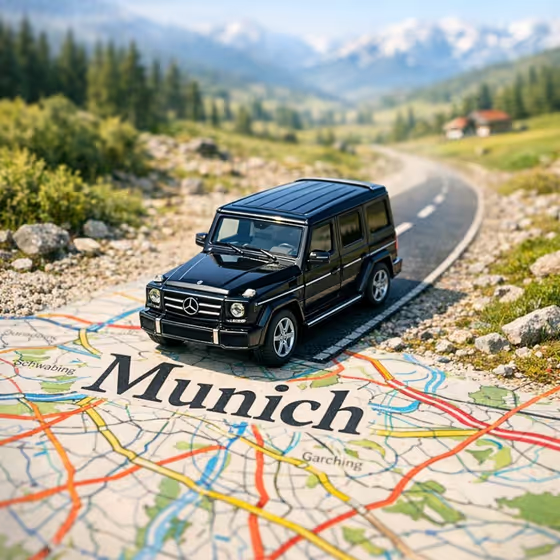
This template makes a square image of a tiny car driving along a real, winding road that slowly flattens into a printed paper map. The vehicle ends up crossing directly over the city name, with labeled streets, borders and typography running beneath its wheels, much like the black off-road vehicle crossing the word "Munich" on the cover.
It suits travel posts, trip announcements, gift cards, car-themed designs and anyone who wants a playful way to show a vehicle and a place together. You describe the car, pick or name the city, and describe the landscape. The template handles the miniature scale, paper texture and lighting.
What works best as input
- For Miniature car name, describe the vehicle in plain words, such as "classic sports coupe", "compact city car" or "rugged off-road vehicle". Mentioning body style and color gives the clearest result. This field is text, and the help text also mentions "my exact car" if you want to point it at your own.
- For Mapped city, use the format "City, Country", like "Lisbon, Portugal" or "Tokyo, Japan". The city name becomes the large label the car drives across, so spell it correctly.
- For Regional terrain, describe the land around the road in a short phrase, for example "coastal hills and tiled streets" or "desert foothills and ochre earth". Match it to the real region so the landscape feels authentic.
- Keep each field short and concrete. A few well-chosen words work better than a long list of unrelated details.
How to use it
- Open the Miniature Car Map Journey template in Phosphene.
- Fill in Miniature car name with the vehicle you want, then set Mapped city to your chosen place (or type your own city and country).
- Enter Regional terrain to describe the scenery beside the road, then generate the image.
- Review the square result. Check that the city name is readable under the car and the road blends into the map, then adjust a field and regenerate if needed.
Tips for a better result
- Pick terrain that fits the city. Matching the landscape to the place, like green countryside for a river region or dense neon blocks for a big city, makes the road-to-map transition feel believable.
- Try different vehicle types with the same city to get a set of images, for example a compact city car versus a rugged off-road vehicle.
- Use a city with a short, clear name if you want the label to read cleanly across the frame.
- Change only one field per run so you can see exactly what each change does to the picture.
Common mistakes
- Typing a vague car like just "car" or "vehicle". Without a body style or color, the result is less distinct and less like what you imagined.
- Entering a city without its country or with a misspelling, which can lead to the wrong place or a garbled map label.
- Describing terrain that clashes with the city, such as snowy peaks for a desert location, which makes the scene feel inconsistent.
FAQ
What does the output look like?
It is a square (1:1) image of a miniature car on a winding road that turns into a printed paper map, with the vehicle placed over the city name.
Can I use my own car?
The Miniature car name field suggests "my exact car" as an option, and its help text mentions uploading a reference. Describe it in text as clearly as you can, including body style and color.
Do I have to pick a city from the examples?
No. The examples like Lisbon, Tokyo and Marrakech are suggestions, and you can enter a city and country of your own.
Why is the city name important?
The template places the tiny vehicle directly over the city label on the map, so the name you enter becomes the main typography in the image.