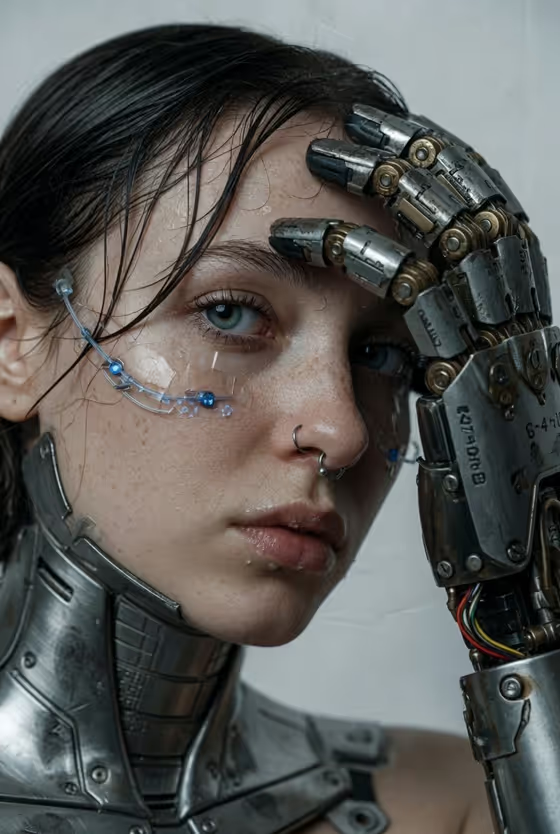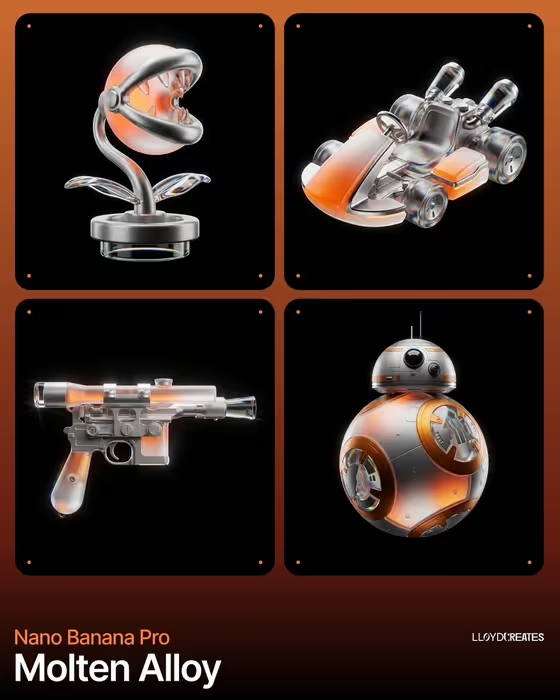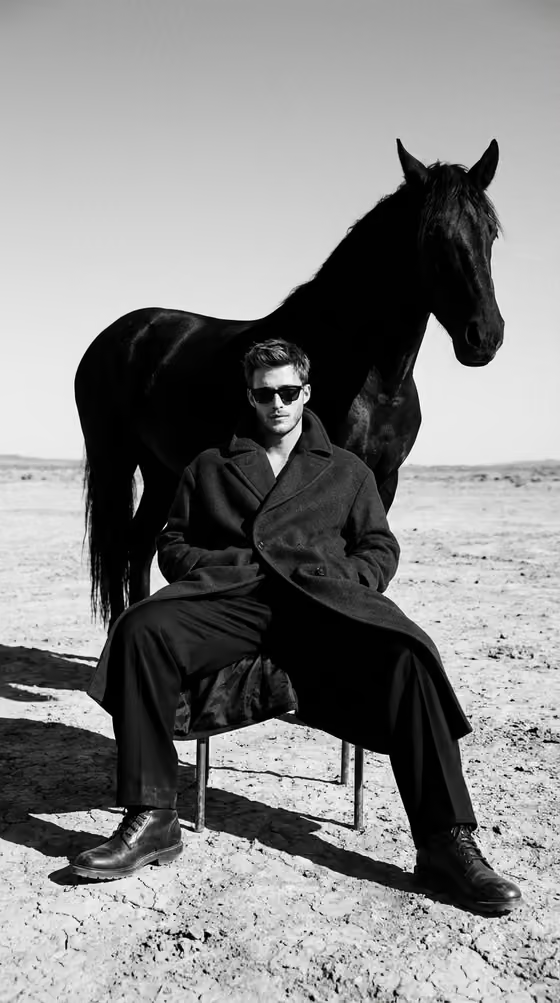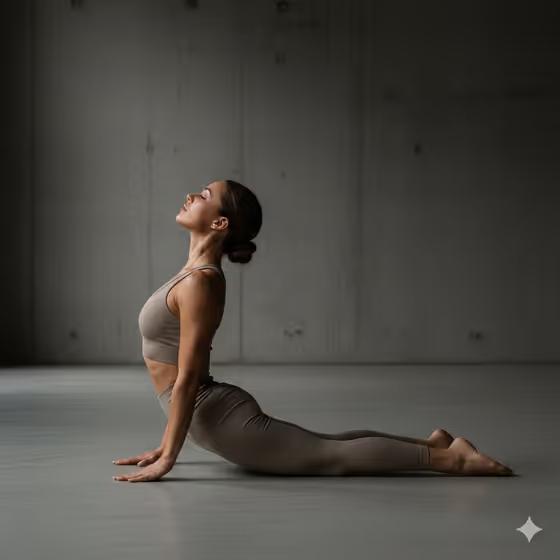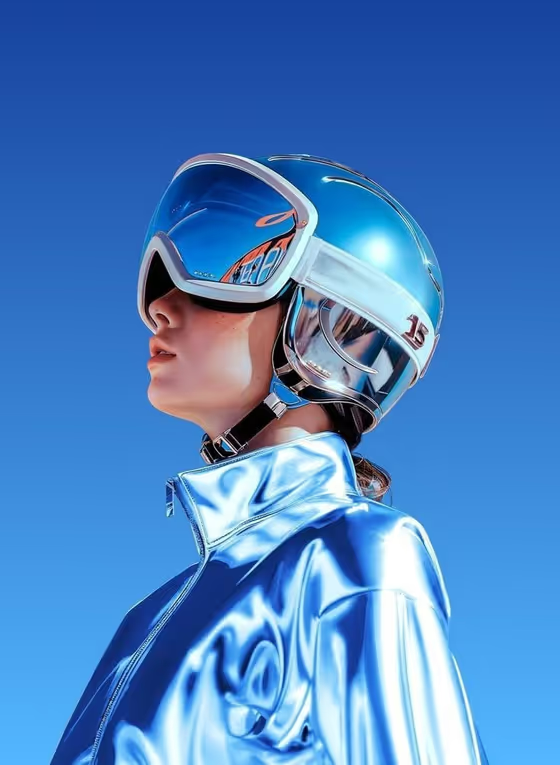
Chrome Future Profile makes a side-profile portrait of a figure facing left, dressed in a reflective metallic blue jacket and a glossy sci-fi helmet with a large visor. Everything sits against a clean blue gradient, in the cold, high-contrast look of a fashion editorial shot.
It suits anyone who wants a polished cyberpunk or space-age portrait: character designers, creators building a futuristic persona, or anyone who wants a stylized avatar. The output is a single 3:4 image, so it works well as a vertical poster, profile picture or cover.
What works best as input
- For the subject field ("futuristic woman character subject"), you can type a short description or upload a reference. The default placeholder is "a futuristic woman", and "an original character" or "my exact character reference" also work as starting points.
- The template is set up for 2 or more uploads, so give it more than one clear reference of the same subject if you want it to follow a specific look.
- Pick references where the face and overall look are easy to read. Sharp, evenly lit photos give the model more to hold on to than blurry or heavily filtered ones.
- If you upload photos of a real person, use pictures of yourself or someone who has agreed to it, and keep the subject respectful.
- Keep any typed description short and concrete, such as a name or one clear descriptor. The jacket, helmet, visor and blue background are already handled by the template.
How to use it
- Open the Chrome Future Profile template in Phosphene.
- In the subject field, type a short description of who or what you want, or upload your reference photos.
- Open the Character staging field and choose how the image should be framed. The options include a collectible character portrait, a full-body character scene or an environmental story moment, and you can also keep the default side-profile portrait.
- Generate the image, then check the profile angle, the chrome reflections on the jacket and the glossy visor. If something is off, adjust your subject text or references and run it again.
Tips for a better result
- Try different Character staging options to see how the same subject changes. The default keeps the tight side-profile look, while the other options frame it differently.
- Use consistent references across your uploads. Photos that agree on hair, face shape and overall appearance give a more coherent result.
- Run the same subject a few times. Chrome reflections and visor highlights vary between generations, so you can pick the one whose reflections you like best.
- If you want a non-human result, describe an original character or object in the subject field instead of a person.
Common mistakes
- Writing a long description of the outfit, helmet or background. The template already defines the chrome jacket, visor helmet and blue gradient, so extra styling detail can fight it.
- Uploading low-quality or mismatched references, such as dark, blurry or very different photos of the same subject, which makes the likeness less reliable.
- Picking a staging option that doesn't match your goal. A full-body scene will not give you the same close profile crop as the portrait framing.
FAQ
Do I have to upload photos?
The subject field accepts either typed text or an uploaded reference. The template is marked for 2 or more uploads when you want it to follow a specific look, but you can describe a subject in text too.
What does the output look like?
A 3:4 image of a side-profile portrait facing left, with a metallic blue chrome jacket, a glossy sci-fi visor helmet and a blue gradient background.
Can I change the jacket color or background?
The chrome blue look and gradient background are part of the template's fixed direction. You control the subject and the staging, not the wardrobe or backdrop.
Can I use it for something other than a woman?
Yes. The subject field accepts a character, product, object or phrase, so you can enter an original character or another subject and the staging will frame it the same way.