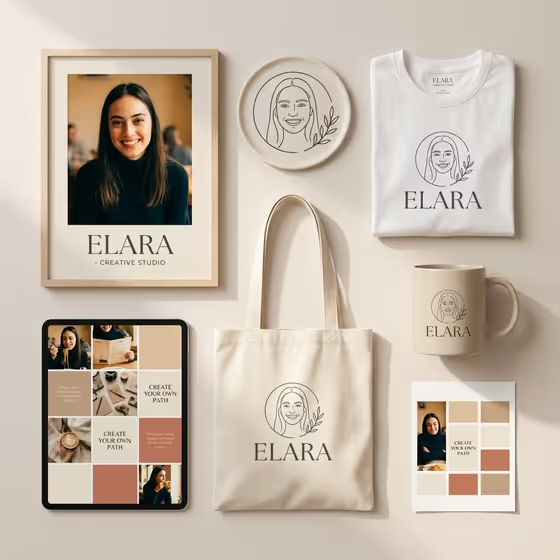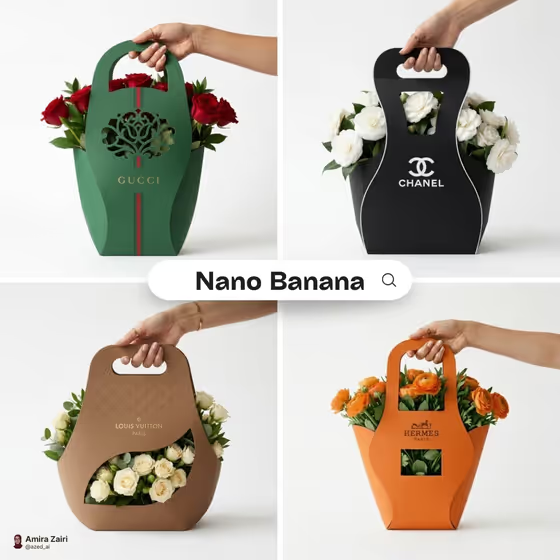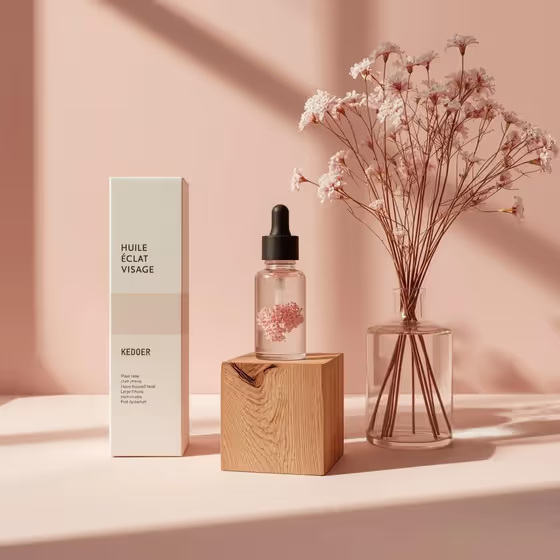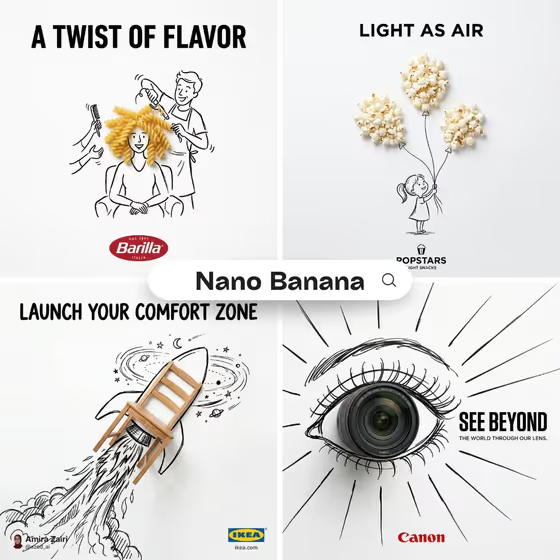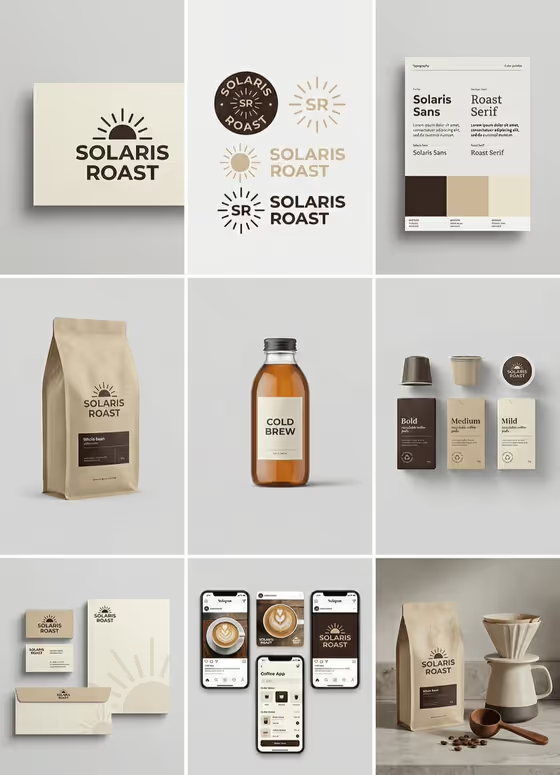
Complete Brand Grid turns a product line, a brand name and a three-color palette into a single 1:1 image split into nine tiles. The grid covers primary and secondary logos, a monogram, typography with color swatches, packaging, hero products, stationery, social posts and a phone app screen, all shown as one connected identity.
It suits founders sketching a new line, designers who want a fast moodboard for a pitch, and anyone testing how a name and palette hold up across real-looking materials before committing to them.
What works best as input
- In Brand Product Line, describe what you actually sell in a short phrase, such as a specialty coffee range or a skincare collection. The more concrete the product, the more fitting the packaging and hero tiles will look.
- This field also accepts a photo, so you can add a brand reference or a picture of your products instead of or alongside the text. Choose a clear, well-lit image with the product easy to read.
- Brand Name only takes text. Type it exactly as you want it to appear, including capitalization, since it is repeated across logos, labels and screens.
- Keep the name short. In the cover example, a two-word name sits cleanly on a bag, a bottle label and a business card.
- Brand Palette is a choice field, so pick the option that matches your product's mood. It is built around three consistent colors, which is what keeps all nine tiles looking related.
How to use it
- Open the Complete Brand Grid template in Phosphene.
- Fill in Brand Product Line with a short description of your products, or add a reference photo if that suits you better.
- Type your Brand Name, then choose a Brand Palette from the options.
- Generate the image and review the nine tiles together, checking that the name, colors and product type read the way you intended.
Tips for a better result
- Try the same Brand Name with different palettes. Warm earthy colors and cool bold colors will change how premium or playful the whole grid feels.
- Use specific product wording, like a premium stationery line or a modern home-fragrance range, to steer the packaging and hero product tiles toward the right objects.
- If a reference photo helps, pick one that shows the product shape or material you want echoed in the packaging tiles.
- Generate a few times with small wording changes in the product line and compare which logo and layout direction you prefer.
Common mistakes
- Writing a vague product line like 'stuff' or 'my business'. The packaging and mockups depend on knowing what the product actually is.
- Using a very long brand name. Long names get cramped on labels, monograms and phone screens, and may be harder to read in small tiles.
- Expecting exact text everywhere. Small type on swatches and UI screens can come out imperfect, so treat the grid as a concept board rather than final artwork.
FAQ
What do I get in the final image?
One square image arranged as a 3x3 grid. It shows logos, a monogram, typography and swatches, packaging, hero products, stationery, social posts and a phone UI, all in a matching style.
Do I have to upload a photo?
No. The Brand Product Line field accepts a text description, and it can also take a photo or brand reference if you want to add one. Brand Name and Brand Palette do not take photos.
Can I change the layout of the grid?
The 3x3 layout and the set of tiles are fixed by the template. You control the product line, the brand name and the palette.
Can I use the result as my final brand?
It works well as a visual concept and moodboard. Small details such as fine text may need refining before you use any of it as finished brand assets.