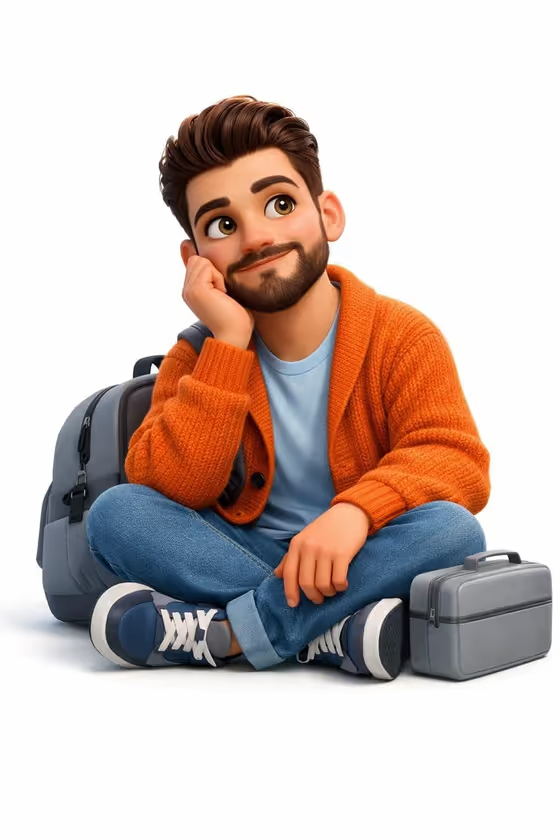
This template turns a person or character into a Pixar-style 3D render, sitting cross-legged on a clean white background. The look in the cover image is soft and rounded, with large expressive eyes, a thoughtful half-smile, a chunky orange knit cardigan over a light blue tee, jeans, sneakers, and a grey backpack and lunchbox resting nearby.
It suits anyone who wants a friendly animated avatar, a collectible-style character portrait, or a relaxed character shot that sits cleanly on a white page. Because the background is isolated and plain, the result is easy to drop into profiles, presentations, or layouts.
What works best as input
- The template asks for 2 or more photos, so give it several clear shots of the same person or character from slightly different angles. This helps it keep the face, hair, and beard consistent.
- Use well-lit photos where the face is fully visible and not covered by sunglasses, hats, or heavy shadow.
- In the 'animated young man character subject' field, you can type a short description (the placeholder is 'an animated young man') or upload the exact visual reference instead of describing it.
- If you describe rather than upload, mention the traits you care about, such as hair style, facial hair, and overall vibe, so the character reads as the person you mean.
- Only use photos of yourself, people who have agreed to it, or characters you own. Avoid using the likeness of public figures.
How to use it
- Open the Cross-Legged 3D Character template in Phosphene.
- In 'animated young man character subject', describe your character or upload your reference photos (2 or more).
- Pick an option in 'Character staging' to set how the finished image is framed, such as a collectible character portrait or a full-body character scene.
- Generate the image, then check the 3:4 result for face likeness, the cross-legged pose, and the white background, and run it again if something is off.
Tips for a better result
- Try the different 'Character staging' choices to change the framing. A collectible character portrait and a full-body character scene will feel quite different.
- Keep your subject description focused on identity (face, hair, beard) and let the template handle the warm knitwear, sneakers, and bag styling.
- Use photos that match the expression you want. The template leans toward a calm, dreamy, optimistic mood, so relaxed reference faces tend to fit best.
- Generate a few variations and pick the one where the eyes and smile feel closest to the person or character.
Common mistakes
- Uploading only one photo when the template expects 2 or more, which gives the render less to hold the likeness steady.
- Using blurry, heavily filtered, or cropped photos where the face or hair is hard to read.
- Writing a long, conflicting description that fights the fixed look, such as asking for a busy scene when the template is built around a plain white background.
FAQ
How many photos do I need?
The template is set up for 2 or more photos. Using several clear shots of the same subject gives the best chance of a consistent likeness.
Can I describe my character instead of uploading photos?
Yes. The subject field accepts text, and the placeholder is 'an animated young man'. You can also upload an exact visual reference there.
Will the background always be white?
The template is built around a pure white, isolated background, with soft even lighting and a gentle shadow beneath the character.
What shape is the output?
The image comes out in a 3:4 aspect ratio, which is a portrait orientation.