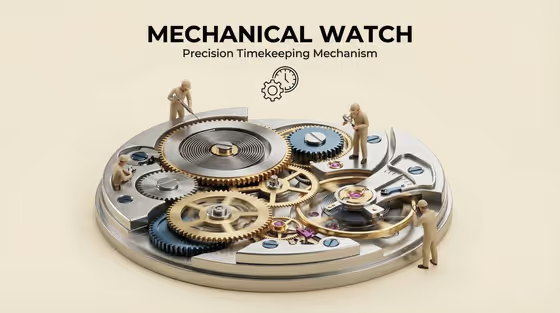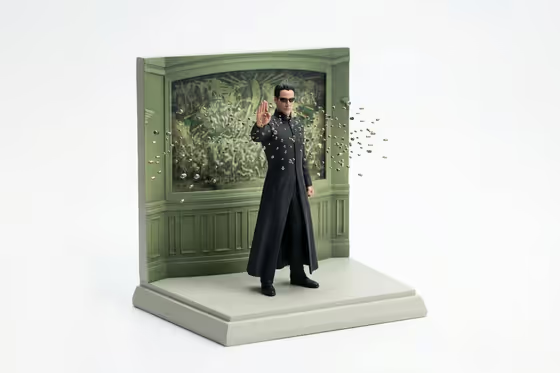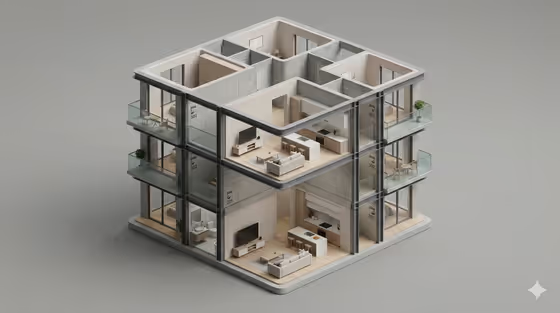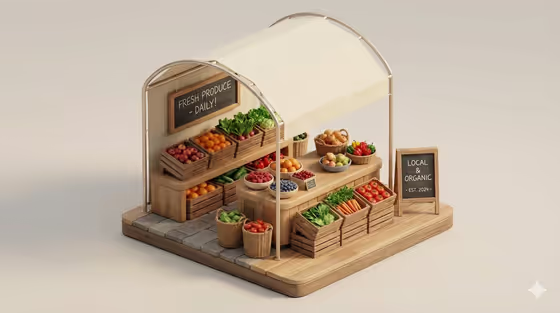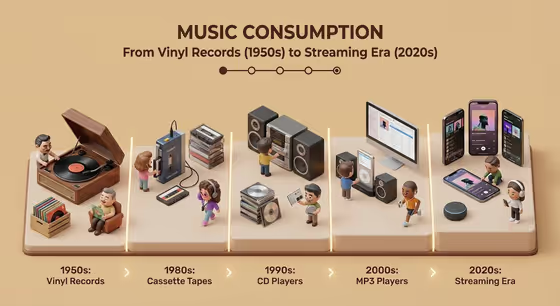
This template turns a topic and a span of time into a single stepped isometric diorama. Each section of the raised base holds the tools, objects and tiny people of one era, with subtle arrows pointing from one stage to the next. The cover shows music consumption laid out as a row of platforms, each with its own devices and little figures.
It suits anyone who wants a clear picture of how something changed over time: teachers building a lesson visual, presenters who need a timeline slide, or writers and creators who want a shareable explainer image. You give it a topic, an era range and a background color, and it handles the layout, title and chronological separation.
What works best as input
- For Evolution topic object, a short, specific phrase works best, such as personal computing, urban transport, photography or renewable energy. A narrow, concrete topic gives each era clearer objects than a very broad one.
- The Evolution topic object slot also accepts a photo as a reference. If you use one, pick a clear image of the main subject, since that slot is meant for the hero of the timeline.
- For Era range, use a phrase that names a clear start and end, like 1940s to today or film era to computational imaging. Eras that have visibly different tools and environments make the steps easier to tell apart.
- For Background color, name a simple color such as warm off-white, soft blue, deep charcoal or muted sage. The template adjusts text contrast automatically, so a plain, single color is enough.
How to use it
- Open the Evolution Timeline Diorama template in Phosphene.
- Fill in Evolution topic object with your subject, or add a reference photo if you want to guide the main subject.
- Enter your Era range and Background color, then start the generation.
- Review the result. Check that the title, the from-to subtitle and the order of the eras read correctly, and adjust your inputs if something is off.
Tips for a better result
- Pick a topic whose technology changes in obvious, physical ways. The cover works because each era has distinct devices a viewer can recognize at a glance.
- Try the same topic with different era ranges, for example a full history versus a shorter recent window, to see how the steps are divided.
- Change only the background color to make variations for light slides, dark slides or print, since contrast is handled automatically.
- Use the example phrases in the fields as a starting point and edit them to match your own subject and wording.
Common mistakes
- Choosing a topic that is too vague. A broad idea with no clear tools or objects gives each era little to show.
- Writing an era range with no clear endpoints, which can make the chronological steps blurry or uneven.
- Entering a busy or multi-color description for Background color. A single plain color keeps the diorama and the title easy to read.
FAQ
What does the template produce?
It produces an image of a stepped isometric diorama tracing your topic across the era range, with era-specific objects, tiny faceless figures, arrows between stages, a bold title and a from-to subtitle.
Do I have to upload a photo?
No. The Evolution topic object field is text, and you can simply type your topic. It also accepts a photo reference if you want one.
Can I choose the background color?
Yes. Background color is a required field where you name the color you want, such as soft blue or muted sage.
What format does the result come in?
The template is set up for a 3:4 image.