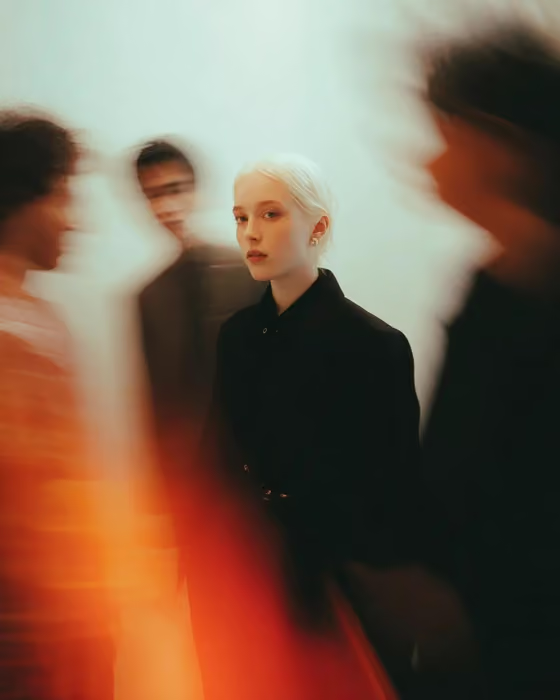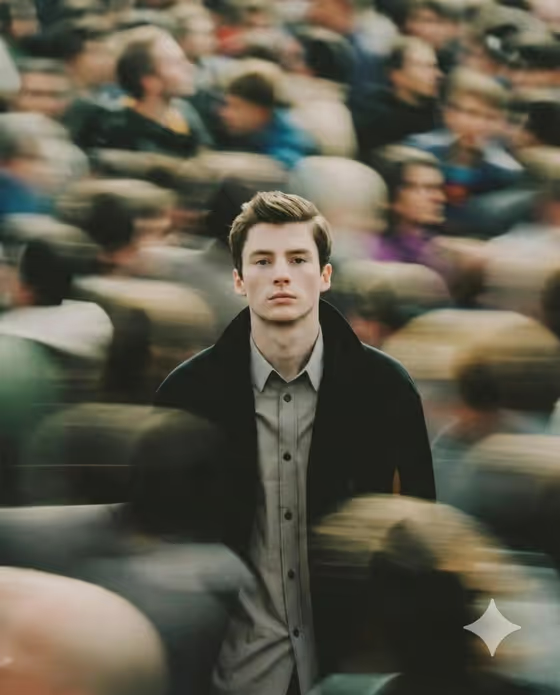
Crowd Freeze Portrait makes a 3:4 image of one calm figure standing sharp in the middle of a busy crowd, while the people around them smear into long streaks of motion. The cover shows the effect: a still, serious face and dark coat in focus, with warm, blurred heads and shoulders swirling behind and in front.
It suits anyone who wants an editorial or cinematic portrait with a sense of stillness amid chaos. Think profile pictures, album or story artwork, and moody social posts. You describe or upload your subject, pick a framing, and the template handles the long-exposure look.
What works best as input
- In the "young man portrait subject" field you can type a short description (the placeholder is "a young man") or upload a reference photo, since this slot accepts both.
- If you upload, choose a clear, well-lit shot where the face is fully visible and in focus. The template builds the whole scene around your subject, so a sharp starting point helps.
- A front-facing or slightly angled head-and-shoulders photo with a neutral, calm expression fits the look best, because the template aims for a serious, composed face.
- If you type instead, keep it simple and concrete, like "a young man" or "an editorial portrait subject". The wording of the scene, crowd and blur is already handled for you.
- Use a photo of yourself or someone who has agreed to be photographed, and keep the subject respectful and ordinary rather than a recognizable public figure.
How to use it
- Open the Crowd Freeze Portrait template in Phosphene.
- In "young man portrait subject", describe your subject in a few words or upload your reference photo.
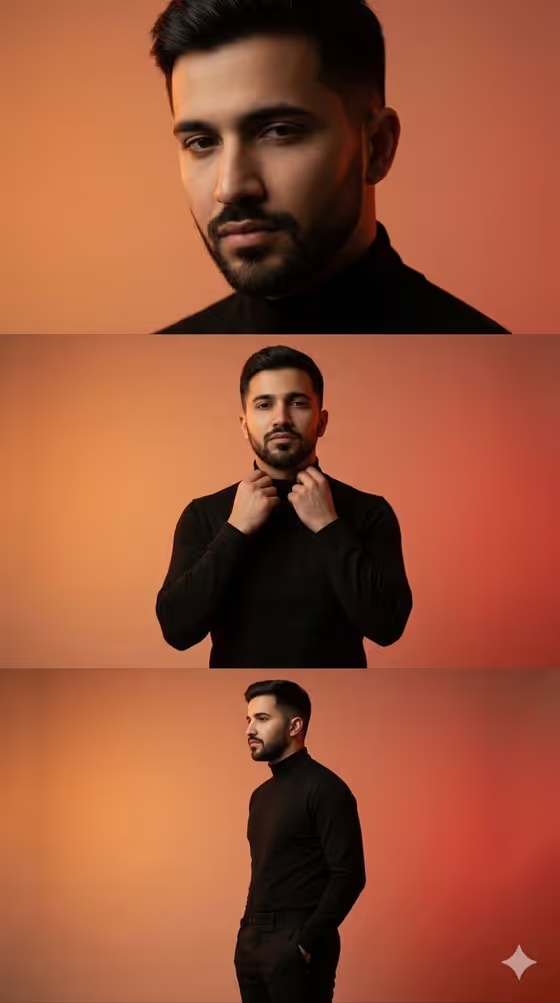
- In "Pose and scene", choose a framing option such as intimate close portrait, full-body editorial frame, or environmental candid frame.
- Generate the image, then check that the face is sharp, the crowd is streaked with motion, and the framing matches what you picked. Adjust your inputs and run it again if needed.
Tips for a better result
- Try each "Pose and scene" option on the same subject. A close portrait fills the frame with the face, while a full-body or environmental frame shows more of the crowd and the figure's coat and outfit.
- Keep the subject description short and clear. The template already fixes the dark coat, calm expression, soft natural light and long-exposure blur, so extra detail can compete with that look.
- If a result has a face that looks soft, try a different or sharper reference photo instead of describing more.
- Compare a text-only subject against an uploaded photo to see which gives the identity and mood you want.
Common mistakes
- Uploading a dark, blurry or heavily cropped photo, which gives the template little to keep sharp at the center.
- Writing a long description of the crowd or the background in the subject field. The crowd and blur are part of the fixed direction, so describe only the person.
- Expecting the figure to change pose or expression dramatically. The look is built around a still, calm, centered subject.
FAQ
Do I have to upload a photo?
No. The subject field accepts either a typed description or an uploaded reference, so you can start with text like "a young man" if you prefer.
What does the "Pose and scene" choice change?
It sets how the portrait is framed, with options like an intimate close portrait, a full-body editorial frame, or an environmental candid frame. The crowd blur and overall style stay the same.
What size and format is the result?
The template produces a still image in a 3:4 aspect ratio, which suits portrait-style posts and prints.
Can I use it for something other than a person?
The template is written as a portrait of a person standing still in a crowd, so it works best with a person as the subject.