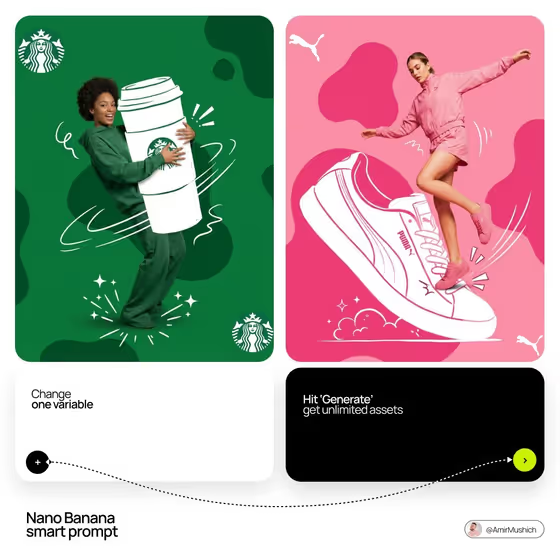
This template builds a square, mixed-media campaign panel: a real-looking person interacting with a large hand-drawn illustrated object, set against one flat color field. As the cover shows, the person hugs, holds or stands on a white line-drawn version of a brand's signature item (a giant cup, a giant sneaker), surrounded by organic blob shapes and small sparkle and motion doodles.
It suits designers, social media managers and brand teams who want a bold campaign-style asset without building the cutout and illustration by hand. You describe the brand and pick the palette, and the template decides which iconic object to draw and how the person physically interacts with it.
What works best as input
- In Brand Identity, describe the brand in a short phrase, like the examples "A boutique hospitality brand" or "A sustainable outdoor label". A clear brand type helps the template pick a recognizable object to illustrate.
- Brand Identity also accepts a photo. If you want an exact visual reference, add one that clearly shows the brand's look or product, with good lighting and nothing cluttering the frame.
- Be specific about what the brand is known for. The template looks for the single most iconic physical object, so a description that hints at the product or signature item gives it better material.
- For Color Palette, choose from the listed options or use the style of the examples, such as "Cobalt blue and warm cream" or "Forest green and sand". Two named colors read more reliably than a vague mood.
How to use it
- Open the Cutout Illustration Campaign template in Phosphene.
- Fill in Brand Identity with a short description of the brand, or add a reference photo if you have an exact visual to follow.
- Set Color Palette. The flat background and the darker blob shapes are built from this choice.
- Generate the image, then check that the illustrated object is large, the person's interaction with it is clear, and the colors match what you chose.
Tips for a better result
- Try the same brand with different palettes, such as "Burgundy and blush" versus "Monochrome black and white". Changing only one input is an easy way to build a consistent set of campaign variations.
- Aim for high contrast between the white linework and the background. Saturated palettes make the drawn object stand out the way it does on the cover.
- If the chosen object isn't what you wanted, add a clue about the brand's best-known product in Brand Identity and generate again.
- Use the square output for feed posts, then reuse the same brand with new palettes to make a matching series.
Common mistakes
- Writing a vague or very generic brand description. Without a recognizable product, the template has less to work with when choosing the illustrated object.
- Picking a muddy or low-contrast palette. The blobs are meant to be a darker shade of your palette, so two near-identical colors can make the panel flat and hard to read.
- Expecting the template to draw a logo or an animal. The direction asks for a large, tangible object the person can physically interact with.
FAQ
Do I have to upload a photo?
No. Brand Identity is a text field, and you can simply describe the brand. It also accepts a photo if you want to give an exact visual reference.
Can I choose which object gets illustrated?
The template selects the object itself based on your brand description. To steer it, mention the brand's signature product or item in Brand Identity.
What shape is the result?
The output is a single square image (1:1), designed as a flat-color panel with blob shapes and a person interacting with a drawn object.
How do I get a different look from the same brand?
Change the Color Palette and generate again. You can also tweak the wording in Brand Identity to nudge a different object or feel.