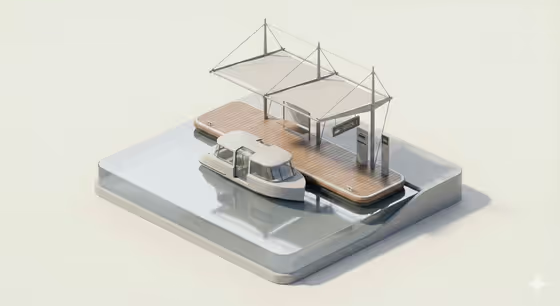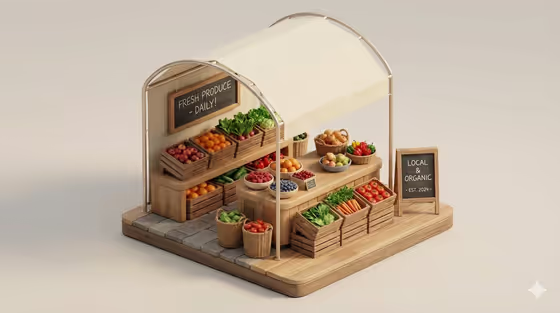
Minimal Product Isometric Diorama turns a subject and a featured object into a small, rounded miniature scene on a neutral background. The cover shows the idea well: a tiny market stall built as a tidy architectural model, with smooth wood, soft studio light and carefully placed props.
It suits anyone who wants a clean product-style visual with a handmade model feel, such as makers presenting an object, creatives building a portfolio piece, or anyone who likes the look of a miniature set. You choose who or what the scene centers on, the product or prop that features in it, and the mood of the styling.
What works best as input
- The Portrait subject and Featured product or prop fields both accept a photo or a text description. This template asks for two or more photos, so providing a photo for each is a good starting point.
- For the subject, use a clear, well-lit photo where the person or main subject is fully visible and not cropped awkwardly. A plain background helps the model read the shape cleanly.
- For the featured product or prop, photograph the object on its own so its outline, material and any branding are easy to see. A single sharp shot works better than a busy flat lay.
- If you describe instead of uploading, be concrete. The field examples, such as a premium beverage bottle or a sculptural fashion accessory, show the level of detail that works.
- Keep respect in mind with people's photos: use pictures of yourself or of people who have agreed to be included.
How to use it
- Open the Minimal Product Isometric Diorama template in Phosphene.
- Fill in Portrait subject and Featured product or prop by adding a photo or typing a short description for each.
- Pick a Creative direction, such as Clean editorial, Cinematic dramatic, Playful colorful or Quiet premium.
- Generate the image, then review the result and adjust your inputs or direction if you want a different look.
Tips for a better result
- Match the direction to your goal. Quiet premium suits a refined product feel, while Playful colorful pushes toward brighter, friendlier styling.
- Choose a featured prop with a recognizable silhouette. Distinct shapes tend to read better when scaled down into a miniature.
- Try the same subject with different directions to compare moods, then keep the version that fits your use.
- Keep descriptions short and specific rather than listing many objects, since the scene is built around one subject and one featured item.
Common mistakes
- Using blurry, dark or heavily cropped photos, which leaves the model little to work from and can blur the subject or product.
- Writing vague descriptions like "something nice" instead of naming a specific subject and object.
- Overloading the Featured product or prop field with several items, which works against the minimal, single-focus look of the template.
FAQ
Do I have to upload photos?
The template is set up for two or more photos, but the subject and product fields also accept a typed description, so you can describe what you want in text.
What does the finished image look like?
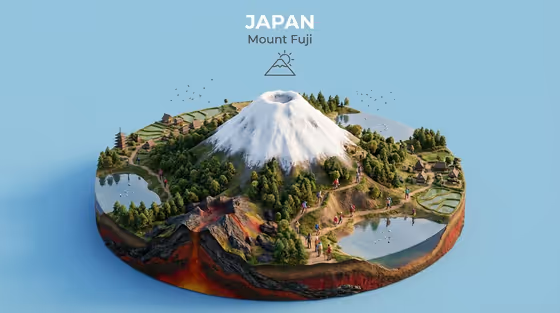
It is a 3:4 image of a rounded miniature diorama on a neutral background, with soft studio lighting, realistic materials and smooth, architectural detail.
What does Creative direction change?
It sets the mood of the styling. The listed options are Clean editorial, Cinematic dramatic, Playful colorful and Quiet premium.
Can I use any object as the featured prop?
You can describe or upload any product or prop you like. Objects with a clear shape and material, like a bottle, accessory or device, are good fits.