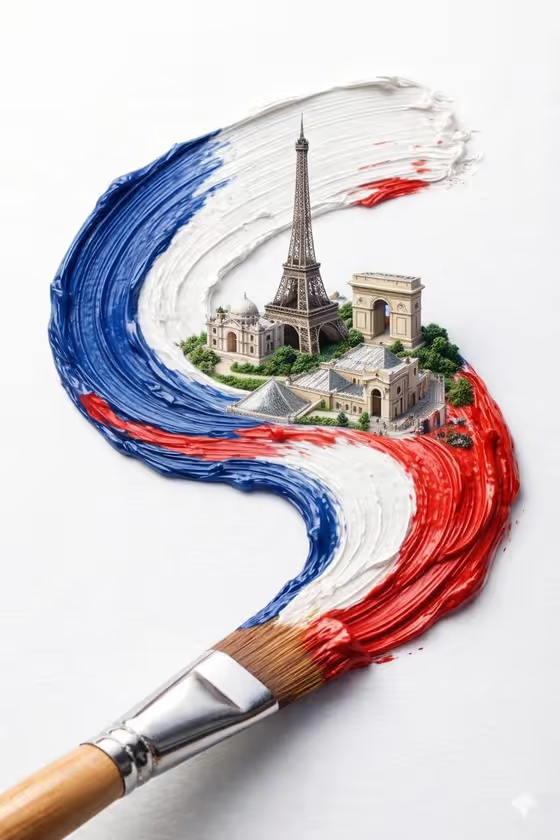
Flag Brush City turns a country name and a few landmarks into a macro image of a paintbrush dragging a thick acrylic stroke in that country's flag colors. A tiny, detailed skyline rises out of the wet paint, as in the cover image where the Eiffel Tower and neighboring monuments sit inside a blue, white and red swirl on a plain white surface.
It suits travel and tourism posts, national day graphics, cultural campaigns, classroom projects and anyone who wants a polished, art-directed visual of a place without building it from scratch. You only describe the country and the landmarks, and the template handles the paint, brush and lighting.
What works best as input
- In Country Name, type the country the flag belongs to, as the placeholder does with JAPAN. A clear, common country name gives the template the best chance of choosing the right flag colors.
- In Iconic Landmarks, list two or three recognizable places, separated by commas, like the examples (Tokyo Tower, Mount Fuji, and Sensō-ji). Landmarks that are visually distinct from each other read well at miniature size.
- The Iconic Landmarks field also accepts a photo, so if you have a clear reference picture of a monument, you can add it there instead of or alongside the text. Pick a photo where the building is fully visible and not heavily cropped.
- Keep the landmarks consistent with the country you entered. Matching them, as in the Eiffel Tower, Arc de Triomphe and Louvre Pyramid example, gives a coherent skyline.
How to use it
- Open the Flag Brush City template in Phosphene.
- Type the country in Country Name, for example JAPAN.
- Fill in Iconic Landmarks with two or three places, or use one of the example sets as a starting point. You can also add a photo of a landmark in this field.
- Generate the image, then check that the flag colors, the brush stroke and the skyline match what you intended before using it.
Tips for a better result
- Start from the provided examples (such as Big Ben, Tower Bridge, and St Paul's) and swap in your own landmarks to see how the skyline composition changes.
- Limit yourself to around three landmarks. A short list keeps each building readable inside the small stroke instead of crowding the scene.
- Try the same landmarks with a different country name or vice versa to compare how the paint colors and the skyline interact, then keep the version that looks most accurate.
- Use specific landmark names rather than general words like old buildings, so the architecture comes out recognizable.
Common mistakes
- Entering a country and landmarks that do not belong together, which can produce a confusing mix of flag colors and monuments.
- Listing too many landmarks in Iconic Landmarks, which makes each one tiny and hard to recognize.
- Leaving either field empty. Both Country Name and Iconic Landmarks are required.
FAQ
What does the finished image look like?
It is a macro-style image of a paintbrush laying down a thick, glossy acrylic stroke in the flag colors on a white background, with a miniature skyline of your chosen landmarks rising inside the paint.
Can I upload a photo?
Only in the Iconic Landmarks field, which accepts a photo as well as text. Country Name is text only.
What should I write in Iconic Landmarks?
A short comma-separated list of well-known places, like Colosseum, Pantheon, and St Peter's. The field's examples show the format.
Does it work for any country?
You can enter any country name, but results depend on how recognizable the flag and landmarks are, so check the output carefully for accuracy.