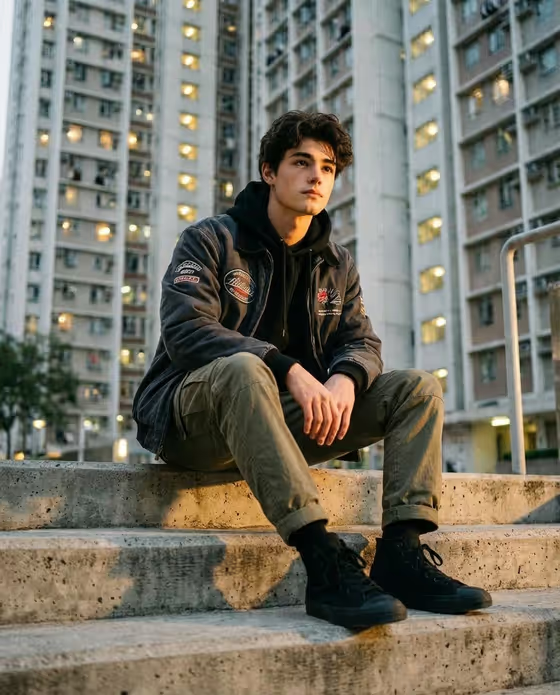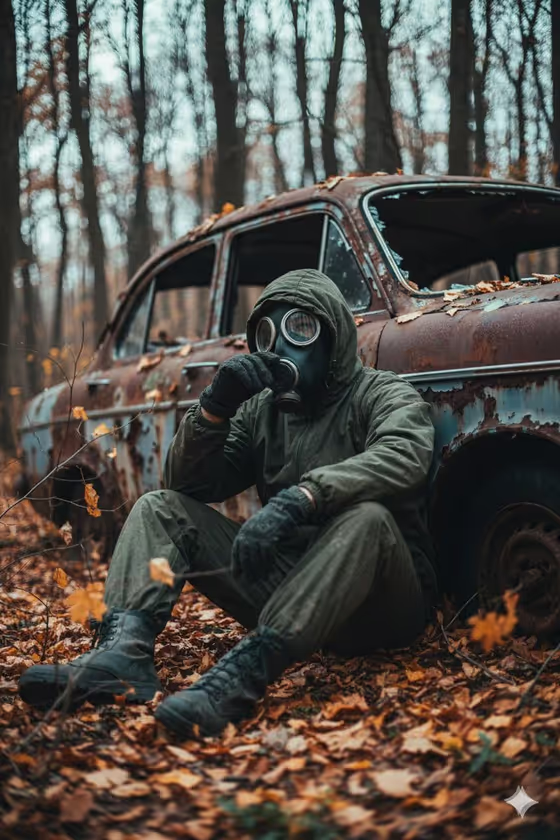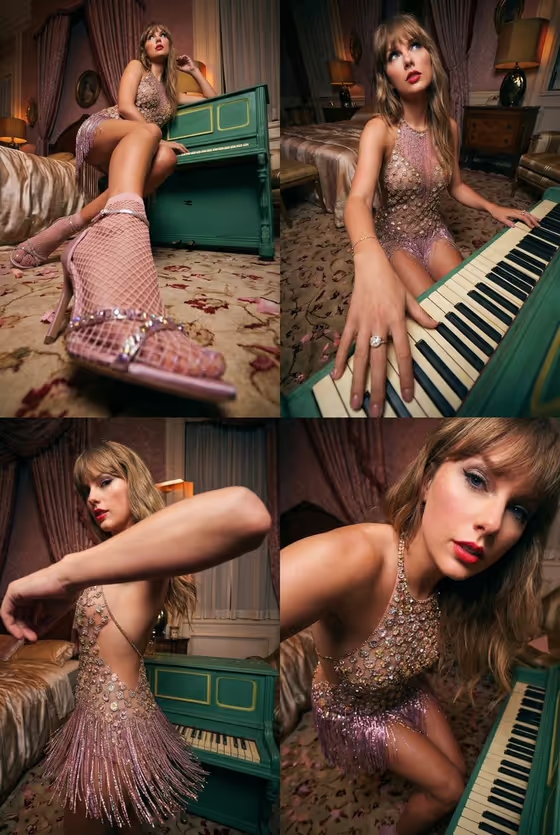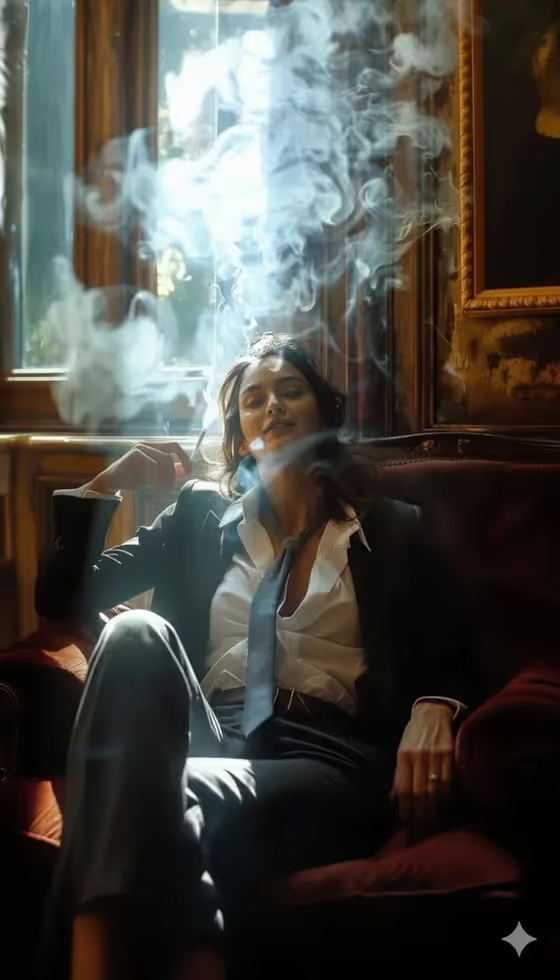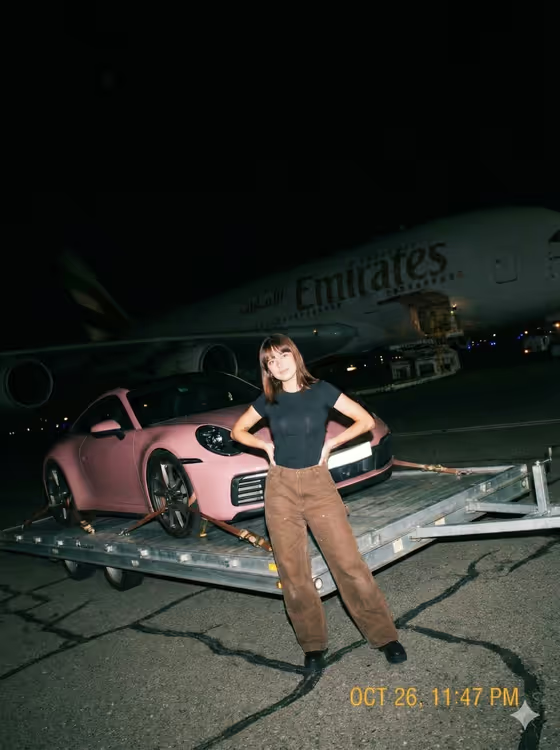
Flash Tarmac Fashion turns a photo of you into a gritty, handheld-looking night shot on an airport tarmac. The scene puts you next to a pink Porsche 911 on a flatbed trailer, with a large jet looming in the dark behind you and a harsh on-camera flash lighting you up.
It suits anyone who wants a candid, slightly crooked, snapshot-style fashion portrait with a spontaneous feel. The output is a 3:4 image, so it works well for vertical posts and profile photos.
What works best as input
- Upload one clear photo of the person you want in the scene. The template asks for a single reference image.
- Pick a photo where the face is well lit and not hidden by sunglasses, a hat or heavy shadow, so the likeness carries over cleanly.
- Use a photo of an adult. The Portrait subject examples are all adults, and the scene is styled as an adult fashion snap.
- If you describe the subject instead of relying only on the photo, keep it short and plain, such as the default 'an adult woman matching my reference'.
- A photo that already shows a natural pose gives the Pose or expression field something real to work from when you keep 'the source pose and energy'.
How to use it
- Open the Flash Tarmac Fashion template in Phosphene.
- In the Portrait subject field, upload your photo or describe the subject. The placeholder 'an adult woman matching my reference' shows the kind of wording that fits.
- Set Pose or expression. Keep 'the source pose and energy' to follow your photo, or try 'calm editorial stillness', 'confident direct presence' or 'candid spontaneous energy'.
- Generate the image, then review the result and adjust the two fields and run it again if the look or pose is not what you wanted.
Tips for a better result
- Try each Pose or expression option in turn. 'Candid spontaneous energy' suits the crooked, unplanned snapshot feel the template aims for.
- Keep the Portrait subject description short and consistent with your photo so the template's fixed scene stays the focus.
- Expect a hard flash look with blown highlights on you and deep shadows behind. The jet is meant to sit mostly swallowed by darkness, so don't expect a sharp, fully lit aircraft.
- Run the template with a few different source photos and compare. Small changes in lighting and angle in your upload can shift how the final portrait reads.
Common mistakes
- Uploading a dark, blurry or heavily filtered photo, which gives the template little to work with for the face.
- Writing a long, detailed description in Portrait subject that fights the fixed scene. The tarmac, car and jet are already set by the template.
- Expecting a clean, evenly lit studio result. The harsh flash and rough framing are part of the intended style.
FAQ
Do I need to upload a photo?
The Portrait subject field accepts a photo, and the template is set up around uploading one reference image. You can also describe the subject in text.
Can I change the car or the airplane?
No. The pink Porsche 911 on a flatbed and the jet in the background are part of the template's fixed direction. You control the subject and the pose or expression.
What does the Pose or expression field do?
It sets the energy of the shot. Options include keeping the source pose, calm editorial stillness, confident direct presence, or candid spontaneous energy.
What shape is the image?
The output is a single image in a 3:4 vertical format.