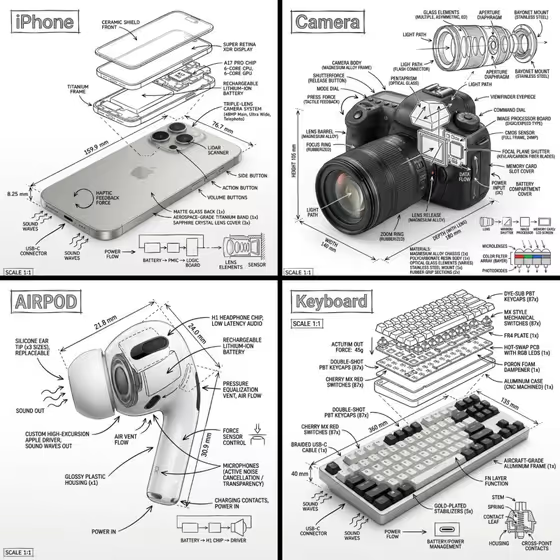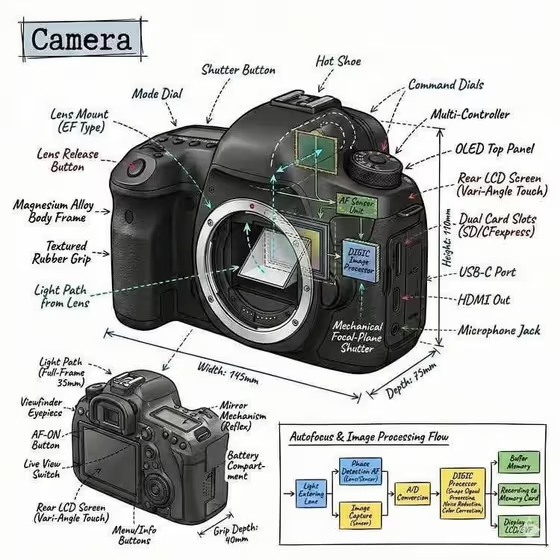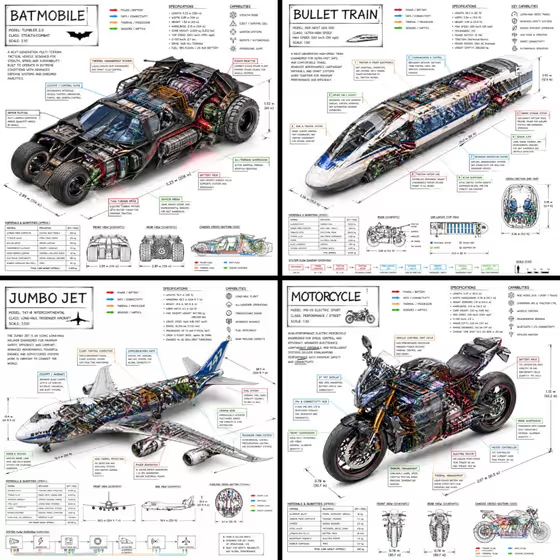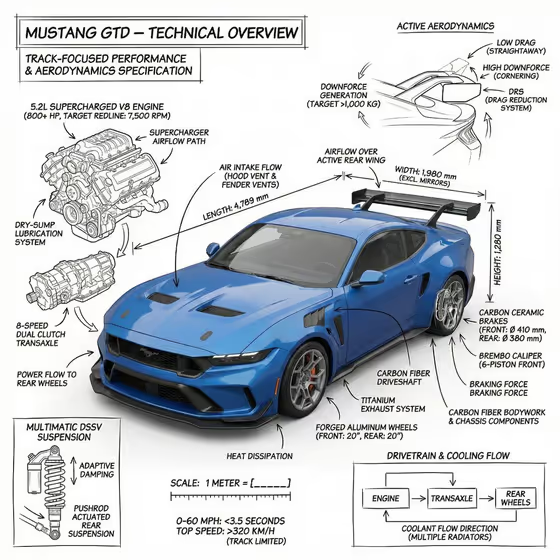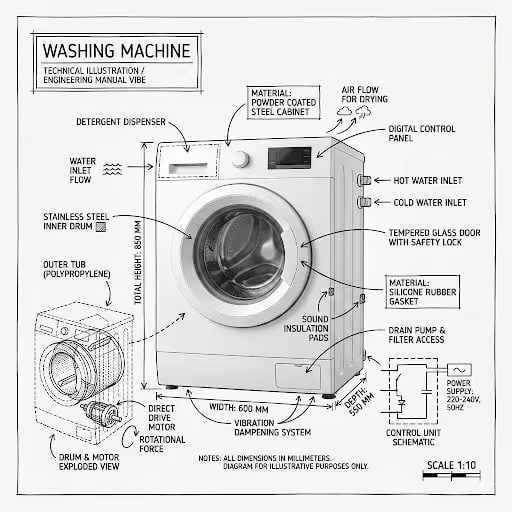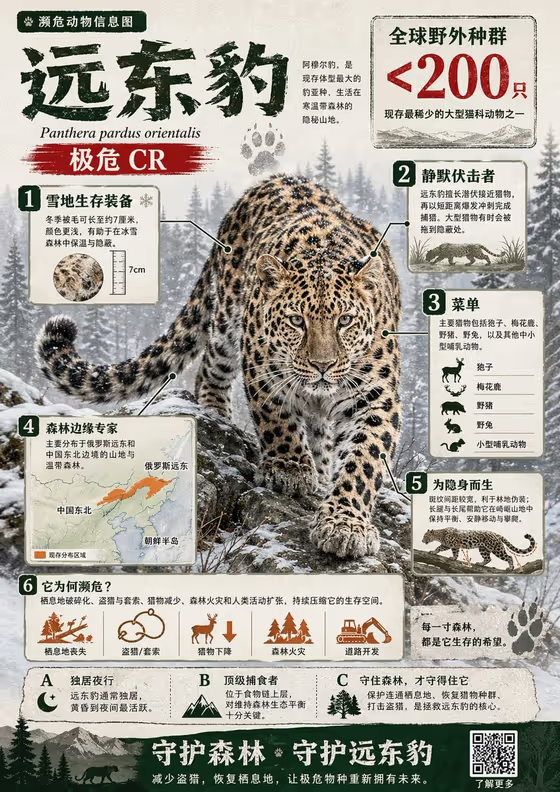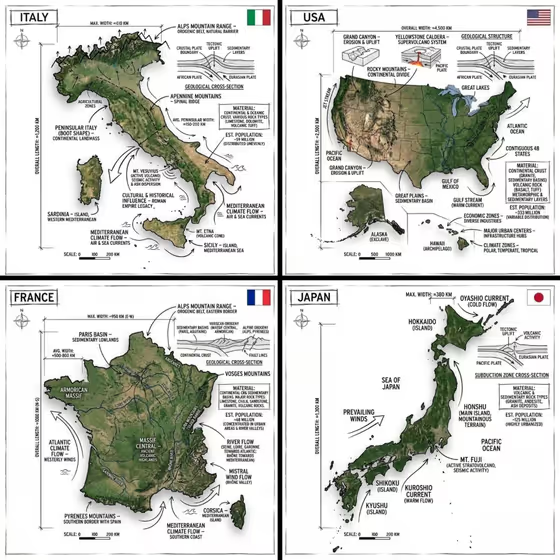
This template turns a single subject into a technical infographic. A realistic photo or photoreal render sits on a pure white studio background, with black ink-style labels, measurement lines, arrows and small schematic diagrams drawn directly on top, like a field sketch over a photograph.
It suits anyone who wants an explainer-style visual of a product or object, such as a premium bottle, a compact device or a branded item. The cover example shows four countries as map panels, each with callouts for features, flow arrows, scale bars and a small flag, which gives a good sense of how dense and organized the annotation can get.
What works best as input
- For the Featured product or object field, you can upload a photo or describe the item in text. A clear, single subject works best, since the annotations are placed on top of it.
- Pick a photo where the object fills most of the frame, is sharply lit and sits against a plain or uncluttered background. The result is built on a white studio look, so busy surroundings add nothing.
- If you type instead, be specific about the object and its material, for example the placeholder style 'a premium beverage bottle' or 'a compact consumer device'. Specific nouns give the callouts more meaningful things to label.
- Choose subjects with visible parts, layers or functions (components, materials, flow of air or power). The overlay style includes cutaways, exploded-view outlines and arrows, so objects with something to explain tend to read best.
How to use it
- Open the Infographic Image Of Combining template in Phosphene.
- In Featured product or object, upload a photo of your item or type a short description of it.
- In Creative direction, choose or write a mood such as Clean editorial, Cinematic dramatic, Playful colorful or Quiet premium.
- Generate the image, then check that the labels, arrows and measurements sit sensibly on the subject and that the 3:4 composition suits where you plan to use it.
Tips for a better result
- Try the same object with different Creative direction values. Clean editorial and Quiet premium suit a restrained look, while Playful colorful pushes the mood in another direction.
- Use a high-quality source photo with clear material detail. The template aims to preserve the source's composition, material treatment and lighting, so a good input carries through.
- Name the object's distinctive features in your description (for example a sculptural shape or a branded surface) so the annotations have something specific to point at.
- The prompt asks for a small country flag, so a subject with a clear place of origin or a national theme, like the maps in the cover, fits naturally.
Common mistakes
- Using a cluttered or low-resolution photo. Annotations are laid over the subject, so a muddy or crowded source makes the result harder to read.
- Writing a vague description such as 'a thing'. Without a clear object, the labels and diagrams have little to anchor to.
- Expecting exact, factual measurements. The dimensions and callouts are part of a stylized illustration, so verify any numbers before using them as real specifications.
FAQ
Do I have to upload a photo?
No. The Featured product or object field accepts either a photo or a text description, so you can type something like 'a compact consumer device' instead.
What does the output look like?
A 3:4 image with a realistic subject on a white background, covered with black ink-style labels, arrows, measurements and small schematic or cutaway diagrams, plus a small flag.
What does Creative direction change?
It sets the overall mood of the visual. Examples include Clean editorial, Cinematic dramatic, Playful colorful and Quiet premium.
Can I use it for things other than products?
The field is labeled for a product or object, but the cover shows it applied to country maps. Keep your subject concrete and describable so the annotations make sense.