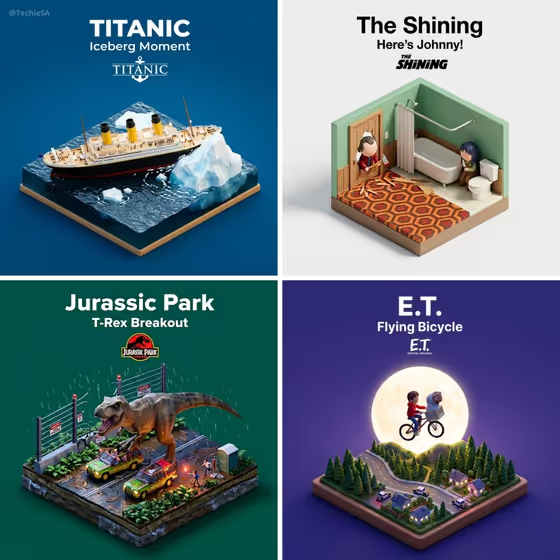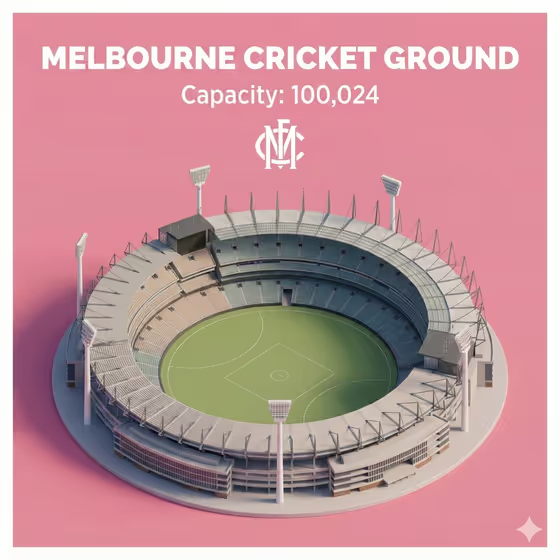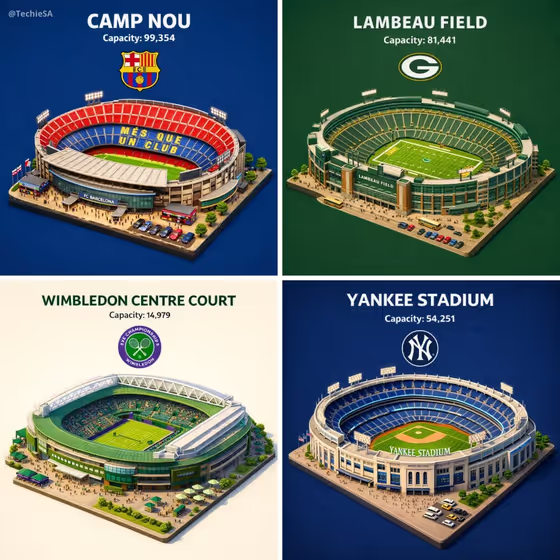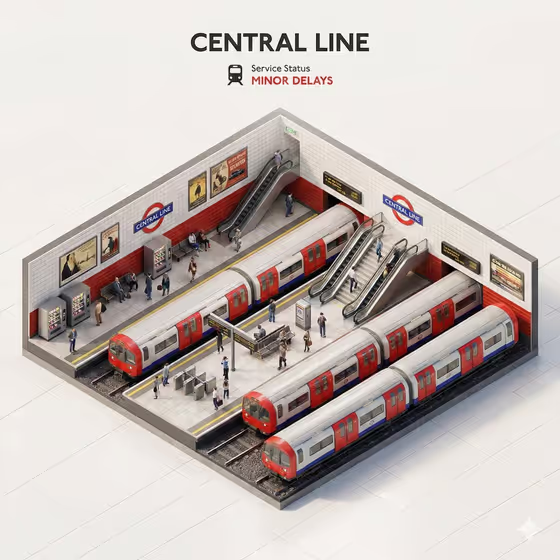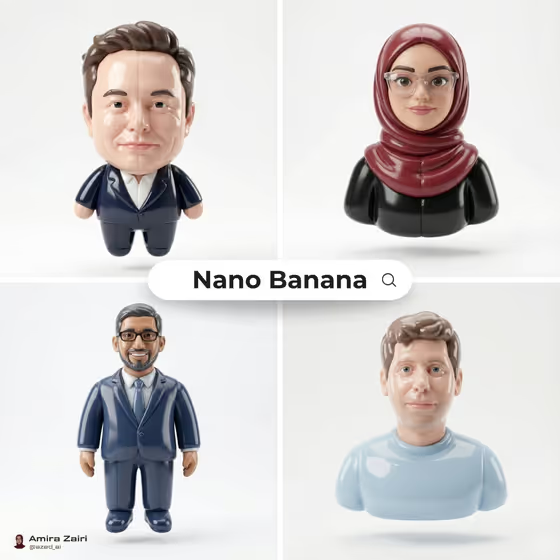
This template turns a subject into a glossy, pillowy designer collectible, like a balloon-vinyl toy floating against a quiet light-grey studio backdrop. The cover image shows the look: smooth rounded forms, high shine, soft shadows, and cute toy-like proportions, delivered as a square image.
It suits anyone who wants a stylized collectible version of a character, mascot, or everyday object, whether for a profile picture, a concept mock-up, or just for fun. You choose the subject, the vinyl color, and how the panels or seams look, and the template handles the rest.
What works best as input
- The Collectible product subject field accepts either a short description or a reference photo. Use a photo when you want the collectible to keep a specific character's or object's recognizable look.
- If you upload a photo, pick one where the subject is clearly visible and fills most of the frame, so the silhouette can be preserved while the shapes get rounded.
- If you type instead, be concrete and short, like the examples "a retro camera" or "a small robot" rather than a long scene description.
- Only use photos of people you have the right to use, and keep the subject respectful. A simple, evenly lit photo gives the cleanest starting point.
- Avoid busy backgrounds in your reference, since the template places the subject alone on a plain grey backdrop.
How to use it
- Open the Inflated Designer Collectible template in Phosphene.
- Fill in Collectible product subject by typing a description or adding a reference photo, then pick or type a Glossy vinyl color such as butter yellow or powder blue.
- Enter a Panel treatment, for example subtle stitched quadrants or minimal inflated seams, then generate the image.
- Review the square result and check that the silhouette, color, and seam style match what you wanted. Adjust a field and generate again if needed.
Tips for a better result
- Try different vinyl colors on the same subject. Soft shades like powder blue or soft lavender read differently from bold ones like cherry red.
- Vary the Panel treatment to change the construction feel. "Rounded toy paneling" and "soft segmented construction" suggest different seam styles than stitched quadrants.
- Pick subjects with a clear, simple silhouette. The template keeps the recognizable outline while rounding every form, so distinctive shapes translate best.
- Keep the color to a single clear choice. One named vinyl color gives a more cohesive, toy-like finish than a mix.
Common mistakes
- Writing a long, detailed scene in the subject field. The backdrop and lighting are fixed, so extra setting details add nothing and can distract from the subject.
- Using a cluttered or dark reference photo, which makes the subject's outline harder to read before it gets inflated.
- Expecting text, logos, or a custom background. The template keeps the result as a clean collectible on plain grey with no text or watermark.
FAQ
Can I use a photo instead of typing a description?
Yes, for the Collectible product subject field. The color and panel treatment fields are text or choice only.
What shape is the output?
A square 1:1 image of a single collectible floating on a grey studio backdrop.
Can I change the background or add text?
No. The backdrop is fixed as plain grey with soft shadows, and the result has no text, logo, or watermark.
What should I enter for Panel treatment?
A short phrase describing the seams or construction, like subtle stitched quadrants, rounded toy paneling, or minimal inflated seams.