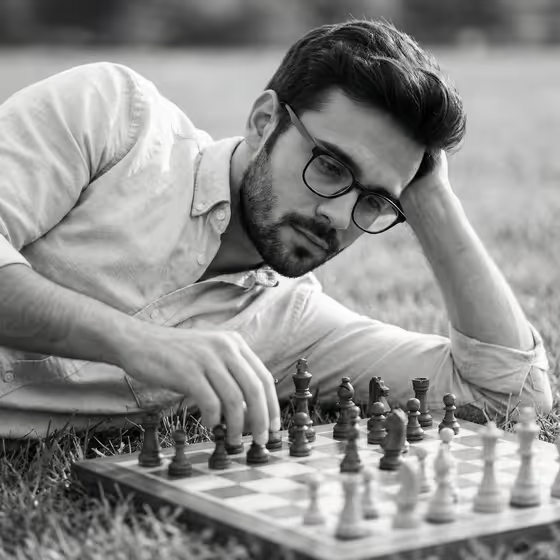
Grass Chessboard Portrait turns a photo or short description of a person into a quiet, black-and-white editorial scene. Your subject lies on the grass at ground level, head resting on one arm, studying a wooden chessboard in the foreground while the chess pieces blur softly in front of them.
Your own phrase is worked into the image as crafted lettering in the material finish you choose. It suits personal branding shots, author or creator portraits, and anyone who wants a moody, reflective portrait with a short line of text built in. The output is a 3:4 image.
What works best as input
- For the Subject field, you can upload a reference photo or type a short description of the person. A clear, well-lit photo where the face is easy to see gives the template the most to work from.
- If you describe instead of uploading, keep it simple and respectful, such as the placeholder style 'A confident adult' or 'A poised creative professional'. A few words about the person's character is enough.
- Keep the Phrase short. The cover example uses a brief line like 'Create Boldly', and shorter text is easier to render cleanly as lettering.
- For Material Finish, name a specific look. 'Polished metallic lettering' is the suggested starting point, and you can describe another finish in the same plain way.
How to use it
- Open the Grass Chessboard Portrait template in Phosphene.
- Fill in the Subject field by describing the person or adding a reference photo, then type the exact words you want in the Phrase field.
- Enter your choice in Material Finish, for example 'Polished metallic lettering', and generate the image.
- Review the result, checking that the phrase is spelled correctly and the face and lettering both look right. Adjust the fields and generate again if needed.
Tips for a better result
- Try different Material Finish entries with the same photo and phrase to compare how the lettering changes the mood of the portrait.
- Test a few Phrase options, such as a motto, a name, or a single word, and keep the one that reads best against the scene.
- Use a Subject photo with calm, thoughtful lighting. The template is built around a contemplative, slightly melancholic mood, so a relaxed expression fits it well.
- Remember the look is fixed as high-contrast black and white. Choose finishes and phrases that read well in grayscale rather than relying on color.
Common mistakes
- Writing a long sentence in the Phrase field. Long text is harder to render accurately, so trim it down to a few words.
- Leaving the Subject vague or uploading a very dark, blurry photo, which gives the portrait less to hold onto.
- Misspelling the phrase. The template renders exactly what you type, so double-check spelling and capitalization before generating.
FAQ
Do I have to upload a photo?
No. The Subject field accepts either a text description of the person or a reference photo. The Phrase and Material Finish fields are text only.
Can I change the black-and-white look?
The template's direction is a high-contrast black-and-white editorial rendering, so the monochrome style is part of the design.
What should I put in Material Finish?
Describe the finish you want for the lettering. The suggested example is 'Polished metallic lettering', and you can try other short descriptions in the same style.
What shape is the final image?
The output is a single image in a 3:4 aspect ratio.