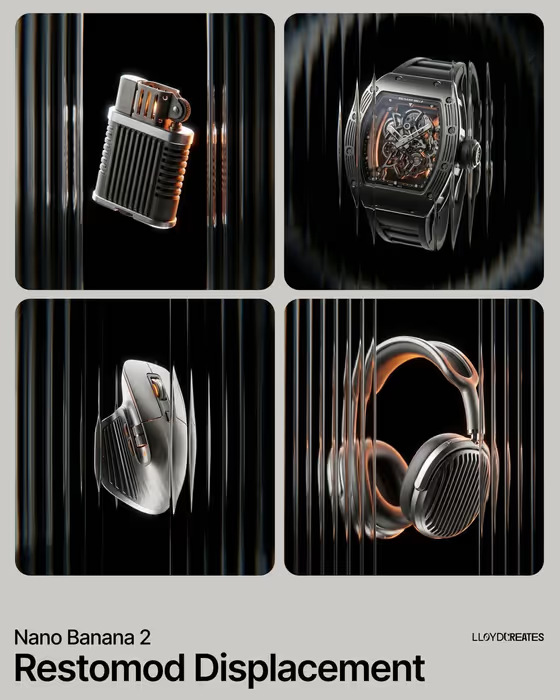
This template places a single product in a pitch-black void, floating and unsupported, as if seen through a pane of ribbed glass. The cover shows four examples: a lighter, a skeletonized watch, a mouse and a pair of headphones, each with soft orange light glowing from its seams and recesses and vertical streaks of glass bending the edges.
It suits anyone who wants a dramatic, moody product image for a concept render, a portfolio piece or a launch visual. You describe the object or use a reference photo of it, then choose the surface material, the glow color and the type of glass distortion.
The result is a single wide 16:9 image with the product kept fully visible and centered.
What works best as input
- In the Industrial product object field you can type a short description (for example, a compact audio device) or upload a photo of the exact product you want to see levitating.
- If you upload a photo, pick one where the whole object is visible and clearly lit, so its shape and proportions carry over. The template keeps the full product in frame, so a cropped reference gives it less to work from.
- A single object on a plain background works best. Hands, clutter or several products in one photo make it harder to know which item should float.
- If you type instead, name the object plainly and add one or two physical details, such as a precision coffee grinder or a modular desk light. Skip brand names and logos, since the template adds no logos or text.
How to use it
- Open the Industrial Product Through Fluted Glass template in Phosphene.
- Fill in Industrial product object by typing a description or uploading a reference photo of your product.
- Set Industrial material treatment, Internal accent glow and Foreground glass distortion. Each one has suggested options, such as shot-blasted titanium and cooling fins, soft orange and vertical fluted glass.
- Generate the image, then check that the whole product is visible and centered, the glow comes from the seams and the glass distortion looks the way you wanted.
Tips for a better result
- Match the material to the object. Brushed aluminum with dark anodized ribs suits a desk device, while blackened steel with machined knurling suits something tool-like.
- Try different glow colors on the same product. Soft orange gives the warm look from the cover, while electric blue or acid green changes the mood a lot.
- Change only the glass distortion to compare looks. Fine prismatic reeding, wide rippled glass and smoked ribbed glass each bend the edges differently while the product stays the same.
- If you like a result, keep the product and material fixed and vary just one other field, so you can see exactly what each choice does.
Common mistakes
- Describing a scene instead of an object. The template already sets a black void, so adding floors, tables, hands or props works against the fixed direction.
- Uploading a reference where the product is cropped or partly hidden, which leaves the template without the full shape it needs to keep visible.
- Changing several fields at once and then not knowing which choice caused the look you liked or disliked.
FAQ
Can I use my own product photo?
Yes. The Industrial product object field accepts either a text description or an uploaded reference of the exact product. The other three fields are choices, not photo uploads.
Will my logo or text appear on the product?
No. The template's fixed direction says no logos or added text, so the product is shown as a clean form.
What shape is the output?
A single image in 16:9, with the product centered and fully visible against a dark background.
Can I change the glow color?
Yes. Internal accent glow lets you choose the light that comes from the seams and recesses, for example soft orange, electric blue, acid green or deep crimson.