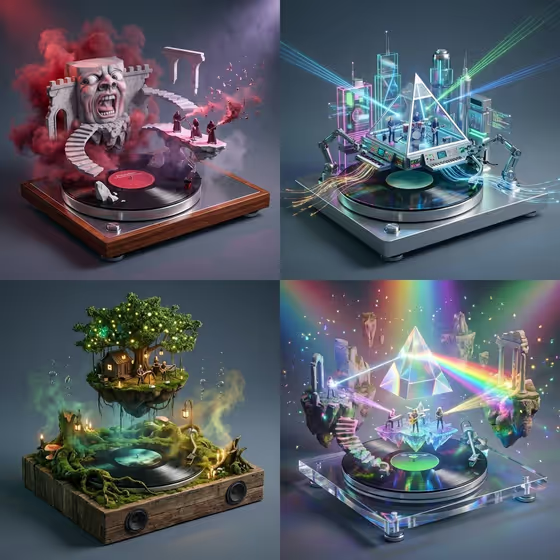
This template turns a band or artist name into a single 16:9 image split into a 2x2 grid. Each quadrant is a small diorama built on a record player, with miniature scenes, tiny figures and materials that echo the sound of a lesser-known album from that artist's world.
It suits music fans, album-art lovers and anyone who wants a poster, cover or social visual built around a favorite act. You give it a name and a creative direction, and the grid comes back with four distinct scenes, like the foggy ruin, the glowing circuit stage, the mossy floating tree and the prism of light in the sample image.
What works best as input
- This template has no photo upload. Both fields are text, so all your control comes from what you type.
- In Rendered name or title, enter the band or artist name in plain capital letters, like the placeholder AURORA. Keep it short and exact so the name reads clearly.
- Pick a name with a recognizable sound. A strong genre identity (psychedelic, metal, synth-pop and so on) gives the four scenes clearer materials and moods.
- Avoid long phrases or extra words in the name field. Examples like STORY IN MOTION or THE NEXT CHAPTER show that short, title-style text works best.
- For Creative direction, choose a mood word or short phrase such as Clean editorial, Cinematic dramatic, Playful colorful or Quiet premium.
How to use it
- Open the Instructions Input Variable template in Phosphene.
- Type the band or artist name into Rendered name or title.
- Set Creative direction by picking one of the options or entering your own short description of the mood.
- Generate the image, then look over all four quadrants. If one scene or the overall mood is off, adjust the fields and run it again.
Tips for a better result
- Try the same artist with different directions. Cinematic dramatic and Playful colorful will push the lighting and color of the four dioramas in very different ways.
- Choose artists from different genres to see how the materials change. The cover shows how each quadrant gets its own texture, from smoky stone to glass and light to moss and wood.
- Use Quiet premium or Clean editorial when you want a calmer, more polished look for a poster or profile header.
- Keep the name exactly the way you want it rendered. If you change the spelling or capitalization, expect the result to change too.
Common mistakes
- Entering a long sentence in the name field. It is meant for a short name or title, not a description.
- Using a very vague direction. A clear mood phrase gives the four scenes a shared look, while a vague one leaves more to chance.
- Expecting the same four albums every time. The grid is a fresh take on deep cuts, so each run can shift the scenes.
FAQ
Do I need to upload a photo?
No. This template has no photo slot. You only fill in two text-based fields, the name or title and the creative direction.
What does the output look like?
It is one 16:9 image arranged as a 2x2 grid, with each quadrant showing a small diorama scene set on a turntable.
Does it pick the albums for me?
Yes. The template is designed to choose four lesser-known deep-cut directions related to your chosen artist's sound and turn each into its own scene.
Can I use something other than a band name?
The template is built around a band or artist, so that is where it works best. Other short titles may give less predictable scenes.