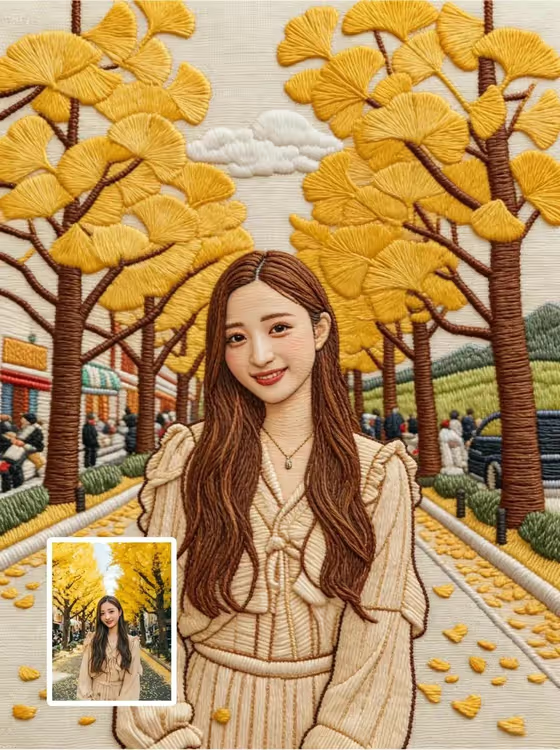
This template turns a portrait photo into a piece of hand-embroidered art. The result looks like it was stitched on fabric, with visible satin stitches, layered thread for gradients, and a soft sheen on the thread. The cover example shows a woman in a cream ruffled top standing under yellow ginkgo trees, with the original photo inset in the corner.
It suits anyone who wants a textile-style version of a favorite portrait, such as a travel photo, a profile picture, or a gift idea. The template asks you to keep the person's face, hair, outfit, and pose as they appear in the photo, so the focus stays on translating your picture into thread rather than reimagining it.
What works best as input
- Use a clear photo where the face is sharp, well lit, and fully visible. The template treats your upload as a strict reference, so what you give it is what gets stitched.
- Pick a photo where the pose and outfit are ones you want to keep. Hairstyle, clothing, and proportions are carried over, as in the cover example where the long hair and ruffled top are preserved.
- In the Subject field you can add a photo as a visual reference or write a short description such as "A confident adult". A photo is the better choice when you want a recognizable likeness.
- Photos with a defined background, like the tree-lined street in the cover, give the embroidery more to work with and make the finished piece feel complete.
- Only use photos of yourself or people who have agreed to it, and keep the photo respectful and appropriate.
How to use it
- Open the Hand Embroidery Character Portrait template in Phosphene.
- In the Subject field, add your portrait photo as the reference, or type a short description of the person.
- In the Setting field, choose a setting from the options, for example a minimal gallery environment, a clean studio, a misty natural landscape, or a refined architectural interior.
- Generate the image, then review the 3:4 result. Check that the face, hair, and outfit match your photo, and try again with a different photo or setting if you want a different look.
Tips for a better result
- Try the same photo with different settings. A misty natural landscape and a clean studio will give very different backdrops around the same stitched figure.
- Choose photos with strong color areas, like the yellow leaves in the cover, since thread colors and layered gradients read well when the palette is bold.
- Zoom in on the result to inspect the stitch direction on the face and hair. Sharper, higher resolution source photos tend to give you more to compare against.
- If the first result drifts from your photo, try a photo with simpler framing and a more direct view of the face.
Common mistakes
- Using a blurry, heavily filtered, or low-light photo. The template follows the reference closely, so unclear details in the photo will be unclear in the embroidery.
- Relying only on a vague text description when you want a specific person. Without a photo reference, the Subject is interpreted loosely.
- Expecting the template to change the pose, outfit, or face. It is built to preserve these as shown, so use a different photo if you want something different.
FAQ
Do I have to upload a photo?
The Subject field accepts either a photo reference or a text description. For a result that resembles a specific person, a photo is the better input.
Will it change how my face looks?
The template is set to keep facial structure, expression, skin tone, hairstyle, outfit, and pose as shown, only translating them into embroidery.
What does the Setting field control?
It sets the environment around your subject. You choose from the listed options, such as a clean studio or a misty natural landscape.
What shape is the output?
The result is a single image in a 3:4 portrait ratio.