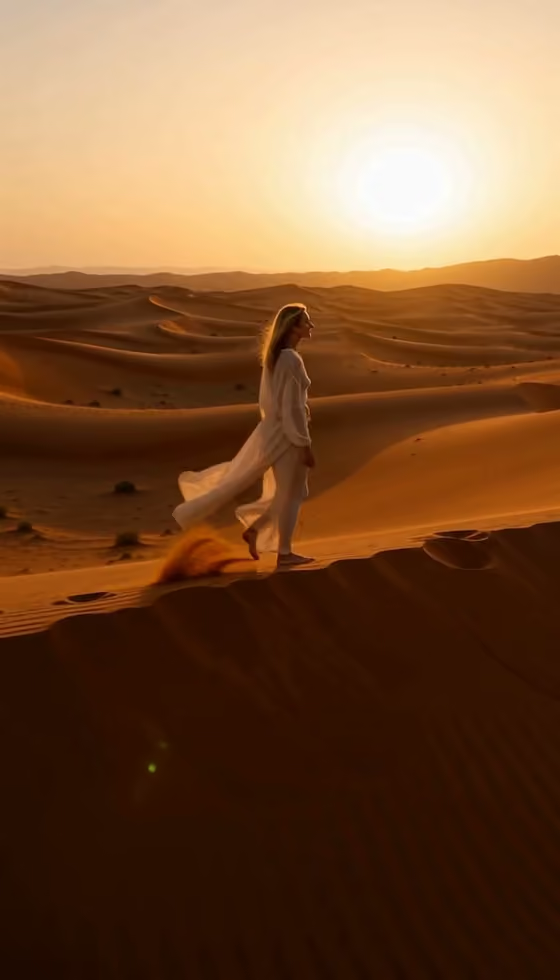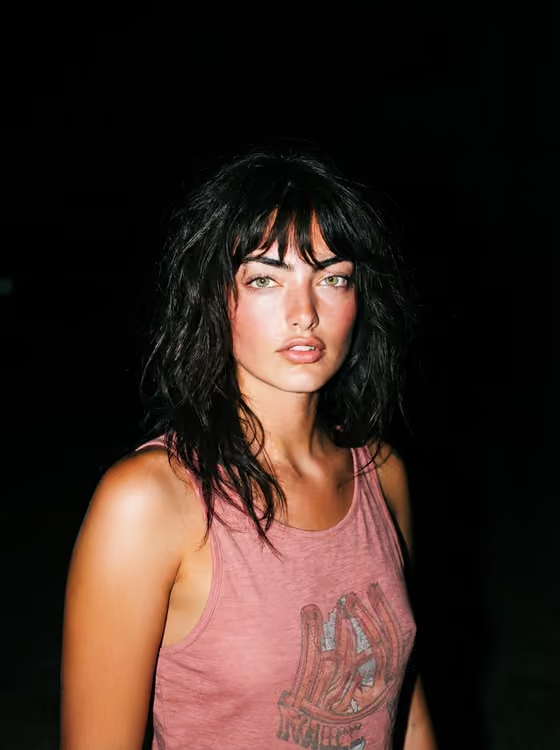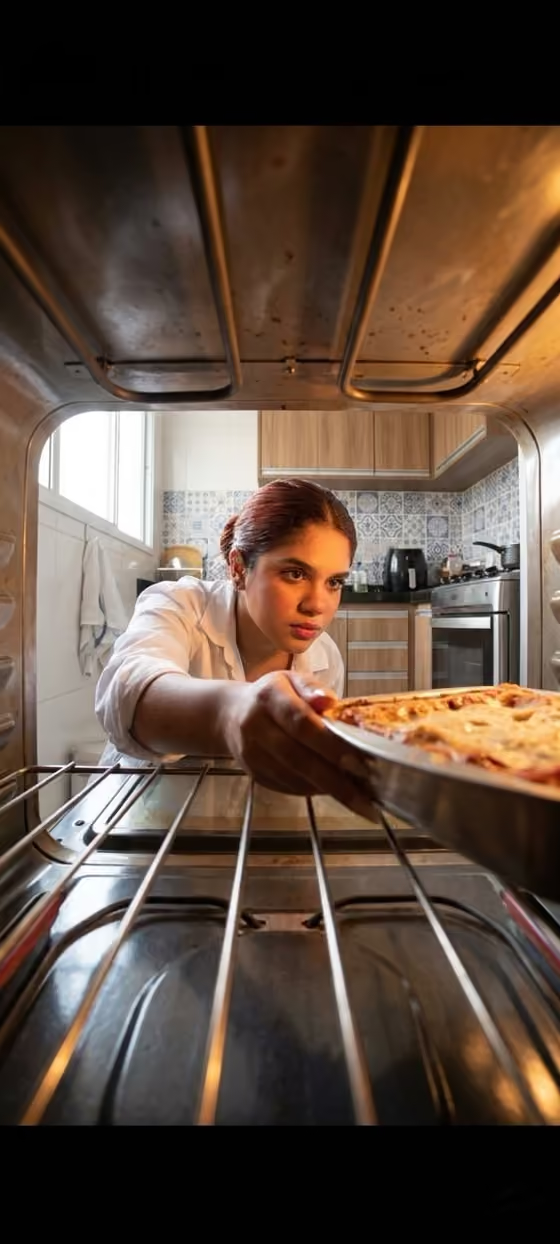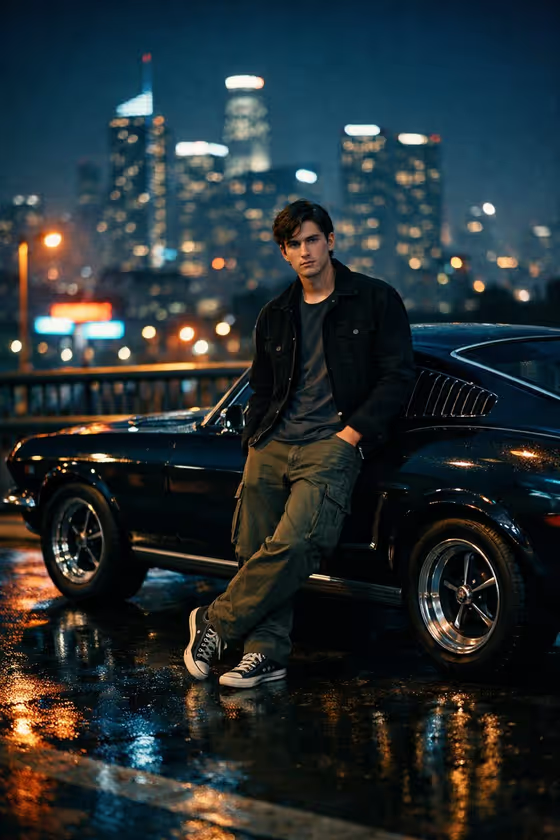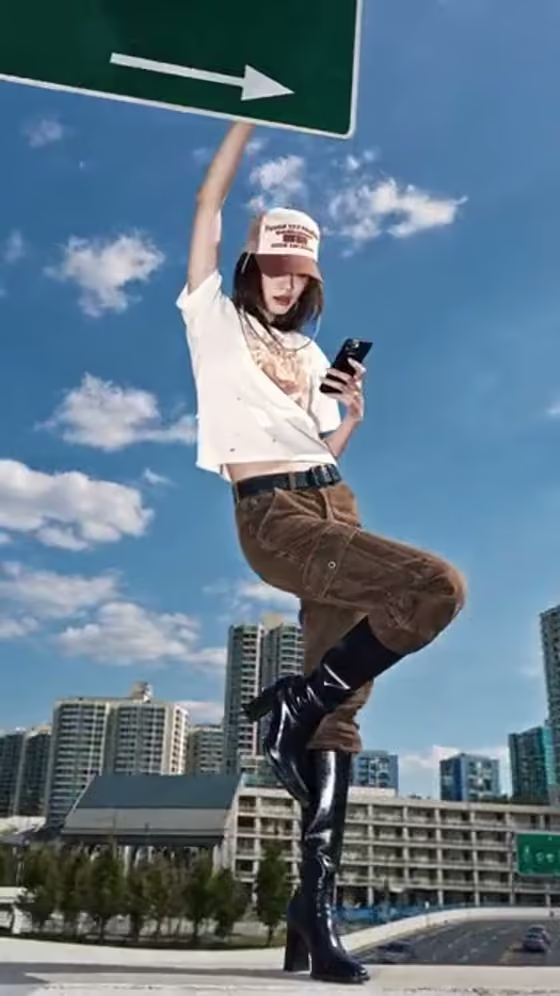
Orbit 360 turns a single portrait into a vertical 9:16 video where the camera makes one smooth, complete circle around your subject. The goal is a bold orbiting reveal that keeps the person or character recognizable, with their face, proportions and outfit carried through the whole move.
It suits anyone who wants a short cinematic clip from a still image, such as fashion looks, character art or a standout profile video. The cover shows a full-body pose against a wide sky and city backdrop, which gives the orbit plenty of depth to work with.
What works best as input
- Upload one clear portrait in the Portrait slot. It can be a person or a character the camera should orbit around.
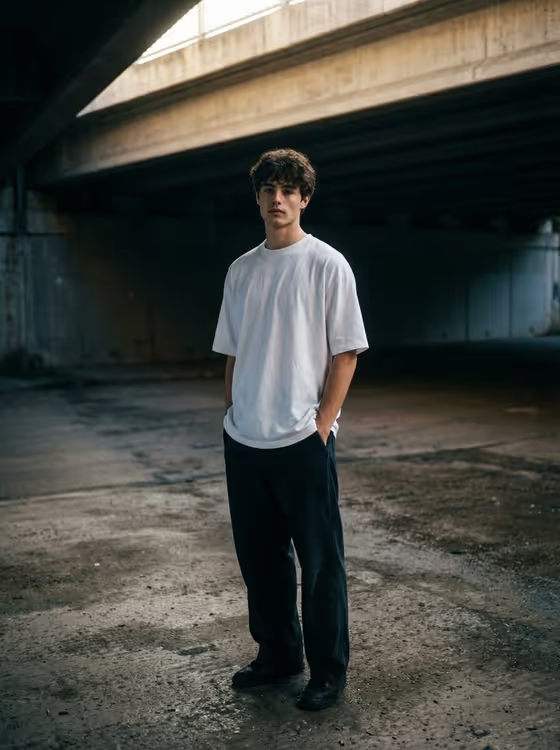
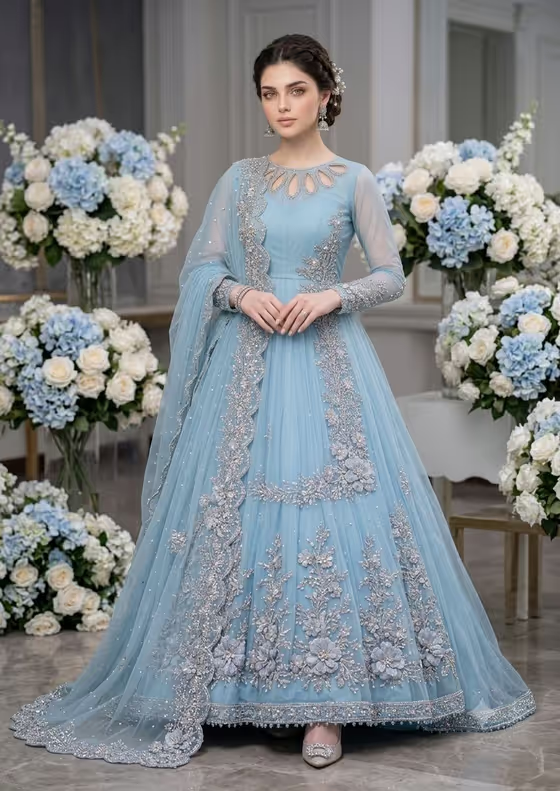
- Choose an image where the whole subject is visible and sharp, like the full-body standing pose on the cover, so the outfit and silhouette stay consistent as the camera moves.
- Pick a photo with a readable environment behind the subject. The template preserves the background and adds parallax, so a scene with layered depth (sky, buildings, road) gives a more convincing orbit.
- Use a confident, natural pose. The template has the subject hold a steady pose during the orbit, so a stable stance works better than a mid-motion blur.
- Avoid images with text or logos you rely on, since the template is set to produce no text or logos.
How to use it
- Open the Orbit 360 template in Phosphene.
- Upload your image in the Portrait field. This is the only required input.
- Generate the video and wait for the 9:16 result to finish.
- Review the clip, checking that the face, outfit and background stay consistent through the full circle, then save it or try another portrait.
Tips for a better result
- Start with a high-quality, well-lit source image. Consistent lighting in the photo helps the orbit stay consistent too.
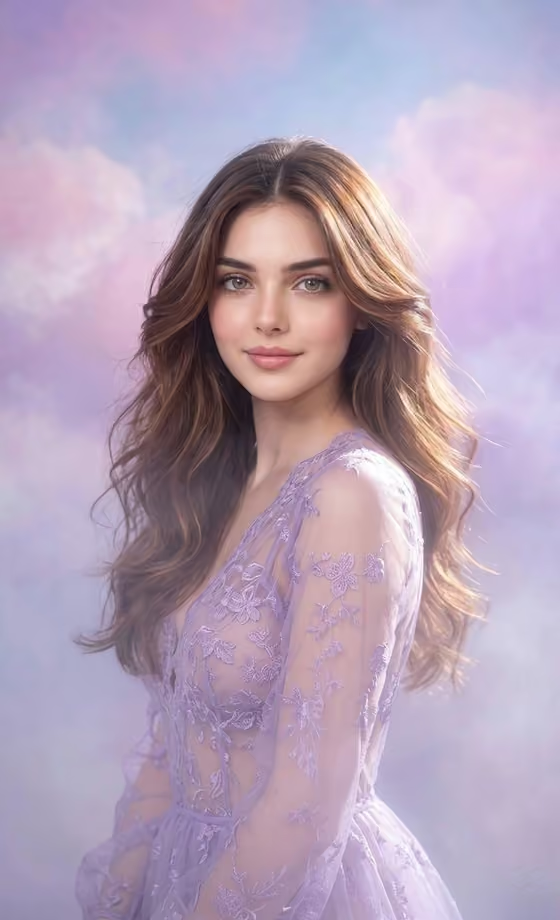
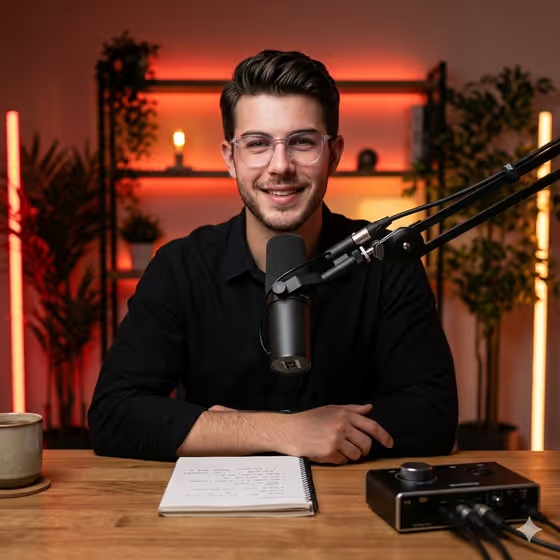
- Try different subjects, such as a full-body fashion shot, a close portrait or a stylized character, to see how the orbit reveals depth in each.
- Choose a vertical image to match the 9:16 output so nothing important gets cropped or reframed.
- If the first result is not what you wanted, generate again with a different crop or pose of the same subject.
Common mistakes
- Uploading a cropped, blurry or very dark photo, which gives the orbit little detail to preserve.
- Using a busy or cluttered pose where limbs overlap heavily, which can make body proportions harder to keep stable during the turn.
- Expecting changes to the outfit, location or style. This template preserves the subject and environment rather than restyling them.
FAQ
How many images do I need to upload?
Just one. The Portrait slot is the only input and it is required.
What format is the result?
A vertical 9:16 video of the camera making one smooth, complete orbit around your subject.
Will the person still look like themselves?
The template is built to preserve the subject's identity, face, body proportions and outfit, though results depend on how clear your source photo is.
Can I use an illustrated character instead of a photo?
Yes. The Portrait field accepts a person or a character the camera should orbit around.