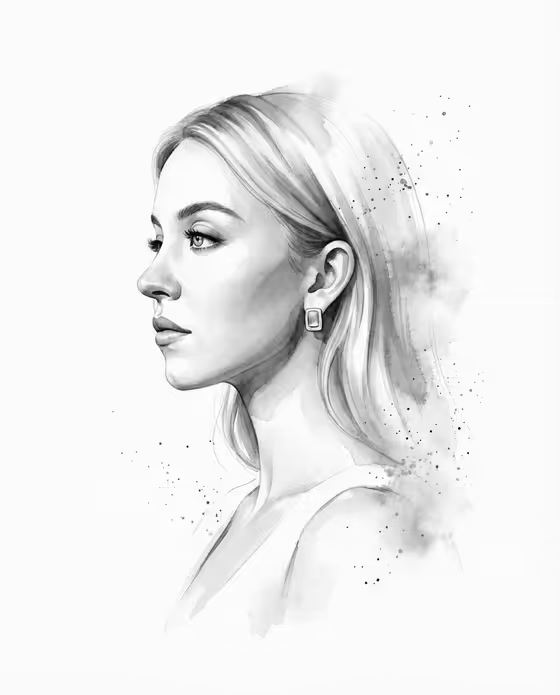
Ink Profile Dissolve turns a portrait into a left-facing monochrome ink drawing. The face stays clean and readable in the center, while soft charcoal wash and fine splatter dissolve from the outer edges of the hair and shoulder against a pure white background. The output is a 3:4 image with a hand-drawn, watercolor-on-paper feel.
It suits anyone who wants an elegant, minimal portrait from a side-profile photo: personal keepsakes, profile pictures, gift art or a quiet editorial look. You pick who the portrait shows and how the ink behaves at the edges, and the template handles the rest.
What works best as input
- Use a clear side-profile photo where the whole face outline is visible, from forehead to nose, lips and chin. The template is built to keep the profile and facial proportions faithful, so a sharp, unobstructed profile gives it the most to work with.
- Choose even, soft lighting without harsh shadows across the face. Clean tonal information helps the ink shading look delicate rather than muddy.
- Keep hair, hands and accessories from covering the jaw, nose or lips, since the central face is meant to stay clean and readable.
- If you would rather describe the subject than upload a photo, the Portrait person or subject field also takes text, such as 'an adult woman in side profile' or 'an adult man in side profile'.
- Only upload photos of yourself or people who have agreed to it, and treat the portrait with the same respect you would any personal image.
How to use it
- Open the Ink Profile Dissolve template in Phosphene.
- In the Portrait person or subject field, upload your side-profile photo or type a short description such as 'my uploaded portrait' or 'an androgynous profile subject'.
- In the Ink edge behavior field, choose how the edges should dissolve, for example controlled charcoal splatter or soft watercolor bloom.
- Generate the image, then review the face first. Check that the profile looks right and that the ink effect stays at the edges, and adjust your inputs if you want a different result.
Tips for a better result
- Try each Ink edge behavior option on the same photo to compare. Soft watercolor bloom reads gentler and cloudier, fine mist-like dispersion is airy, and dry-brush fragments feel more textured and graphic.
- Controlled charcoal splatter is a good starting point if you want the look of fine ink specks drifting away from the hair and shoulder, as in the sample image.
- Start from a photo with a plain, light background so the profile outline is easy to read.
- Keep the subject description short and simple. The template already sets the monochrome palette and white background, so extra styling words are not needed.
Common mistakes
- Using a front-facing or three-quarter photo. The template is designed around a side profile turned left, so a true profile photo gives the most faithful result.
- Uploading a small, blurry or heavily shadowed photo, which leaves little detail for the face to be drawn from.
- Expecting extra scenery, clothing or color. The template keeps a pure white background with no added wardrobe or scene, and the result stays monochrome.
FAQ
Can I use a photo that faces right?
The template renders the portrait facing left, so the profile will be turned that way. For the best result, use a clear side-profile photo.
Do I have to upload a photo?
No. The Portrait person or subject field also accepts a text description, such as 'an adult woman in side profile', if you prefer not to upload a reference.
What does Ink edge behavior change?
It controls how the ink breaks up around the outer edges, such as controlled charcoal splatter, soft watercolor bloom, fine mist-like dispersion or dry-brush fragments. The central face is meant to stay clean either way.
Will the result be in color?
No. The template produces a monochrome ink look with charcoal-gray tones on pure white.