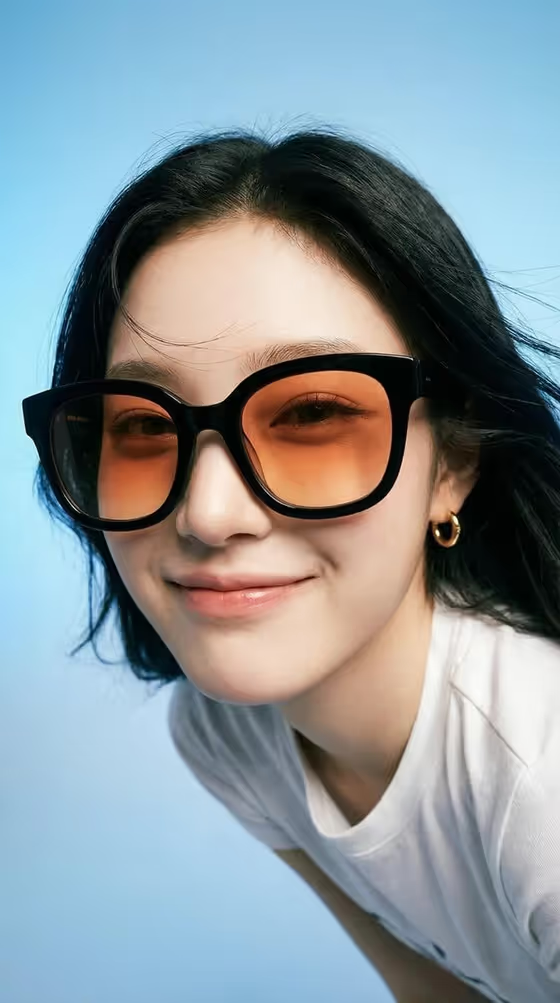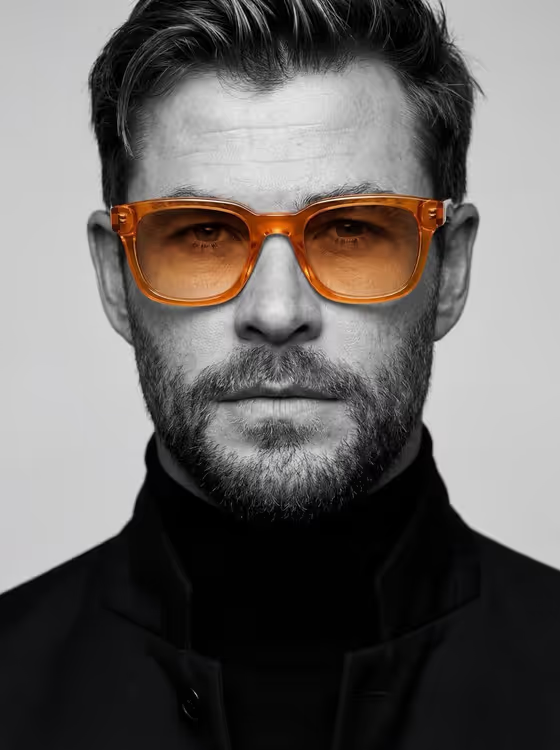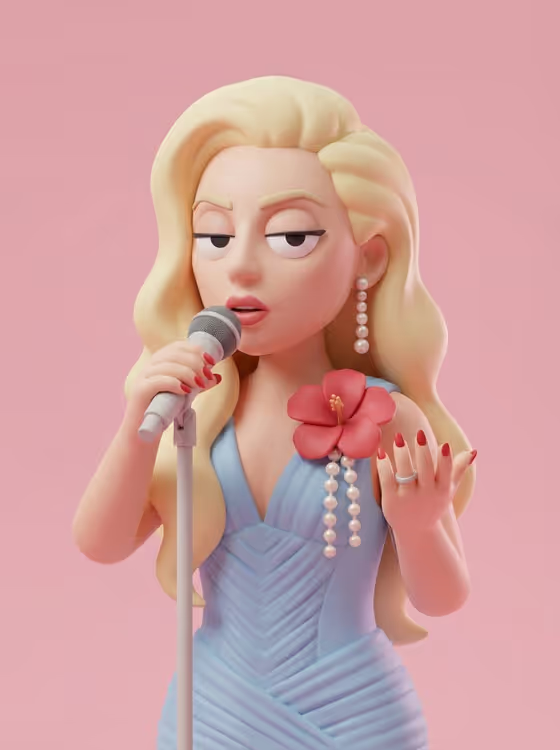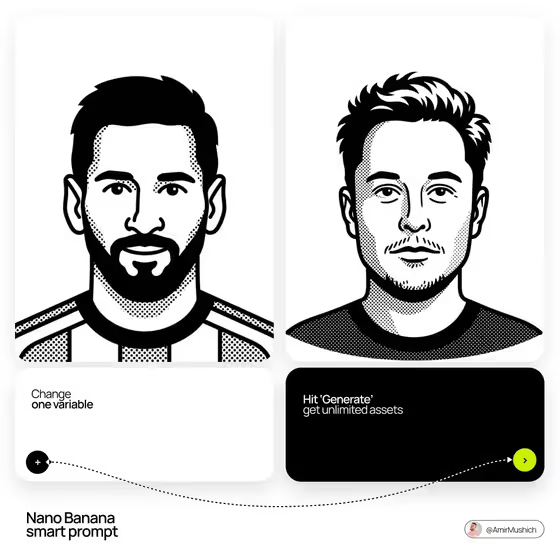
This template turns a person into a flat black-and-white vector avatar drawn with thick, uniform monoline strokes. Solid black is used selectively on hair, beards, eyebrows and dark clothing, while skin and the main face area stay pure white, so the result reads as a bold, friendly portrait with its own personality.
It suits anyone who wants a clean profile picture, a team or character icon, or a consistent illustrated look for a page or deck. You describe the subject, give a name, and describe an outfit, and the template handles the line-art styling in a 3:4 image.
What works best as input
- For the Subject field, you can either describe the person in text or add a reference photo. A clear, front-facing photo with the whole face visible gives the template the most to work from.
- The template is set up for two or more photos, so add a couple of different shots of the same person (for example, one straight-on and one slightly angled) to help capture their features and hairstyle.
- Pick well-lit photos without heavy filters, hats or sunglasses covering the face, unless those accessories are part of how you want the avatar to look.
- If you skip the photo, write a short descriptive phrase such as 'A poised creative professional' and mention distinctive traits like hair, beard or glasses.
- Only use photos of yourself or of people who have agreed to be turned into an avatar.
How to use it
- Open the Monoline Eyewear Avatar template in Phosphene and add your photos or reference images where the Subject field allows it.
- Fill in the Subject field with a short description or reference, then type the exact Name you want rendered in the Name field.
- In the Outfit field, describe the clothing (for example, a relaxed linen ensemble) or add a visual reference for the outfit.
- Generate the image, then check the result for the face likeness, the black fills on hair and clothing, and the spelling of the name before saving it.
Tips for a better result
- Be specific about hair and facial hair in the Subject description, since the template uses solid black fills on hair masses and beards to define the character.
- Try the example outfits (a bold retro look, a technical outdoor outfit, a tailored statement outfit) to see how clothing changes the silhouette and black-fill areas.
- Keep the Name short and exactly spelled, because the field asks for the exact name to render.
- Change one field at a time, such as only the Outfit, to create a matching set of avatars with the same style.
Common mistakes
- Typing a long, vague description in Subject instead of picking out a few defining features like hairstyle, beard or accessories.
- Misspelling the Name or adding extra words, since it is rendered exactly as you enter it.
- Using dark, blurry or heavily cropped photos, which makes it harder to capture the face and personality in clean line work.
FAQ
Does the avatar include colors or shading?
No. The style is pure black and white with no gray tones, gradients or shading, and white for skin and the main face area.
Can I use a photo for the outfit too?
Yes. The Outfit field accepts either a text description or an exact visual reference.
Do I have to upload photos?
The template is built around uploading two or more photos, but the Subject field also takes a text description of the person.
What shape is the final image?
The output is a 3:4 image showing a centered bust or headshot on a white background.