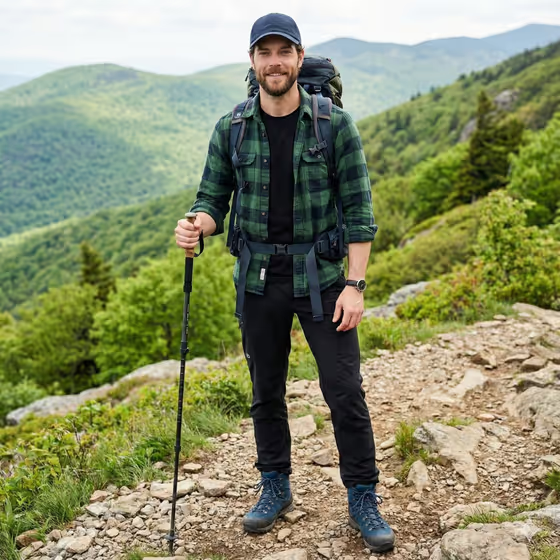
Mountain Camp Portrait makes a 3:4 outdoor portrait of one person in trekking gear at a mountain campsite. The scene uses natural terrain and a tent as context, with soft golden-hour or afternoon light and sharp detail on the face and fabric, much like the hiker with a backpack and trekking pole on a rocky trail in the cover.
It suits anyone who wants an adventure-style portrait without being on a mountain: hikers, travel bloggers, outdoor brands mocking up a look, or anyone planning a profile photo with a rugged feel. You choose who appears, what they wear, and which campsite they stand in.
What works best as input
- The Subject and Trekking Outfit fields each accept either a text description or a reference photo, so you can describe the person or add a picture of them. The template asks for 2 or more photos in total, so plan to supply reference images for both.
- For a Subject photo, pick a clear, well-lit picture where the face is visible and unobstructed. Avoid heavy filters, sunglasses, or strong shadows across the face.
- For a Trekking Outfit photo, use an image where the clothing is easy to see, such as a flat lay or a full-body shot. Visible layers, colors, and footwear help the result match.
- If you type instead, be specific. Try something like 'a rugged male trekker' for Subject and 'green flannel, black cargo pants, and blue boots' for Trekking Outfit.
- Campsite Setting is a choice, not a photo field, so you only need to pick the environment that fits the mood you want.
How to use it
- Open the Mountain Camp Portrait template in Phosphene.
- Fill in Subject by typing a description or adding a reference photo, then do the same for Trekking Outfit.
- Choose a Campsite Setting, such as Green mountain campsite, Rocky alpine ridge, Forest clearing at dusk, or Lakeside trail camp.
- Generate the image, then review the face, outfit, tent, and landscape. Adjust your inputs and generate again if something is off.
Tips for a better result
- Name outfit pieces and colors in order, top to bottom, including footwear. The cover look works because the flannel, pants, and boots are each clearly defined.
- Try different Campsite Setting options with the same subject and outfit to compare moods, from a bright green ridge to a dusk forest clearing.
- Use the example outfits as a starting point, like a technical shell with hiking trousers, or a wool overshirt with leather boots, to change the style without changing the person.
- Keep the Subject description short and concrete, such as 'an experienced mountain guide', so the portrait keeps a calm, relaxed expression.
Common mistakes
- Describing the subject and outfit in one field. Keep who they are in Subject and what they wear in Trekking Outfit so each is applied correctly.
- Using a blurry, dark, or heavily cropped reference photo, which gives the template less to work with for the face or clothing.
- Writing a vague outfit like 'hiking clothes' instead of naming specific pieces and colors.
FAQ
Do I have to upload photos?
Subject and Trekking Outfit accept either text or a reference photo. The template lists 2 or more photos as its upload requirement, so adding reference images for both is the intended way to use it.
Can I choose the background?
Yes, through Campsite Setting. It is a selection rather than a photo upload, with options like Green mountain campsite and Lakeside trail camp.
What size is the result?
The template outputs a still image in a 3:4 portrait ratio.
What lighting will the portrait have?
The template is built around soft golden-hour or afternoon light with a calm, natural outdoor look.