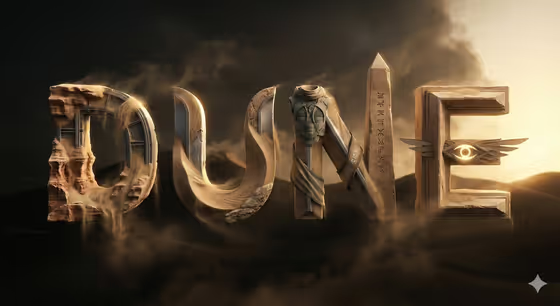
Narrative Letter Sculpture turns a single word into a cinematic title card where every letter is carved from a different part of a story. In the cover example, the word DUNE is built from weathered rock, folded cloth, a carved obelisk, and a winged eye, all lit against a dark, dusty horizon.
It suits anyone who wants a title-style image for a character, a favorite story, a personal project, or a piece of fan-style art. You give it a word, a character or story, and the materials that should shape the letters, and it builds a moody 3:4 image where objects, wear, and light tell the tale instead of faces.
What works best as input
- For the first field, Character story word object name, type the exact word you want spelled out. Short, strong words such as ODYSSEY, DUNE, or OPHELIA give each letter room to carry its own detail.
- The Character or story field accepts a photo as a reference, or you can describe it in text. If you use a photo, pick one that clearly shows the character, setting, or mood you want, since the template avoids literal faces and reads silhouette, posture, and objects instead.
- In Narrative materials, list two or three concrete materials, such as worn metal, cloth, and sand. Specific, tangible items give you more distinct letters than abstract words.
- Make the story and materials agree with each other. A desert wanderer paired with sand and worn metal will feel coherent, while mismatched pairings can muddy the narrative.
How to use it
- Open the Narrative Letter Sculpture template in Phosphene.
- Type your word into the Character story word object name field, then fill in Character or story (describe it, or add a reference if you prefer) and Narrative materials.
- Generate the image and wait for the 3:4 result to appear.
- Review how each letter reads. If the story feels weak or the materials blur together, adjust your wording and generate again.
Tips for a better result
- Try one of the built-in example stories, like a tragic royal drama or a spacefaring rebellion, as a starting point and swap in your own materials.
- Use materials that suggest different moments in the story, for example stone, velvet, and candle smoke, so neighboring letters look visibly different from each other.
- Keep your word short enough that every letter stays large and readable. Very long words can crowd the composition.
- Run the same word with different stories or material lists to compare how the narrative changes each letter.
Common mistakes
- Describing a story in vague terms with no concrete objects or materials, which leaves the letters feeling generic instead of narrative.
- Expecting a recognizable face or portrait. The template deliberately conveys identity through silhouette, props, and wear rather than faces.
- Entering a very long phrase as the word, which makes the letters small and hard to read as a title.
FAQ
Do I have to upload a photo?
No. The word and the materials are text fields, and the Character or story field lets you describe your idea in text, though it can also take a reference photo.
Will the letters show faces?
No. The template is set up to keep faces absent and let silhouette, objects, wear, and lighting communicate the character.
What kind of look should I expect?
Premium stone or metal letters with subtle wear, a deep black atmosphere, dramatic rim light, and heavy shadows, arranged like a film title card.
What aspect ratio is the result?
The output is a 3:4 image.