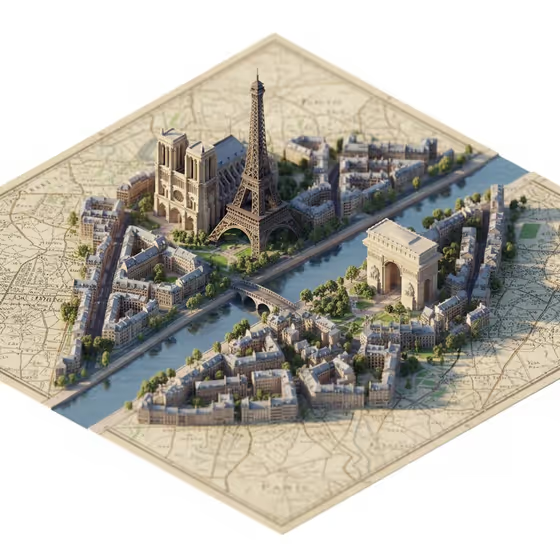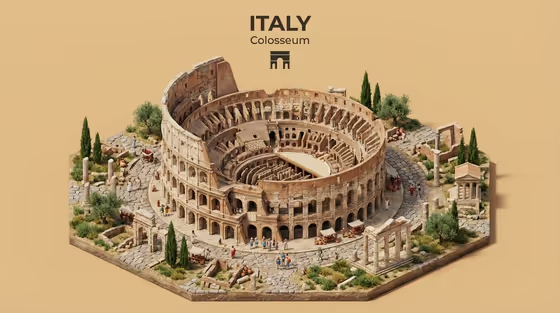
National Architecture Miniature turns a famous landmark into an isometric miniature scene. The result is a single raised base showing the structure at a 45-degree angle, surrounded by nearby streets, landscape and tiny faceless visitors, with a bold country and structure title above it.
It suits travel posts, geography or history projects, classroom visuals, and anyone who wants a tidy collectible-style picture of a national landmark. The output is a 16:9 image, as in the Colosseum example with its warm tan background and Italy title card.
What works best as input
- In the Famous structure product subject field, type the landmark by its recognizable name, such as Sagrada Família, Petronas Towers or Himeji Castle. Specific names give the model a clearer building to reproduce than something vague like a national landmark.
- This field also accepts a photo. If you upload a reference, pick a clear, well-lit shot of the whole structure so the building geometry is easy to read.
- Choose a reference that shows the landmark from a standard angle rather than a tight crop, since the template rebuilds it at 45 degrees with its surroundings.
- Pick the Country name option that actually matches the landmark's location, since it drives the title card and the local street and landscape details.
- For Background color, write a simple color phrase like warm cream, soft sky blue, deep burgundy or muted sage.
How to use it
- Open the National Architecture Miniature template in Phosphene.
- Fill in Famous structure product subject by typing the landmark name or adding a reference photo, then choose the Country name.
- Enter a Background color, using a short phrase such as warm cream or muted sage.
- Generate the image, then review the building shape, the title card text and the surrounding scene. Adjust your inputs and run it again if something looks off.
Tips for a better result
- Try the same landmark with different background colors. A color that contrasts with the stone or roof tones makes the miniature stand out, and the template adjusts text contrast automatically.
- Use the exact, commonly known name of the landmark, since the template aims for faithful building geometry and a clear name helps.
- If the first result misses the landmark's shape, try a reference photo that shows the full structure clearly.
- Make a set by running several landmarks from different countries with the same background color for a consistent collection.
Common mistakes
- Pairing a landmark with the wrong country. The title card and local details follow the country you choose, so a mismatch gives confusing results.
- Using a vague subject like a national landmark. Without a specific name, the model has to guess which structure you mean.
- Choosing a background color that is very close to the building's own tones, which can make the miniature blend into the backdrop.
FAQ
Do I have to upload a photo?
No. The landmark field accepts a typed name or a reference photo, so you can simply type something like Himeji Castle.
What does the title card say?
It shows the country name in bold with the structure name beneath it and a small architecture icon, like Italy and Colosseum in the cover example.
Can I change the background?
Yes. Use the Background color field to set the backdrop, for example warm cream, soft sky blue, deep burgundy or muted sage.
Will people appear in the scene?
The scene includes small faceless locals or visitors along the streets, kept minimal so the architecture stays the focus.