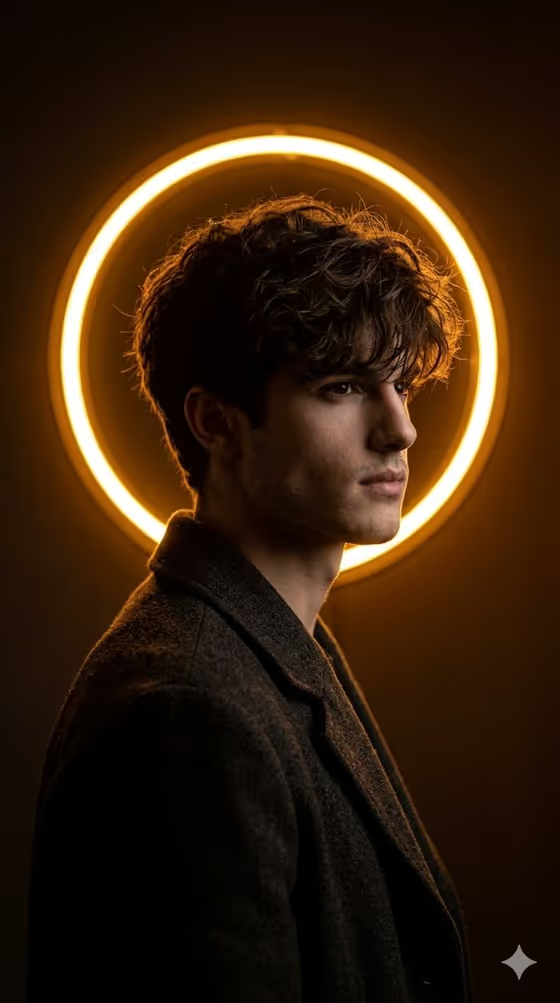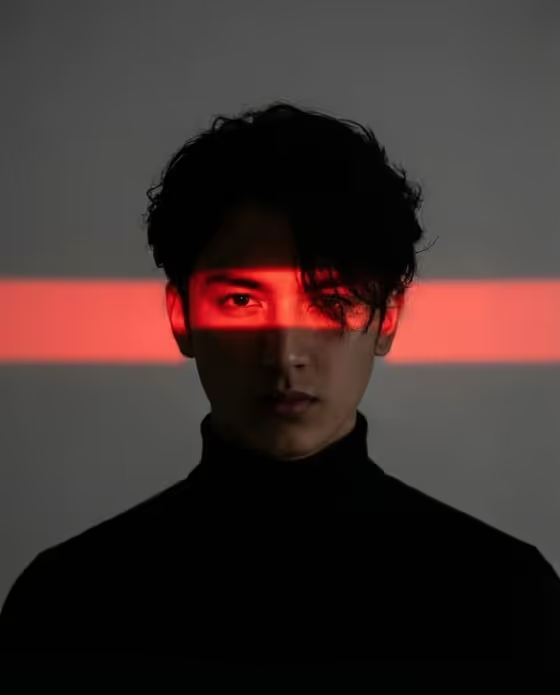
Red Neon Eye-Line creates a moody, high-contrast studio portrait in a 3:4 frame. The subject wears a black turtleneck and sits centered against a dark, minimal background, while a single horizontal red neon strip cuts across the eyes and leaves the lower face in deep shadow.
It suits anyone who wants a dramatic, cyberpunk-leaning portrait for a profile picture, an editorial-style shot, a poster or a creative project. It works best when you want a strong graphic look rather than a soft, everyday photo.
What works best as input
- For the Portrait subject field, upload a clear photo of the adult you want to portray, or describe the person in text instead. The field accepts either.
- Pick a photo where the face is well lit and in focus with the eyes clearly visible, since the red strip lands right across them.
- A front-facing or near-front-facing shot suits the centered composition of this template.
- Keep the framing simple, with head and shoulders and no heavy obstructions like large sunglasses or hands over the face.
- If you type a description, use phrases like the template's examples, such as 'an adult man with a distinctive presence' or 'an expressive adult creative'.
How to use it
- Open the Red Neon Eye-Line template in Phosphene.
- In Portrait subject, upload your photo or type a short description of the adult subject.
- In Pose or expression, choose or describe a mood, such as 'calm direct gaze', 'quiet introspection' or 'intense focused gaze'. Leave the default to follow the gaze and expression from your source.
- Generate the image, then review the result and check that the neon line, the shadowed lower face and the overall mood match what you wanted.
Tips for a better result
- Try different options in Pose or expression. 'Quiet introspection' and 'intense focused gaze' will shift the feel of the same portrait noticeably.
- Use a source photo with some natural texture in the hair, since the template aims for a messy, textured hairstyle that pairs well with the sharp lighting.
- Generate a few times with the same inputs and compare. Small variations in lighting and shadow can give you a version you prefer.
- If you describe the subject in text, add one distinctive detail about their presence rather than a long list, so the portrait stays focused.
Common mistakes
- Uploading a dark, blurry or low-resolution photo. The final image is high-contrast and shadow-heavy, so a weak source gives the result less to work with.
- Using a photo where the eyes are hidden or turned far away from the camera, which conflicts with the neon line crossing the eyes.
- Writing a very long Pose or expression description. Short, clear phrases like 'calm direct gaze' tend to fit the template better.
FAQ
Do I have to upload a photo?
No. The Portrait subject field accepts a photo or a text description, so you can type something like 'an adult woman with a distinctive presence' instead.
Can I change the neon color or the outfit?
No. The red neon strip, black turtleneck, centered composition and dark background are fixed in this template. You control the subject and the pose or expression.
What does Pose or expression change?
It sets the gaze and mood of the portrait. You can keep the source gaze and expression or choose something like a calm direct gaze or an intense focused gaze.
What size is the result?
The template produces a single image in a 3:4 portrait aspect ratio.