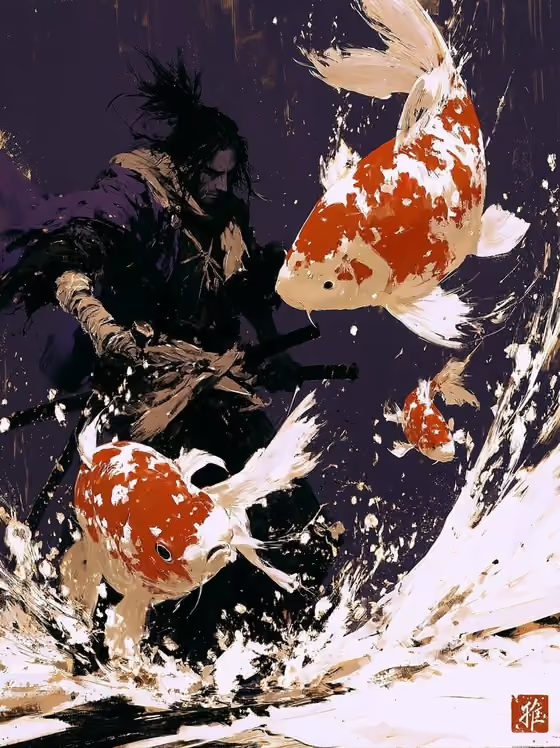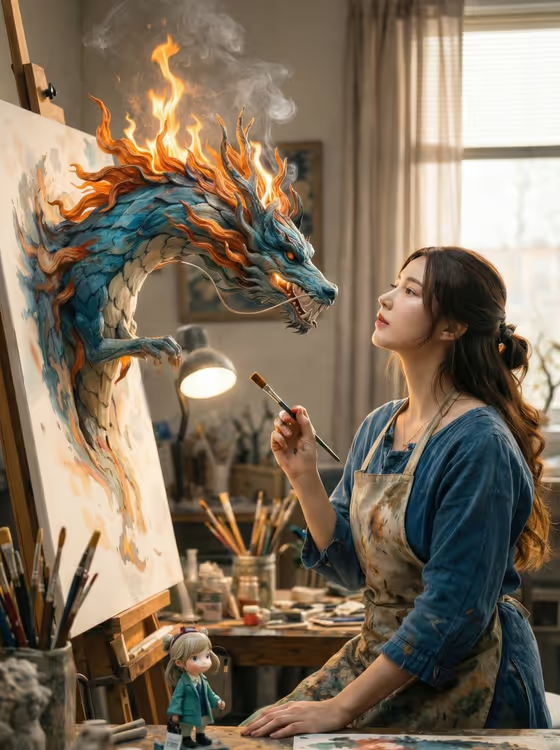
Painted Dragon Studio makes a 3:4 fantasy image set in a cozy artist's studio. A painter pauses at an easel while an Eastern dragon with teal and blue painted scales and a fiery orange mane rises three-dimensionally out of a half-finished canvas, trailing curling smoke.
It suits anyone who wants a whimsical, cinematic portrait: artists who want to see themselves in a magical-realism scene, or anyone who likes the idea of a painting coming alive. You can describe the scene in words or add a photo as a reference for the subject.
The template keeps the studio mood fixed (warm light, brushes, paint-spattered clutter, shallow depth of field), so your input mainly decides who is standing at the easel.
What works best as input
- The only field is Studio fantasy subject, and it accepts a photo as well as text. If you add a photo, pick one clear picture of the person you want in the scene.
- Choose a photo where the face and upper body are easy to see, with even lighting and no heavy filters, so the subject carries over cleanly into the painter's pose.
- Only use photos of yourself or people who have agreed to appear. Avoid images of public figures.
- If you prefer text, keep it short and focused on the subject, for example the suggested 'an artist facing a dragon emerging from a painting', since the dragon and studio are already handled by the template.
- The field's examples include 'a solitary figure in the same composition' and 'a small group in the same composition', which you can use as a model for describing who appears.
How to use it
- Open the Painted Dragon Studio template in Phosphene.
- In the Studio fantasy subject field, type a short description of your subject or add a photo as the reference, depending on how you want to guide it.
- Generate the image and wait for the 3:4 result.
- Review the scene: check the subject, the dragon rising from the canvas, and the studio details. Adjust your wording or photo and generate again if you want a different take.
Tips for a better result
- Start with the placeholder wording, 'an artist facing a dragon emerging from a painting', to see the template's baseline look before you customize.
- Try the example variations, such as a solitary figure or a small group, to change how many people share the composition.
- If a first result misses the likeness from your photo, try a different reference with clearer lighting and a more front-facing angle.
- Keep your description about the subject only. The teal and blue scales, orange mane, smoke and studio props are already part of the template's fixed direction.
Common mistakes
- Describing the dragon, studio and lighting in detail in the subject field. Those are already set, and extra instructions can clash with them.
- Using a blurry, dark or heavily edited photo, which gives the scene less to work from.
- Expecting a different format or style. The template is built for a warm, realistic fantasy studio scene in 3:4, not for other settings.
FAQ
Do I have to upload a photo?
No. The Studio fantasy subject field accepts text, and it can also take a photo as a reference. You can describe the subject in words if you prefer.
What does the template add to my subject?
It places your subject in a cozy artist's studio with an Eastern dragon emerging from the canvas, using warm cinematic light, visible paint texture and studio clutter.
Can I include more than one person?
The field's examples include a small group in the same composition, so you can describe or reference more than one subject.
What size is the result?
The template outputs a single image in a 3:4 aspect ratio.