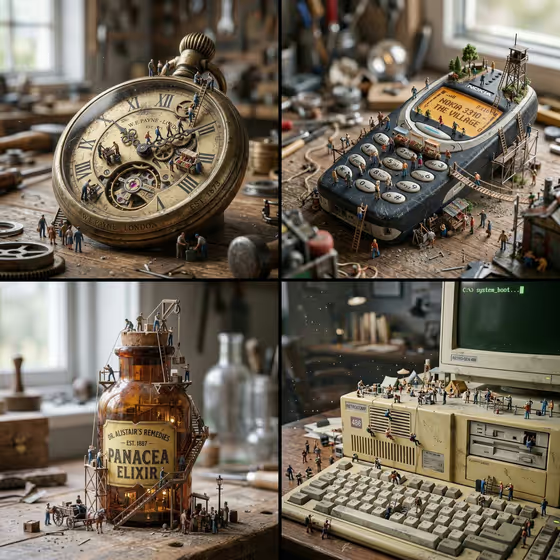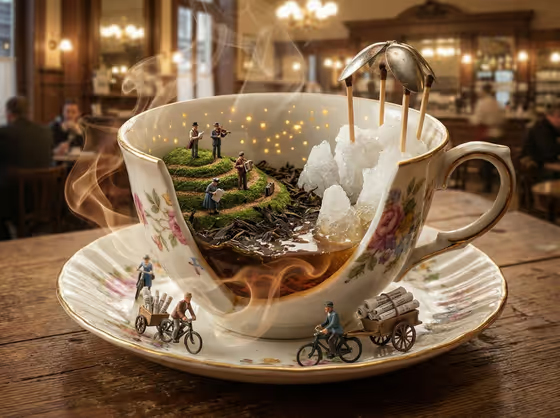
Object Interior Living Landscape turns a single object into a tiny world. The object appears partially opened, and inside it a miniature scene unfolds with terrain, small figures and little props. The cover example shows a floral teacup with a mossy hill, tiny musicians, sugar-crystal boulders and miniature cyclists with cargo carts circling the saucer.
It suits product makers, brand designers and anyone who wants a playful, story-rich image from an ordinary item. You pick the object and a creative direction, and the template builds the miniature scene around it in a 16:9 image.
What works best as input
- The Featured product or object field accepts either an uploaded photo or a text description, so use whichever you have. A photo helps when you want your exact item and its materials preserved.
- If you upload a photo, choose one where the object is clearly visible, well lit and not cropped at the edges. A single object on a plain or simple background works best.
- If you type instead, be specific about the item and its look, like the placeholder 'a premium beverage bottle' or 'a sculptural fashion accessory'. A material or pattern (such as floral porcelain) gives the scene more to work with.
- Choose objects with an interior or a cavity, like a cup, bottle, case or device. These suggest a natural way for the object to open and reveal a world inside.
- Keep it to one main object so the miniature scene has a clear focus.
How to use it
- Open the Object Interior Living Landscape template in Phosphene.
- In Featured product or object, upload a photo of your item or describe it in text.
- Set Creative direction to the mood you want, for example Clean editorial, Cinematic dramatic, Playful colorful or Quiet premium.
- Generate the image, then review how the object opens and what the miniature world contains. Adjust your object description or direction and run it again if you want a different result.
Tips for a better result
- Try the same object with different creative directions. Playful colorful and Quiet premium will push the scene in very different moods.
- Name materials in your description (porcelain, glass, brushed metal, leather). The miniature terrain tends to echo what the object is made of, as the moss, tea leaves and sugar crystals do in the cover image.
- Pick objects that connect to a setting or activity, like a drink container or a tool. This gives the tiny figures a believable reason to be there.
- Generate a few variations and compare them, since the arrangement of figures and terrain can differ from run to run.
Common mistakes
- Describing the object too vaguely, such as 'a thing' or 'a product'. The scene is built around your object, so a vague input gives a generic result.
- Using a photo where the object is small, blurry or cluttered by other items, which makes it harder to preserve the object's real look.
- Listing several objects at once. The template is designed to open one object and reveal one world inside it.
FAQ
Do I have to upload a photo?
No. The Featured product or object field accepts either a photo or a text description, so you can describe the object instead.
What does Creative direction control?
It sets the overall mood of the image. Options shown include Clean editorial, Cinematic dramatic, Playful colorful and Quiet premium.
What shape will the image be?
The template outputs a single image in a 16:9 aspect ratio.
What kinds of objects work well?
The examples point to items like a beverage bottle, a fashion accessory, a compact consumer device or a branded object. Anything that can plausibly open to reveal an interior is a good fit.