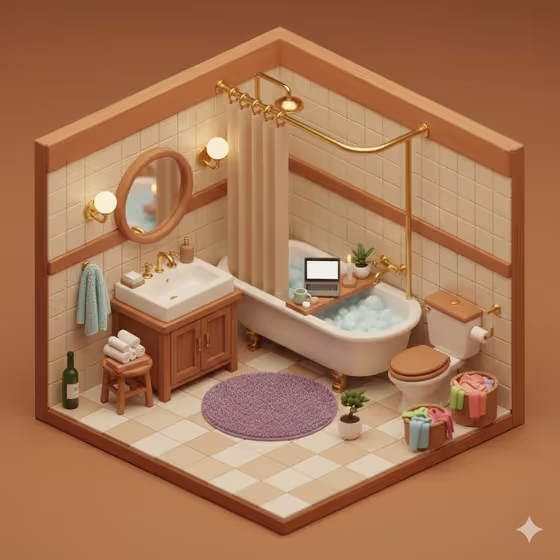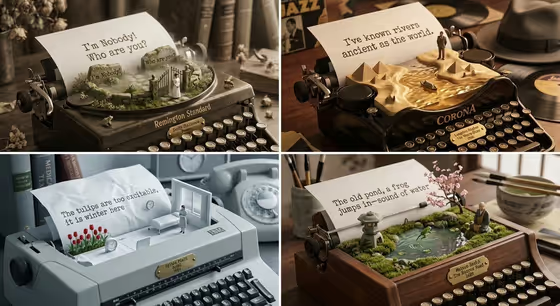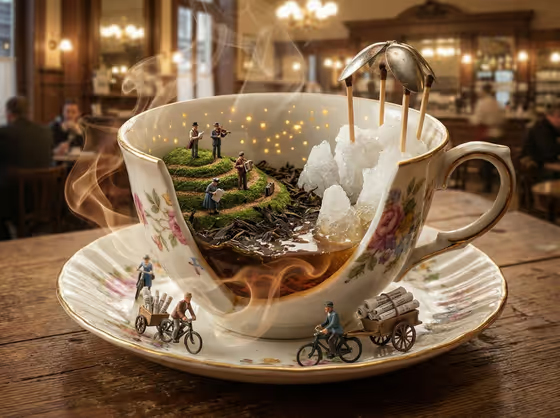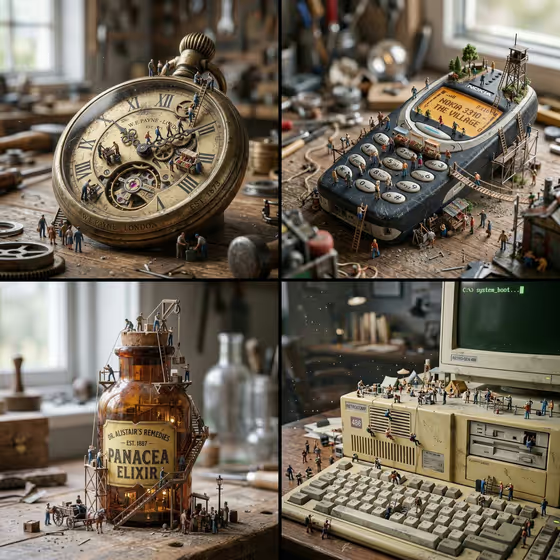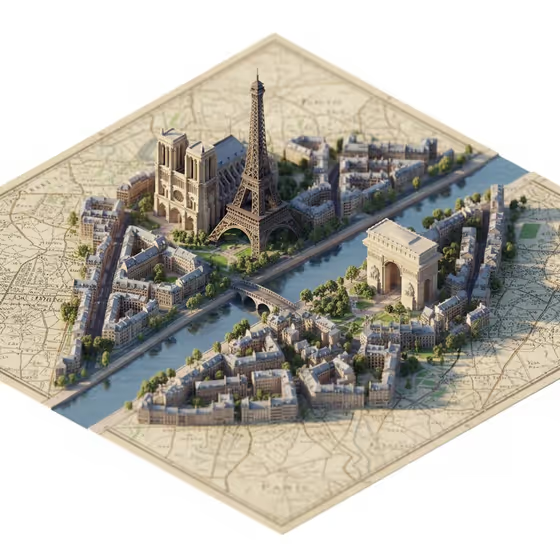
City-Shaped Miniature Map turns a place into a small isometric scene with a tilt-shift look, as if the city were a handmade model sitting on a tabletop. The cover shows the idea well: Paris landmarks like a cathedral, a tower and an arch are shrunk and simplified, arranged along a river, and set on an old paper map in soft daylight.
You give it a landmark or place, a creative direction and a title, and the title is lettered into the finished image. It suits travel posters, city-themed gifts, social posts about a place you love, or a quick visual for a neighborhood or cultural destination. The output is a 3:4 image.
What works best as input
- For the Scene subject or object field, you can upload a photo or describe the place in text. A clear photo of one recognizable landmark or street scene gives the template a strong subject to miniaturize.
- If you describe it instead, be concrete. Name the city and the landmark (for example a famous city landmark, a lively neighborhood scene, or a cultural destination) rather than something vague like a nice place.
- Pick a photo where the main subject is easy to read and not hidden behind crowds, heavy shadows or cluttered foreground objects.
- A personally meaningful place works too. Name it plainly or upload a photo of it so the template has something specific to simplify.
- Keep the Rendered title or name short. One to three words in capitals, like the examples AURORA, HIDDEN STORY or MY PLACE, are easier to letter cleanly.
How to use it
- Open the City-Shaped Miniature Map template in Phosphene.
- Fill in Scene subject or object by uploading a photo or describing the landmark or place.
- Choose a Creative direction such as Clean editorial, Cinematic dramatic, Playful colorful or Quiet premium, then type your Rendered title or name.
- Generate the image, then check that the scene reads as a miniature and that the title is spelled the way you typed it.
Tips for a better result
- Try the same place with different Creative direction options. Clean editorial and Quiet premium tend to suit a calm, polished look, while Playful colorful and Cinematic dramatic push the mood in other directions.
- Name a specific place instead of a whole country. The template builds a miniature that follows the real shape of a location, so a single city or district gives it a clearer layout to work with.
- Use a title that matches the subject, such as the city name or a short phrase tied to the place, so the lettering feels part of the design.
- If the first result is close but not right, adjust the subject wording or swap the direction and generate again.
Common mistakes
- Describing the subject too loosely. A phrase like somewhere pretty gives the template little to turn into recognizable monuments.
- Typing a long title. Long sentences are harder to letter clearly, so keep it to a short name or phrase.
- Uploading a photo where the landmark is tiny, blurry or mostly hidden, which leaves the miniature without a clear focal point.
FAQ
Do I have to upload a photo?
The Scene subject or object field accepts a photo, but it is also a text field, so you can describe the landmark or place instead.
Can I choose the title text?
Yes. The Rendered title or name field sets the words lettered into the image, so type exactly what you want to appear.
What does the Creative direction change?
It sets the overall mood of the scene. The options include Clean editorial, Cinematic dramatic, Playful colorful and Quiet premium.
What shape and size is the result?
The template produces a single image in a 3:4 aspect ratio.