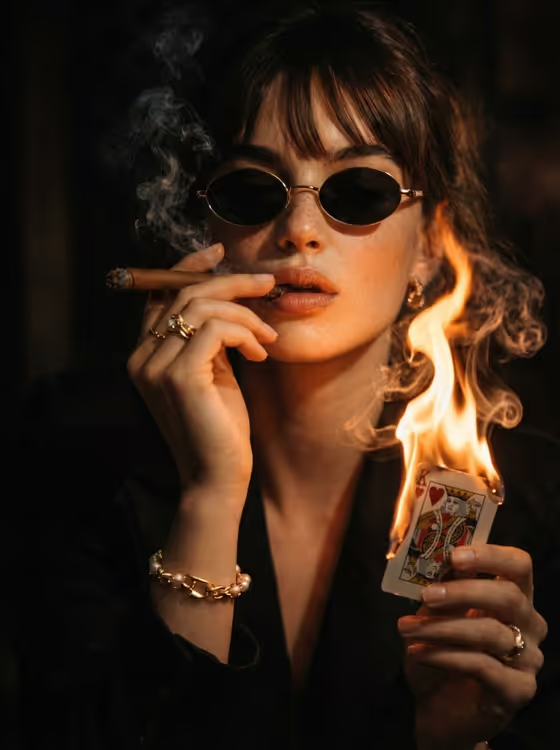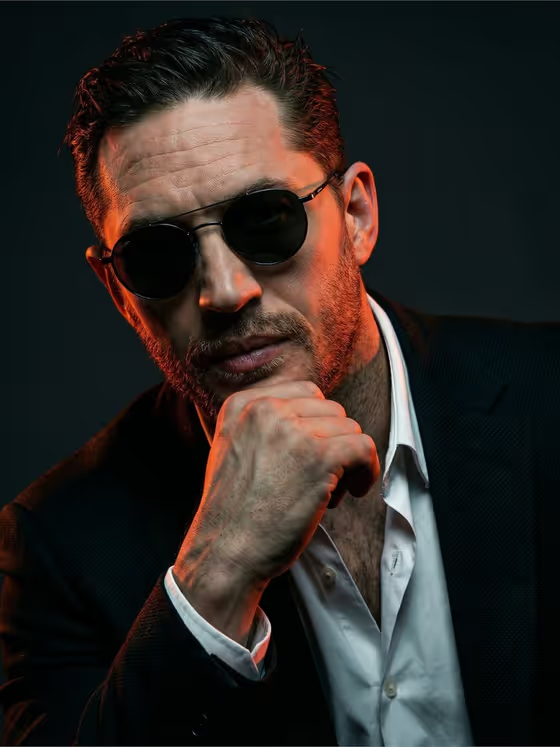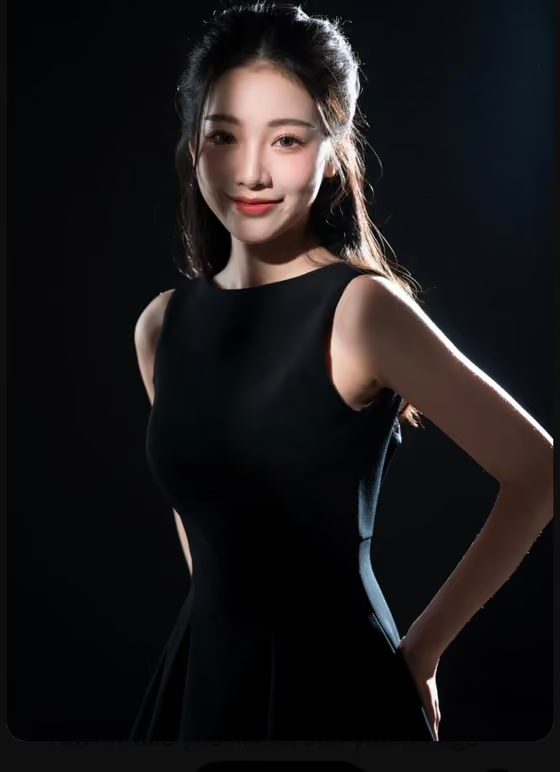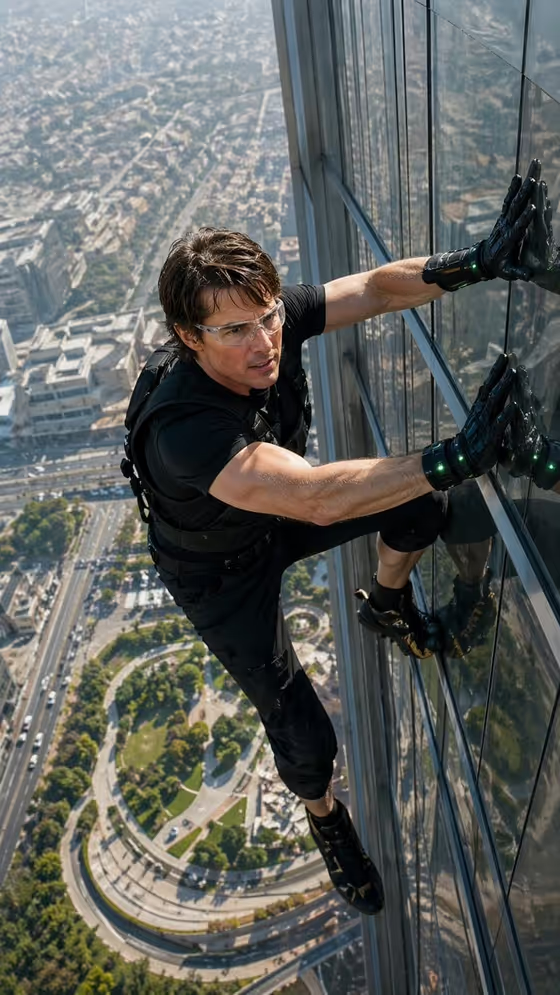
This template builds a tall, vertical action portrait of one person pressed against the glass face of a skyscraper. The camera looks down from a very high angle, so the city, a green circular park and tiny street traffic spread out far below the subject.
It suits people who want a cinematic, adventure-style image of themselves or of a described character. The outfit is already set (black fitted tee, tactical pants, padded gloves with green LED accents, climbing boots and a harness), so your job is to supply the subject and the expression.
What works best as input
- For the Portrait subject field, you can upload a photo or type a description. A clear photo is the best way to carry over face and hairstyle, since the template asks for the face and hair to match your reference.
- Pick a photo of an adult with the face fully visible, in even lighting and without heavy shadows across it. Sunglasses, hands over the face or strong filters make the likeness harder to hold.
- Use a sharp, recent image where the hairstyle looks the way you want it to appear in the final shot.
- If you describe instead of uploading, write a specific adult subject, like the examples 'an adult man with a distinctive presence' or 'an expressive adult creative'. The default 'an adult woman matching my reference' only makes sense when you have attached a photo.
- Only use photos of yourself or people who have agreed to it, and avoid public figures.
How to use it
- Open the Skyscraper Climb Action template in Phosphene.
- In Portrait subject, upload your photo or type a short description of the person you want on the wall.
- In Pose or expression, choose an option or write your own, such as 'intense focused gaze' or 'calm direct gaze'. Leaving it as 'the source gaze and expression' keeps the look from your reference.
- Generate the image, then check the face, grip on the glass and the view below. Adjust your inputs and run it again if something is off.
Tips for a better result
- Try different expressions. 'Intense focused gaze' suits the tense, determined mood of the scene, while 'calm direct gaze' gives a cooler, more composed climber.
- Match the expression to your photo. If your reference already has a strong expression, keep 'the source gaze and expression' so the two do not fight each other.
- Compare results from an uploaded photo and a written description to see which gives you the look you prefer.
- The output is a 9:16 vertical image, so it works well for phone screens and story-style posts.
Common mistakes
- Using a small, blurry or heavily filtered photo. The template tries to keep your face and hairstyle exactly, so a poor source gives a weaker likeness.
- Typing a vague subject like 'a person'. Without a photo or a clear description, the result has less to hold onto.
- Writing an expression that clashes with the scene, such as a big relaxed smile, when the template is built around a determined, slightly tense climb.
FAQ
Do I have to upload a photo?
The Portrait subject field accepts either a photo or a text description. Uploading a photo is the way to have the result follow your own face and hairstyle.
Can I change the outfit or the city?
No, those are part of the template. The black tactical outfit, glowing green gloves, glass tower and cityscape below are fixed, and you control the subject and the pose or expression.
What shape is the image?
It is a vertical 9:16 image, framed from a high angle looking down the face of the building.
What should I put in Pose or expression?
Use one of the suggestions, like 'intense focused gaze' or 'quiet introspection', or describe your own. 'The source gaze and expression' keeps the look from your reference photo.