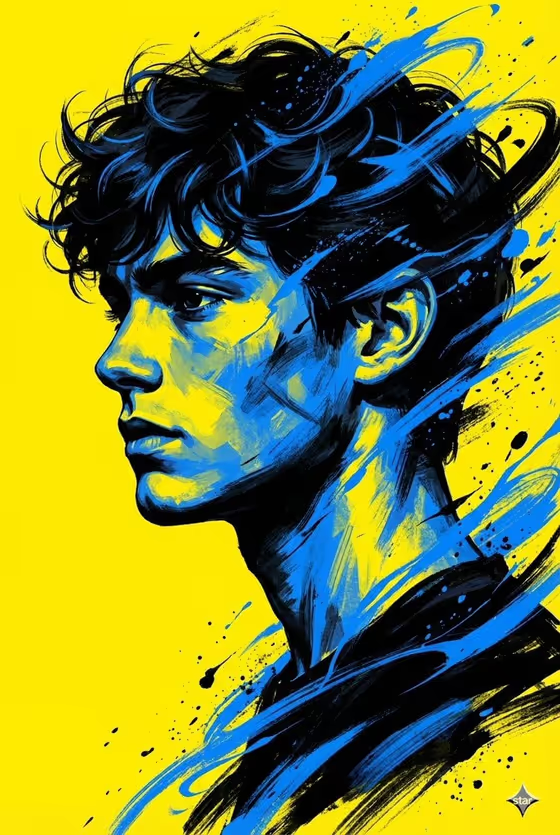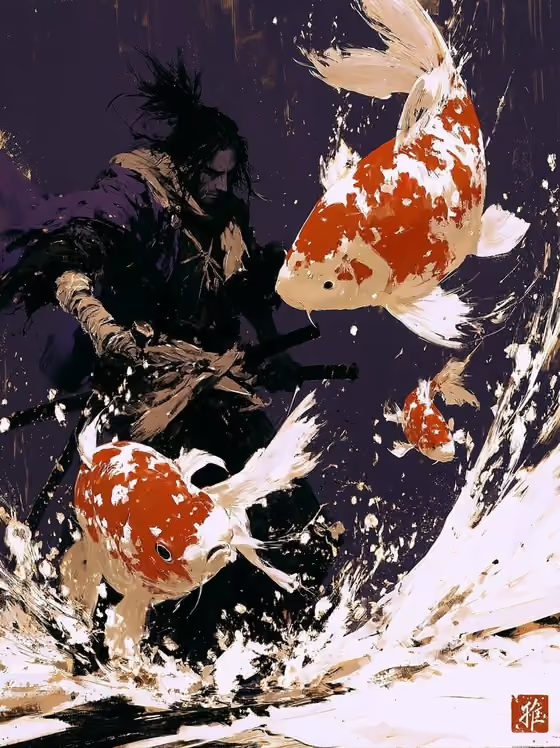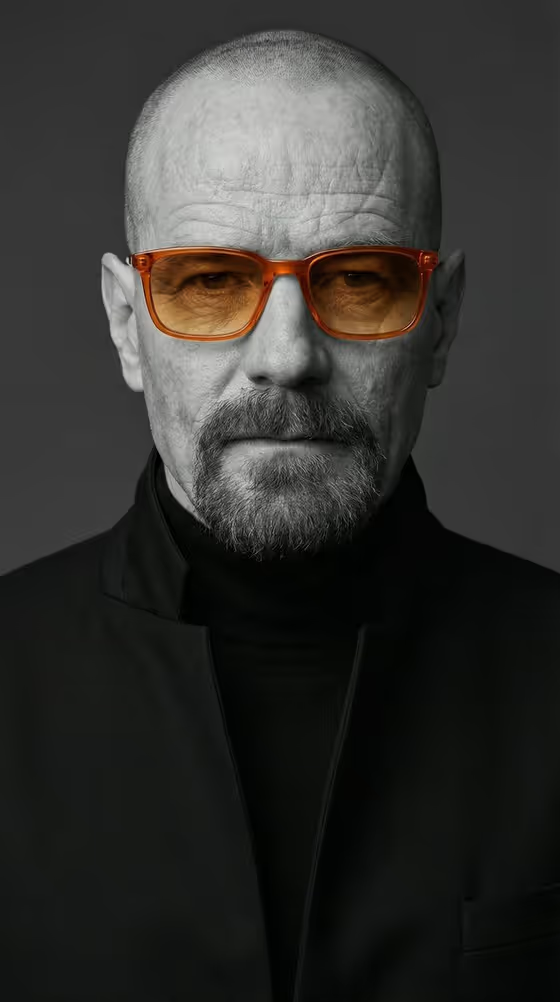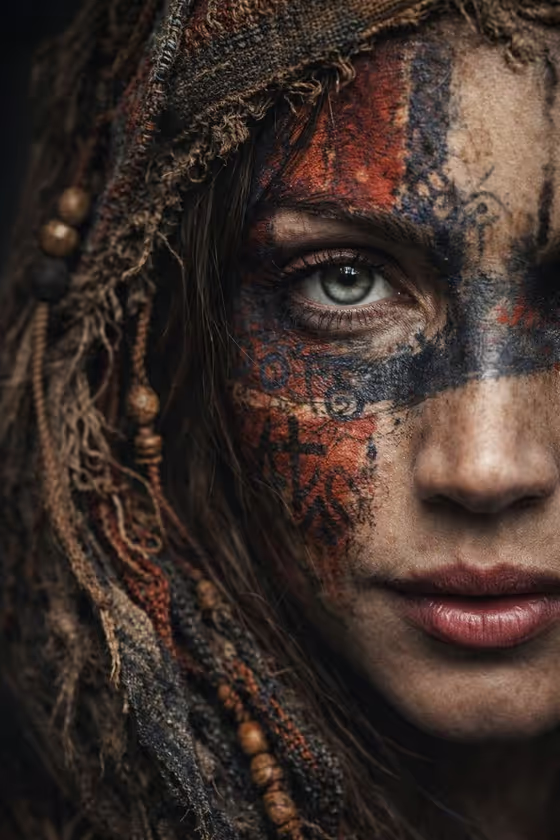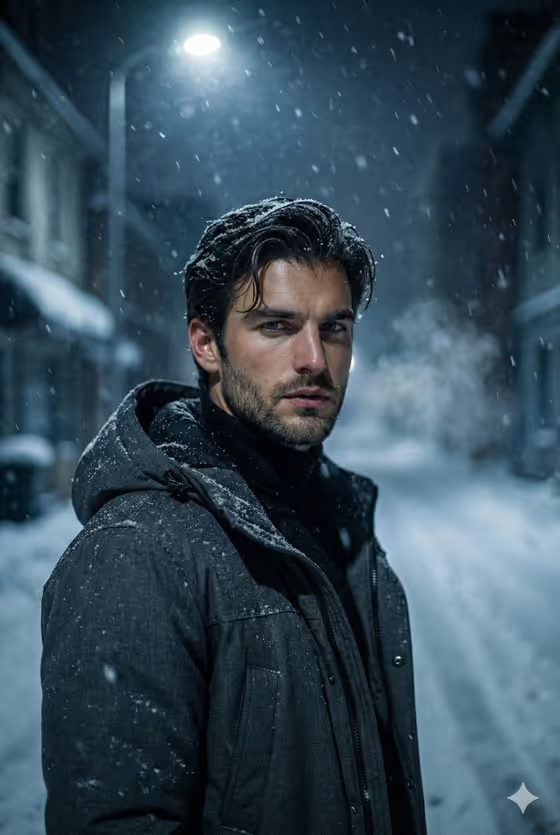
Snowy Night Portrait turns your subject into a cinematic winter noir image: a deserted snowy street at night, heavy snowfall, a single overhead lamp, and visible cold breath. The result is a 3:4 portrait in cool blue tones with a shallow depth of field and a film-grain finish, much like the cover image.
It suits anyone who wants a moody, lamplit portrait for a profile picture, a poster-style image, or a creative project. You provide the portrait subject and a pose or expression, and the template handles the setting, lighting and styling.
What works best as input
- Use a clear, well-lit photo where the face is fully visible and in focus. The template is built around a medium close up, so a head-and-shoulders photo gives it the most to work with.
- Pick a photo that already shows the expression you like. The default Pose or expression option, "the source gaze and expression", keeps what your reference shows.
- Avoid heavy filters, sunglasses, or hats that hide the face, since they hide the features the portrait should match.
- If you describe your subject in the Portrait subject field instead, keep it to who the person is, for example "an adult woman with a distinctive presence". Leave the weather and street out, because the template already supplies them.
- Use a photo of yourself or someone who has agreed to be in it.
How to use it
- Open the Snowy Night Portrait template in Phosphene.
- In Portrait subject, upload your photo or choose or type a short description, such as "an adult man matching my reference".
- In Pose or expression, keep the default "the source gaze and expression" or pick another option like "calm direct gaze", "quiet introspection" or "intense focused gaze".
- Generate the image, then review the 3:4 result for face likeness, mood and snow detail, and run it again if you want a different take.
Tips for a better result
- Try each Pose or expression option on the same photo. "Quiet introspection" and "intense focused gaze" push the mood in clearly different directions.
- The template pictures the subject looking slightly away from the camera, so a reference photo with a similar angle tends to feel more natural.
- If you describe a subject instead of uploading a photo, add one or two distinctive traits (like "an expressive adult creative") so the portrait has character.
- Generate a few versions and compare them. Small differences in snowfall, lamp glow and facial detail can make one take stand out.
Common mistakes
- Uploading a dark, blurry or low-resolution photo. The template adds its own low-key lighting, so a source that is already hard to read gives the face less to hold on to.
- Putting scene details in the subject field. The street, snow, jacket and lamp are already set, so extra scene instructions can fight with them.
- Expecting a bright, cheerful result. This template is built for a moody, cold-toned winter noir look.
FAQ
Do I have to upload a photo?
The Portrait subject field accepts a photo, and the template is set up around an uploaded reference. You can also choose or type a short description of the subject instead.
What will the image look like?
A cinematic 3:4 portrait of your subject standing on a snowy street at night, with falling snow, visible breath, one overhead lamp, cool blue tones and film grain.
Can I change the pose or expression?
Yes. The Pose or expression field lets you keep the gaze from your photo or choose options such as calm direct gaze, quiet introspection or intense focused gaze.
Can I change the clothing or the street?
Not through the fields. The charcoal hooded jacket, snowy street and lamplight are part of the template's fixed direction, and you control the subject and the pose or expression.