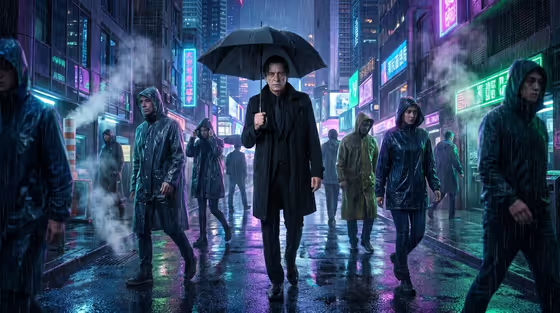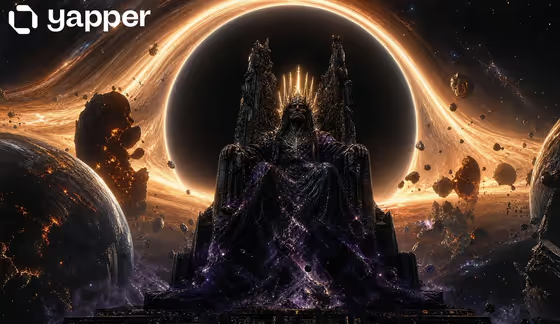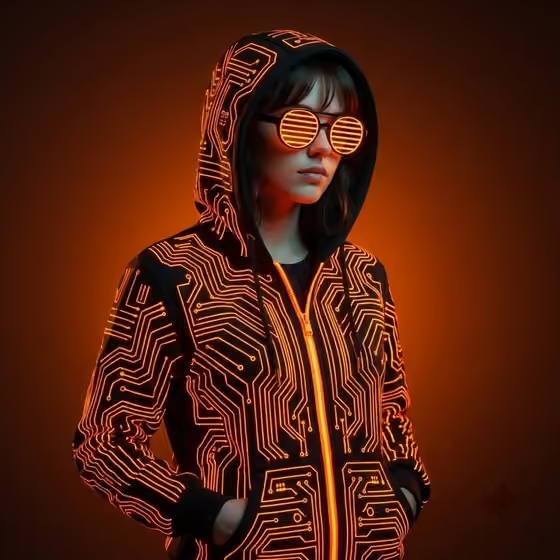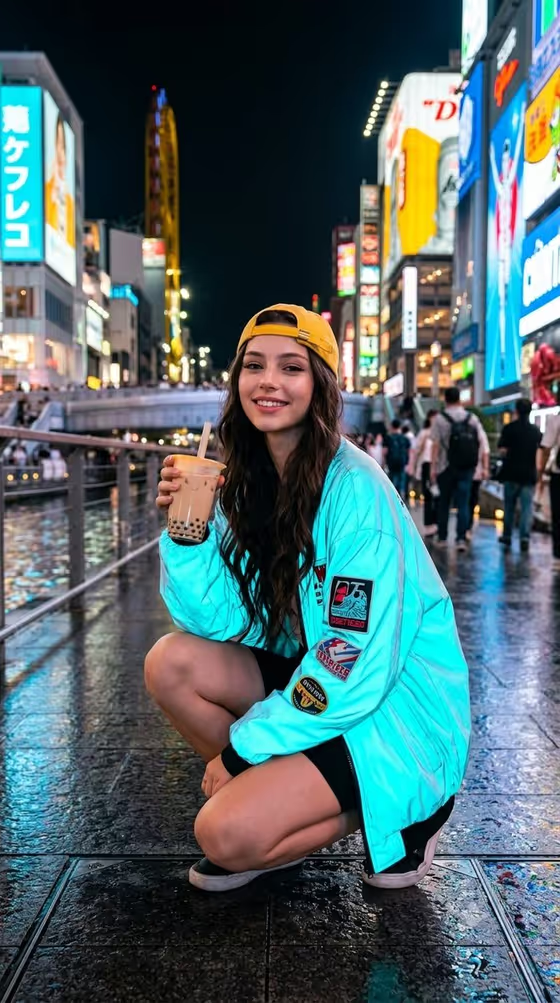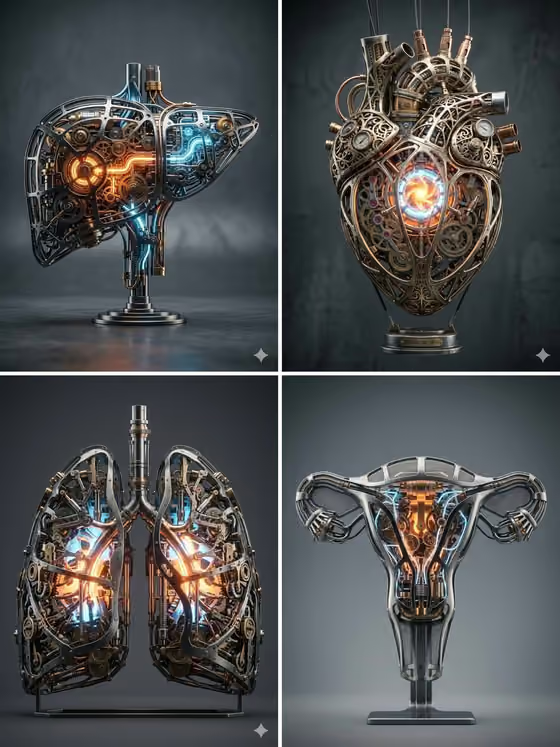
Studio Word Sculpture turns a word or name into three-dimensional letters that look sculpted from a real material, lit from a high, controlled studio angle. The result is a single 3:4 image where the lettering is the main subject and everything else stays secondary.
It suits anyone who wants a bold title image, a name piece, or a themed typographic visual. Think of a short word like MOTION, AURA or ORIGIN, or a word you choose yourself, shown as a physical object rather than flat text.
What works best as input
- The first field, Rendered word or name object, accepts either typed text or a reference photo. If you type, keep it to a short word or name in capitals, like the placeholder MOTION, so the letters stay readable.
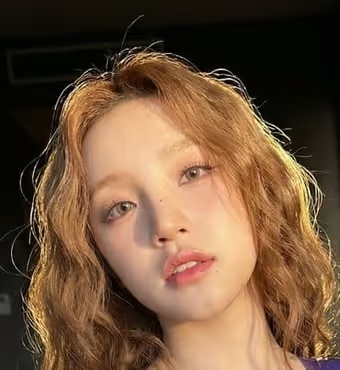
- If you upload a reference photo instead, pick one clear image with a single obvious subject. The field help asks you to describe the main subject or upload its reference, so avoid busy photos with competing elements.
- Use a well-lit, sharp image if you upload. Even soft light with the face or subject clearly visible gives the template a cleaner starting point than a dark or blurry shot.
- Shorter words generally give each letter more room to show material detail. A long phrase may crowd the frame in a 3:4 composition.
How to use it
- Open the Studio Word Sculpture template in Phosphene.
- In Rendered word or name object, type your word or name, or add a reference photo as the field allows.
- Choose a Letter treatment from the options, such as sculpted material letters, living internal mechanisms, liquid transparent type or cinematic narrative glyphs.
- Generate the image, then review whether the letters are readable and the lighting looks like one controlled studio setup. Adjust your word or treatment and run it again if needed.
Tips for a better result
- Try the same word with each Letter treatment. Sculpted material letters, liquid transparent type and living internal mechanisms read very differently, so one word can give you several distinct pieces.
- Pick words with a strong visual idea, like MOTION or AURA, since the treatment can lean into their meaning.
- Keep names and words in capitals for a monumental, sculptural feel, as in the example placeholders.
- If a result feels off, change only one input at a time so you can see whether the word or the treatment caused the difference.
Common mistakes
- Typing a long sentence or many words. The template is built around one word or name, and extra text can make the letters small or hard to read.
- Uploading a cluttered reference photo with several subjects, which makes it unclear what the main object should be.
- Expecting added captions or extra text in the image. The template keeps unrelated text out, so the word you chose is the only lettering.
FAQ
Do I have to upload a photo?
The Rendered word or name object field accepts a typed word or a reference photo. You can type a word like MOTION or AURA instead of uploading anything.
What does Letter treatment change?
It sets how the letters are made, for example sculpted material letters, living internal mechanisms, liquid transparent type or cinematic narrative glyphs. The studio light and high-angle framing stay consistent.
What shape is the output?
The image is made in a 3:4 aspect ratio.
Can I use my own name?
Yes. The examples include a word you choose yourself, so a name or any short word of your own works as the input.