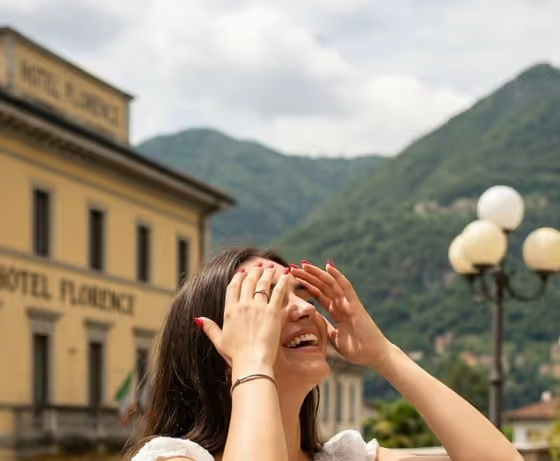
This template creates a candid summer portrait of one person laughing on a hotel terrace, with both hands raised to shield their eyes from the sun. The scene is set in front of a historic yellow building with "HOTEL FLORENCE" signage, green mountains behind, and vintage globe street lamps. The subject wears a white Swiss-dot corset-style mini dress with a coquette, cottagecore feel.
It suits anyone who wants a vacation-style, editorial-looking portrait in a 3:4 frame. You supply only the person, and the template handles the setting, pose, styling, and daylight for you.
What works best as input
- The Person field accepts a text description, and it also accepts a reference image. Use whichever gives you a clearer description of the look you want.
- If you describe the person in text, mention hair length, colour and texture, plus skin tone or complexion, as in the placeholder example (long, straight dark brown hair and a sun-kissed, glowing complexion).
- If you add a reference image, pick one with good light and the face and hair clearly visible. A sharp, uncluttered photo gives the template more to work with.
- Describe only the person. The dress, pose, jewelry, setting, and table items are already fixed, so adding them to the field is unnecessary.
- Keep the description respectful and focused on natural features rather than long lists of unrelated details.
How to use it
- Open the Tabletop Beverage Product Shot template in Phosphene.
- Fill in the required Person field by describing the person, or add a reference image to personalize the portrait.
- Generate the image and wait for the 3:4 portrait to finish.
- Review the result, checking the pose, the "HOTEL FLORENCE" sign, and the table details. Adjust your Person description and generate again if you want a different look.
Tips for a better result
- Be specific about hair, since the template backlights it to create a halo. Clear details like length, colour, and straight or wavy texture show up well in that light.
- Try a reference image and a text description in separate runs to compare which one captures the person better.
- Change one thing at a time in the Person field, such as hair colour or complexion, so you can see exactly what each edit does.
- Generate a few times from the same input. The scene is fixed, but small variations in expression and framing can give you a favourite.
Common mistakes
- Describing clothing, background, or props in the Person field. Those are already set by the template and extra instructions can fight with them.
- Using a vague description like "a woman" or a dark, blurry reference photo, which gives the template little to build the likeness from.
- Expecting the set to change. The terrace, signage, table, and white dress are fixed parts of this template.
FAQ
Do I need to upload a photo?
No. The Person field is required, but you can fill it with a text description. A reference image is optional and can be added to personalize the portrait.
Can I change the dress or the location?
No. The white Swiss-dot corset-style dress, the hotel terrace, and the mountain backdrop are fixed in this template. You control the person.
What aspect ratio does the image come in?
The output is a 3:4 portrait image.
What is included in the scene besides the person?
The scene includes a round glass-top table with two white coffee cups on saucers and a paperback book, black wrought-iron chairs, vintage globe street lamps, and a yellow building with "HOTEL FLORENCE" signage.