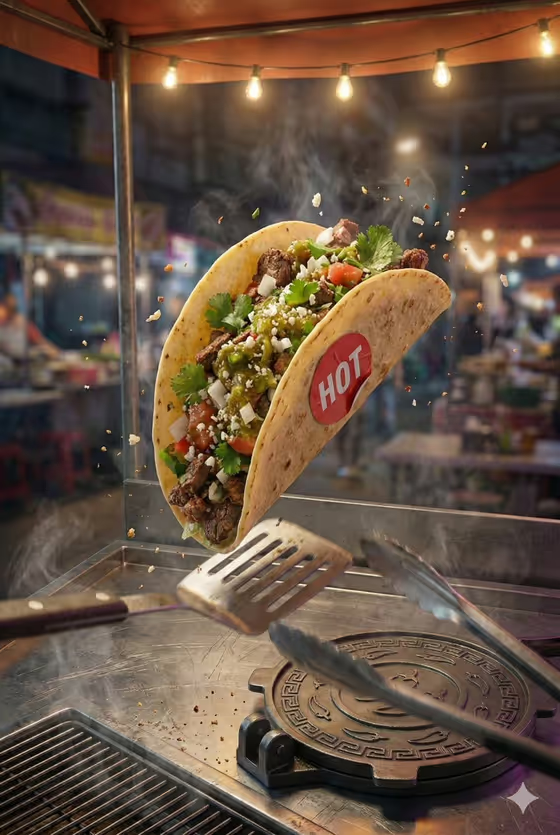
This template turns a taco into a freeze-frame street poster. Your taco is shown suspended mid-flip above a stainless-steel cart counter, shot from a tilted low angle so it looks large, sharp and full of motion, with steam, airborne crumbs and warm lamp light around it.
It suits food stall owners, restaurant social media managers, menu designers and anyone who wants a dramatic, ad-style image of a taco without staging a photo shoot. The output is a 2:3 portrait image, so it works well as a poster or a vertical post.
What works best as input
- In the Product field you can describe your taco in text or add a photo of it as a visual reference, since this slot accepts a photo.
- Use a clear photo where the whole taco is visible, with the shell, filling and toppings easy to see. The template builds the scene around it, so the better the reference, the more faithful the result.
- Avoid photos where the taco is cut off, buried in a box, or hidden behind hands, plates or heavy shadows.
- If you describe it in words instead, be specific about the shell, filling and toppings, for example 'A loaded street-style taco' with the details you care about.
- For the Setting field, pick one of the options offered rather than typing your own, since it is a choice field.
How to use it
- Open the Taco Mid-Flip Street Shot template in Phosphene.
- In the Product field, add a photo of your taco or describe it in text.
- Choose an option in the Setting field to decide the look of this variation.
- Generate the image, then check the taco's shape, toppings and the overall composition before saving or trying again.
Tips for a better result
- Run the template several times with different Setting choices to build a small set of posters from the same taco.
- Describe distinctive toppings (herbs, salsa, onions) in the Product field so they stay recognisable in the final shot.
- Use a well-lit reference photo with natural colors, since the scene adds its own warm lamp light and strong shadows.
- If the first result drifts from your taco, simplify the description or swap in a cleaner photo and generate again.
Common mistakes
- Uploading a cluttered photo with several dishes in it, which makes it unclear which item should be the flying taco.
- Leaving the Product description vague, so the taco ends up generic instead of looking like yours.
- Expecting exact text details to match every time. Check any lettering or small props in the result and regenerate if something looks off.
FAQ
Do I have to upload a photo?
The Product field accepts either a text description or a photo reference. A photo helps the taco match your real product more closely.
What shape is the final image?
It is a 2:3 portrait image, suited to posters and vertical social posts.
Can I use it for something other than tacos?
The scene is built around a mid-flip taco over a street cart, and the Product field's examples include other products, but this template is designed for a taco.
What does the Setting field do?
It is a choice field that sets the setting for this variation, so changing it gives you a different version of the shot.