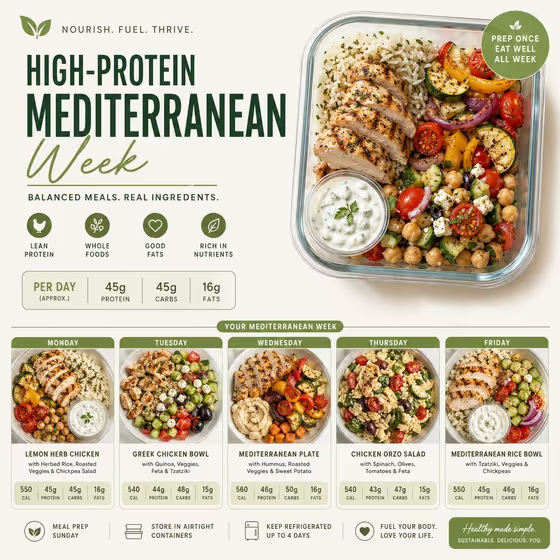
The Weekly Meal Prep Planner turns a short description of your menu into a minimalist wellness poster. It lays out appetizing, container-based meals across the weekdays and pairs them with a structured nutrition panel, in a 3:4 image that suits a social post or a printed fridge sheet.
It is aimed at anyone who wants a clear, good-looking way to show a week of prepped food: home cooks planning their Sundays, fitness and nutrition creators, or families sharing a lunch plan. You only fill in 3 text and choice fields, and no photo upload is needed.
What works best as input
- This template has no photo slot, so everything comes from what you write. Be specific in Meal plan design, for example "high-protein weekday meals" or "light Mediterranean meal prep", because that phrase drives the dishes shown.
- Name a food style or goal rather than a vague word like "healthy". Phrases such as "plant-forward weekly prep" or "balanced family lunches" give the poster a clearer menu to work with.
- For Nutrition panel, say exactly which numbers you want beside each meal. "Calories, protein, carbs, and fat" gives a fuller panel, while "calories and protein" keeps it simpler.
- For Planner palette, pick one of the soft pairings offered, such as sage and warm cream or peach and pale blue, so the background and accents stay cohesive.
How to use it
- Open the Weekly Meal Prep Planner template in Phosphene.
- Fill in Meal plan design with the kind of weekly menu you want, then choose a Planner palette.
- Set the Nutrition panel field to the summary you want shown beside each meal, such as protein and fiber or macros plus portion sizes.
- Generate the poster, then check that the days, meals and nutrition labels read the way you intended. Adjust the fields and run it again if needed.
Tips for a better result
- Try the same menu in different palettes (for example sage and warm cream versus mint and blush pink) to see which suits your brand or kitchen.
- Change only the Nutrition panel to compare a minimal layout (calories and protein) with a data-rich one (macros plus portion sizes).
- Describe a theme with a clear cuisine or ingredient mix, like "light Mediterranean meal prep", so the containers show colorful, varied ingredients.
- Treat the generated numbers as design content. If you need exact nutrition values, double-check and edit them before sharing.
Common mistakes
- Writing a vague menu such as "good food" gives the template little to build the weekly plan from. Name the style, goal or cuisine.
- Asking for too many nutrition details in one field can crowd the panel. Keep it to the few figures you actually want to show.
- Expecting to upload a reference plan. This template's fields accept text and a palette choice only, so describe the plan in words.
FAQ
Do I need to upload a photo?
No. All three fields are text or a palette choice, and no photo upload is needed.
What shape is the poster?
It is a 3:4 image, a portrait format that suits social posts and print-style layouts.
Can I choose which nutrition numbers appear?
Yes. The Nutrition panel field lets you specify the summary, for example calories and protein, or calories, protein, carbs, and fat.
Are the nutrition values exact?
The numbers are generated as part of the poster design, so verify them yourself before relying on them for real dietary planning.