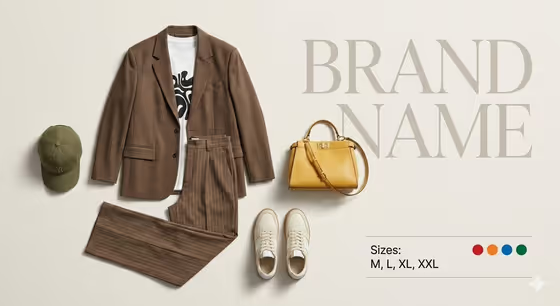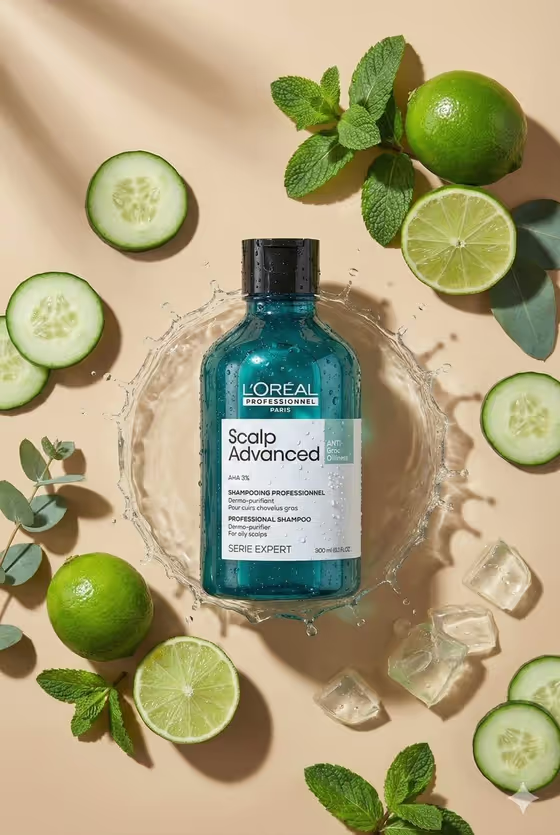
Adaptive Product Flat Lay builds a top-down image of your product centered on a warm beige surface, surrounded by a few props that fit its category. In the cover example, a teal shampoo bottle sits in a water splash with cucumber slices, limes, mint and ice cubes around it, so the props echo what the product is about.
It suits sellers, small brands and marketers who want a clean product visual in a 2:3 portrait format. The template keeps the product's shape, colors and label wording as shown in your reference, so the focus stays on the real item.
What works best as input
- Upload at least two photos of your product, since the template asks for 2+ uploads. Use clear, well-lit shots from the front and one other angle so the label and shape are easy to read.
- Make sure the label text is sharp and fully visible in at least one photo. The template is set to preserve every visible package word, so a blurry label gives it less to work with.
- In the Product or package reference field, you can type a short description such as premium skincare bottle, or point to your uploaded product as the exact item.
- Avoid cluttered backgrounds, heavy glare or cropped edges in your photos so the whole package can be reproduced faithfully.
How to use it
- Open the Adaptive Product Flat Lay template in Phosphene.
- Fill in Product or package reference by describing the item or uploading your product photos.
- Choose a Matching prop family, such as natural ingredients from the product or coordinated lifestyle accessories, or pick automatic on-brand supporting props if you want the template to decide.
- Generate the image, then check that the product, label wording and prop choices look right before saving it.
Tips for a better result
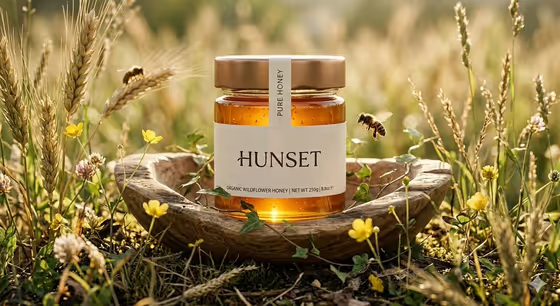
- Pick natural ingredients from the product when your item has an obvious theme, like citrus and cucumber for a fresh-scent shampoo, as in the cover.
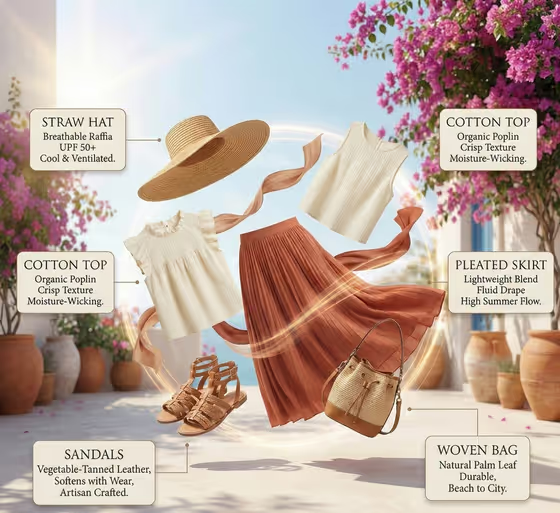
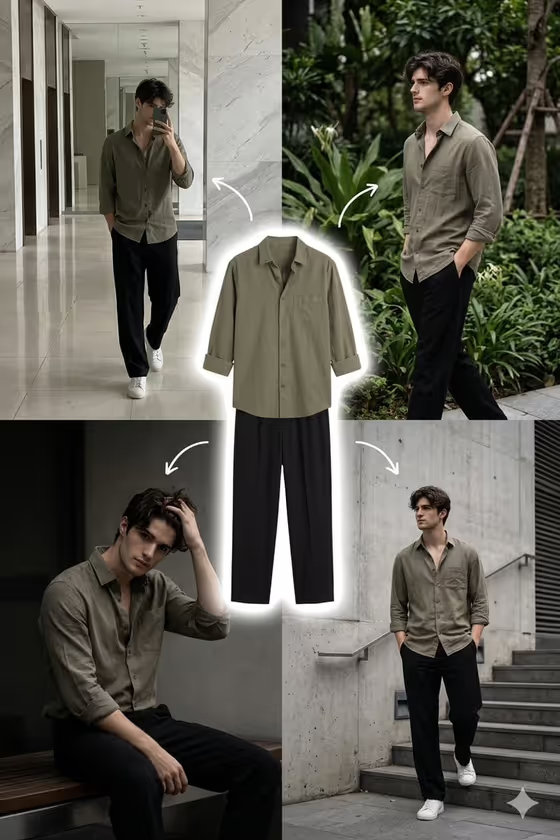
- Try minimal craft tools and materials for handmade or artisan items, and coordinated lifestyle accessories for devices or everyday goods.
- If you are unsure what suits your product, choose automatic on-brand supporting props and see what the template matches to its category.
- Run the same product with different prop families to get several variations for different channels or campaigns.
Common mistakes
- Uploading only one photo or a low-resolution image. The template expects 2+ photos, and weak references make exact label and shape reproduction harder.
- Describing the product too vaguely, such as just bottle, which gives the template little to match props against.
- Expecting extra text, slogans or decorations in the scene. The template keeps props minimal and adds no extra copy.
FAQ
Will my product's label and design stay the same?
The template is directed to preserve the exact geometry, colors, label design and visible package words from your reference. Clear uploads give the best chance of a faithful result.
What image shape does it produce?
It creates a 2:3 portrait image shot from directly above on a warm beige surface.
Can I choose the props myself?
You choose a Matching prop family, such as natural ingredients, craft tools and materials, or lifestyle accessories. You can also select automatic on-brand supporting props to let the template decide.
Do I need to upload photos, or can I just describe the product?
This template is set up for 2+ uploaded photos. The reference field also accepts a text description alongside your uploads.