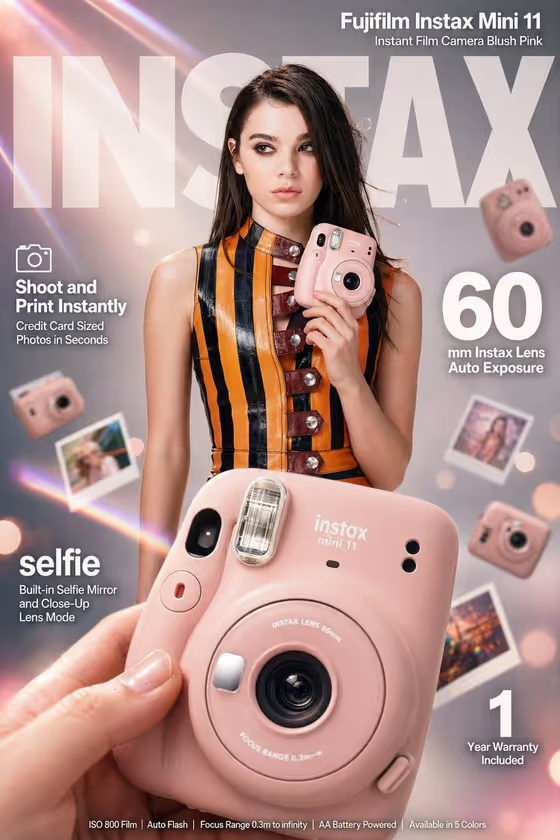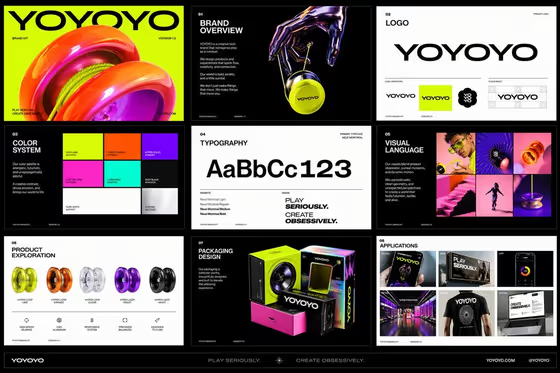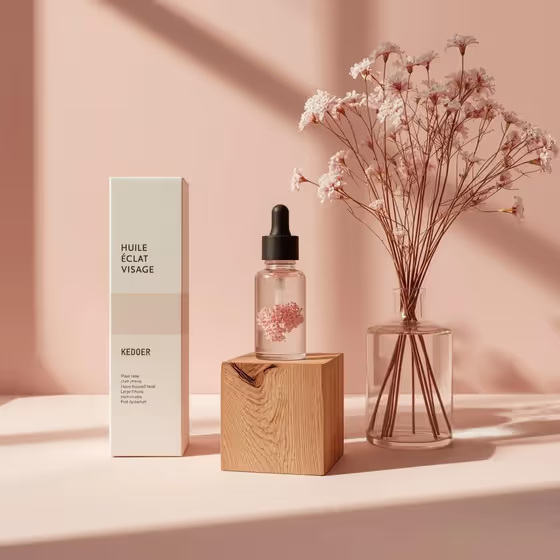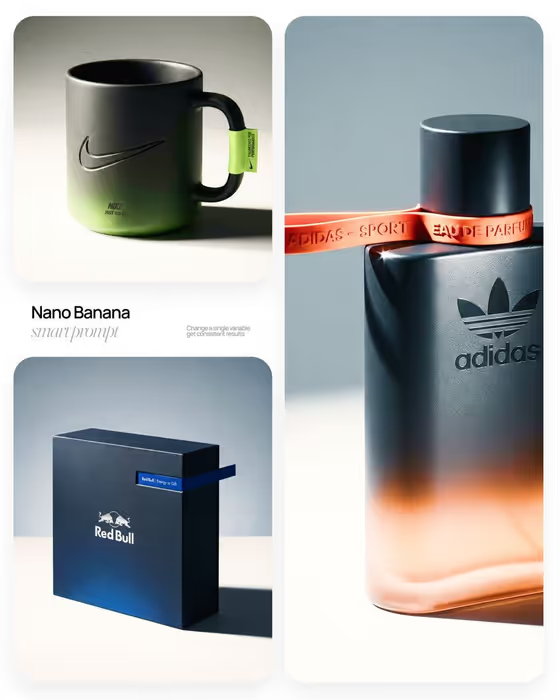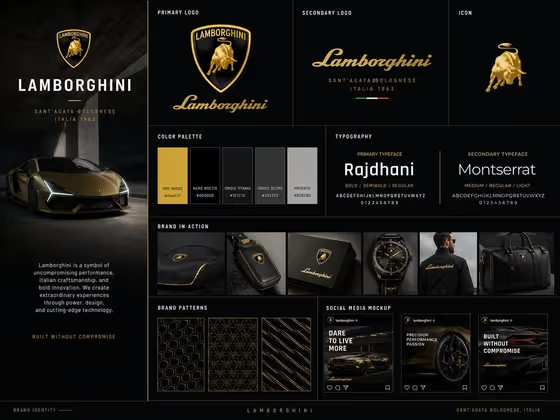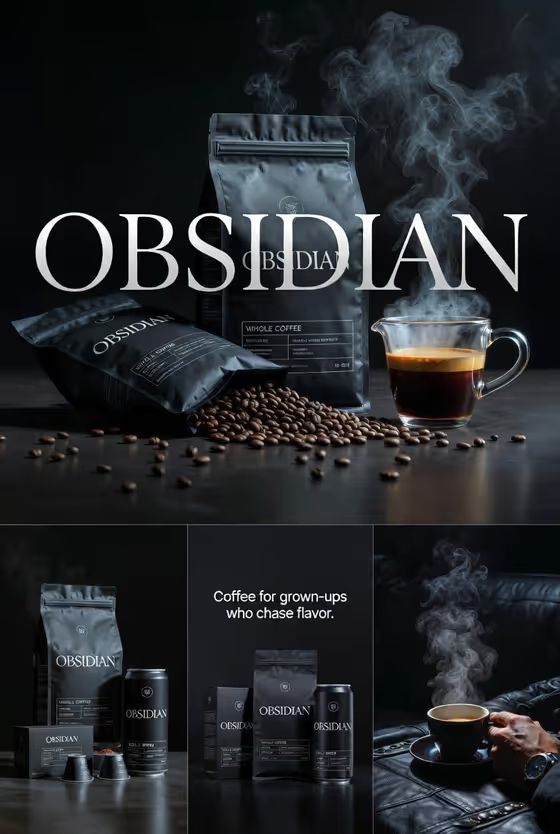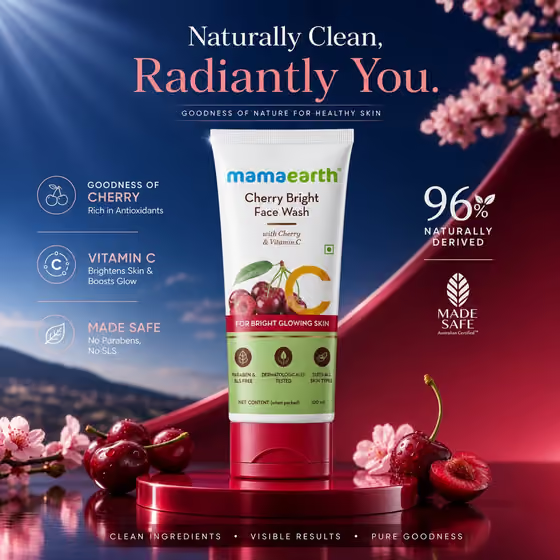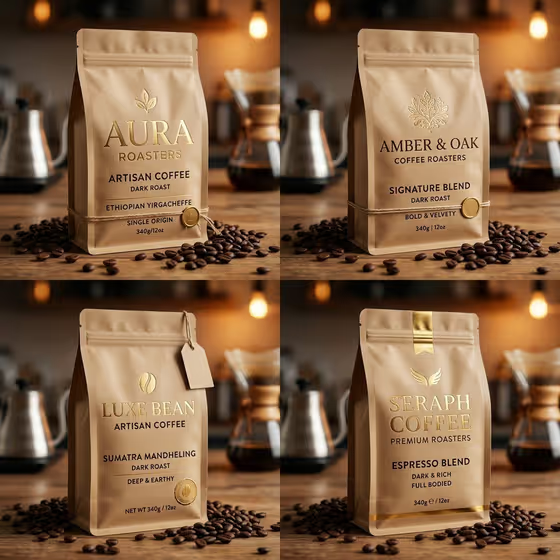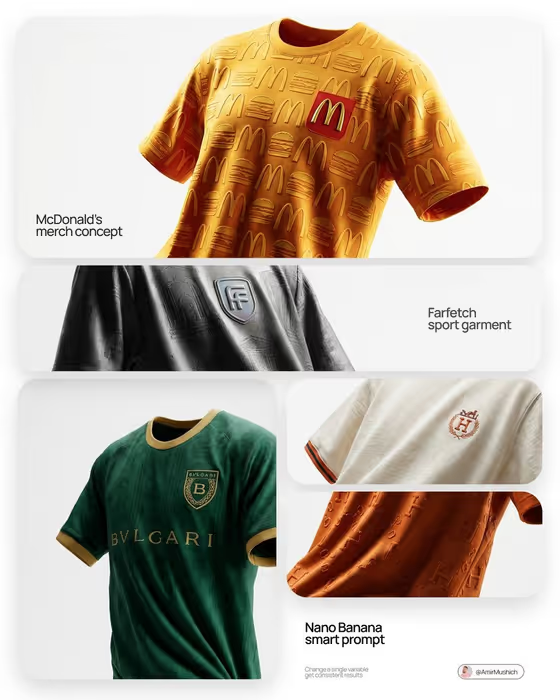
This template builds an editorial product shot in a lookbook style. The cover shows custom football jerseys floating at a slight angle, each carrying a brand's colors, crest and repeating pattern, with visible fabric folds and texture. You supply a subject, a featured product or prop, and a creative direction, and it frames the result as a 3:4 image.
It suits designers, brand teams and merch creators who want to preview a branded garment concept in a polished, magazine-like presentation. It also works for anyone who wants a quick, stylish showcase of an object suspended at a dynamic angle.
What works best as input
- The template expects 2 or more photos. Use one for the Portrait subject and one for the Featured product or prop, since both slots accept a photo.
- For the product or prop, pick a clear, well-lit image where the logo, colors and key details are easy to read. The cover results show that crests, patterns and trim colors carry through, so give it something distinctive to preserve.
- If you describe instead of upload, be specific. Something like 'a premium beverage bottle' or 'a sculptural fashion accessory' gives more to work with than a single vague word.
- For the Portrait subject, a sharp, evenly lit photo of the person works better than a cropped or heavily filtered one. Only use photos of people who are fine with being featured.
- Keep each photo to one clear subject so the template knows what to carry into the final shot.
How to use it
- Open the BRAND NAME Act As template in Phosphene.
- Fill in Portrait subject and Featured product or prop. Upload a photo or type a short description in each field.
- Choose a Creative direction, such as Clean editorial, Cinematic dramatic, Playful colorful or Quiet premium.
- Generate the image, then review the angle, fabric folds and brand details. Adjust your inputs and run it again if something is off.
Tips for a better result
- Try the same subject and product with different Creative direction options. Quiet premium and Playful colorful will push the mood in very different directions.
- Change one input at a time between runs so you can see exactly what each change does, the way the cover compares several brand versions side by side.
- Choose a product with a strong color and a clear mark. Bold colors and a recognizable emblem read well in a floating, angled shot.
- If you type descriptions, add material and color words (for example, a textured dark fabric with a metallic crest) to guide the look.
Common mistakes
- Uploading only one photo when the template asks for 2 or more, which leaves a slot without reference material.
- Using low-resolution or cluttered product photos, which makes logos and fine pattern details harder to preserve.
- Writing very generic descriptions like 'a thing' or 'a person', which gives the result little to anchor on.
FAQ
How many photos do I need?
The template asks for 2 or more. Both the Portrait subject and Featured product or prop slots accept a photo, so you can use one for each.
Can I type a description instead of uploading?
Yes. Portrait subject and Featured product or prop are text fields that also accept photos, so you can describe either one in words.
What does Creative direction control?
It sets the overall mood of the shot. The options include Clean editorial, Cinematic dramatic, Playful colorful and Quiet premium.
What shape is the final image?
The output is a 3:4 image, a portrait format suited to lookbook-style layouts.