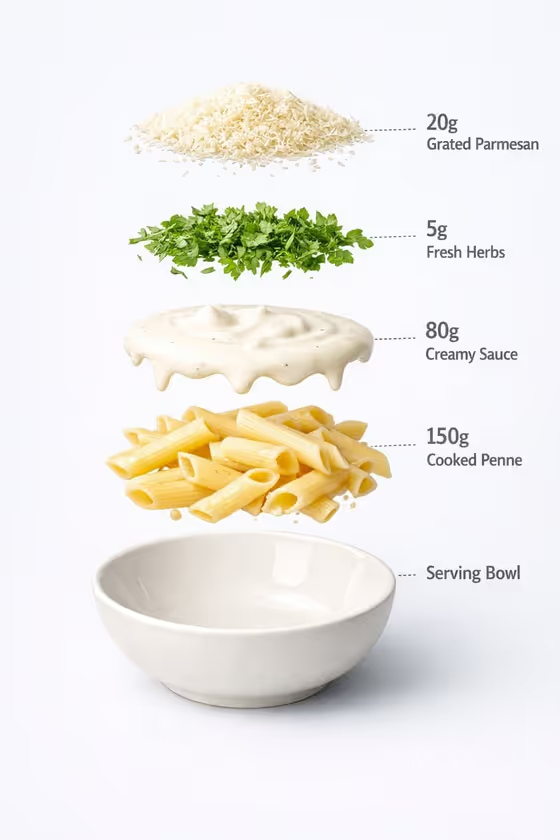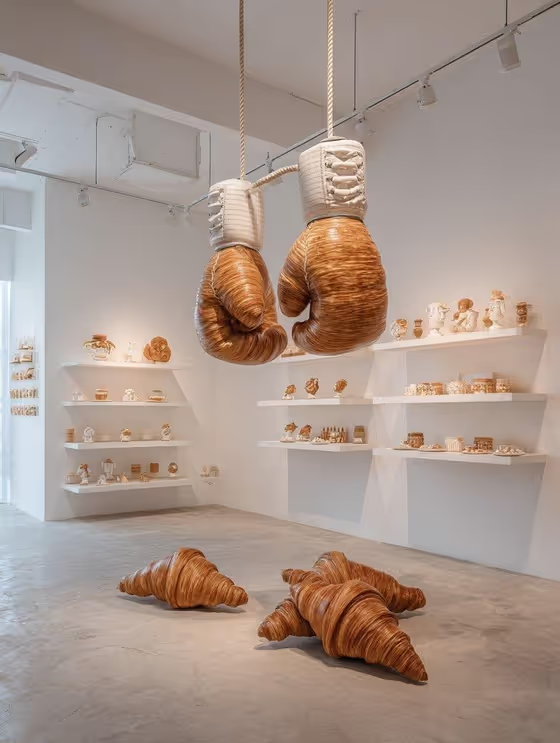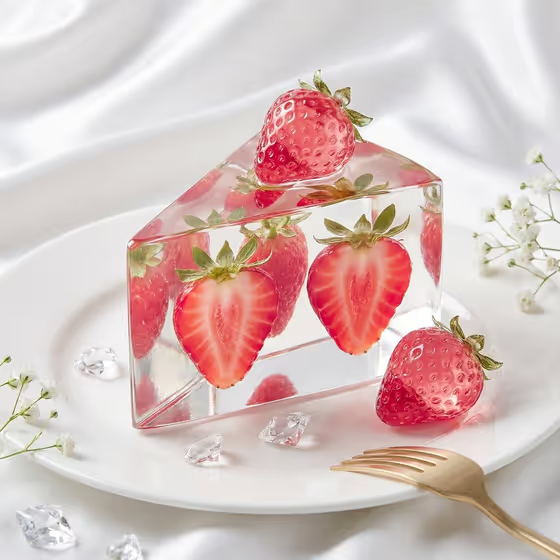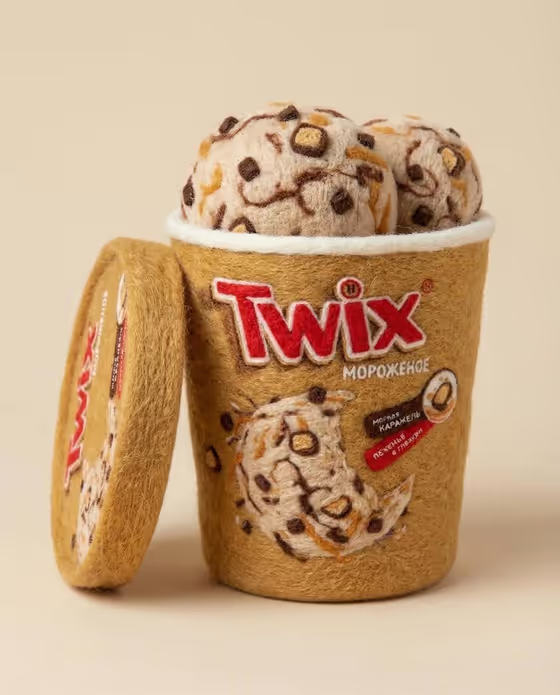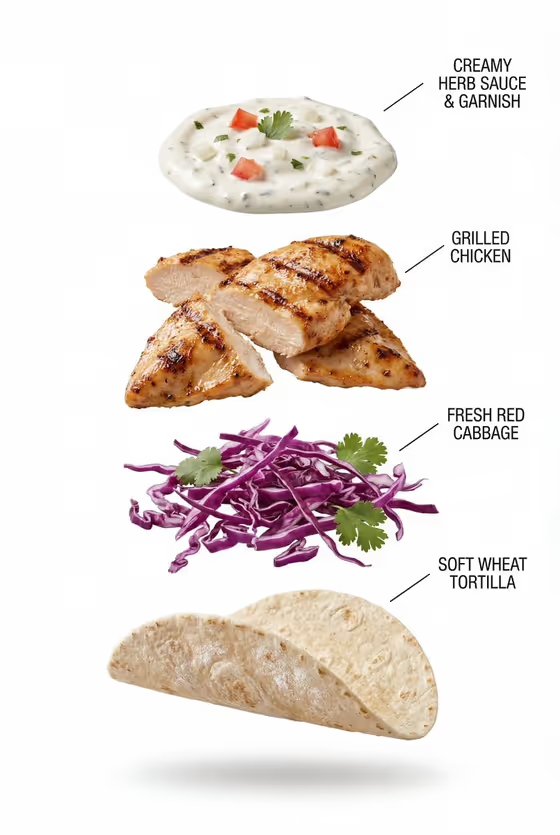
Clean Menu Hero turns a dish into a crisp, isolated menu shot on a pure white background, in a 3:4 portrait frame. The cover image shows the idea well: each ingredient (sauce, grilled chicken, red cabbage, tortilla) is sharp, separate and easy to read.
It suits restaurant owners, home cooks building a menu, and anyone who needs a tidy product image of a single food item. You name the dish, choose the filling that should stand out, and the template handles the clean white styling and soft contact shadow.
What works best as input
- In Food product or dish, you can either type a short description (like the placeholder, grilled chicken taco) or upload a photo as an exact reference of your plated item.
- If you upload a reference, use one clear photo of a single item so the template can follow its real shape and structure.
- If you type instead, name the specific dish rather than a general category. Something like crispy fish taco or loaded falafel wrap gives clearer results than just wrap.
- For Visible filling combination, list the components you want to see in order of importance, as in charred chicken, red cabbage and tomato salsa.
- Keep the dish and the filling consistent with each other so the ingredients make sense together.
How to use it
- Open the Clean Menu Hero template in Phosphene.
- Fill in Food product or dish by describing your item or adding an exact reference photo of it.
- Set Visible filling combination to the ingredients that should read clearly in the shot, using the examples as a model for how to phrase it.
- Generate the image, then check that each ingredient is distinct, the white background is clean, and the shadow looks natural before using it.
Tips for a better result
- Pick fillings with strong color contrast, like red cabbage against pale chicken, so every component reads clearly in the final shot.
- Try the same dish with different filling combinations (for example crispy fish, slaw and lime crema versus falafel, pickles and tahini) to build a consistent set of menu images.
- Use short, concrete ingredient names. Specific words like charred, crispy or roasted guide the texture the template renders.
- If you have a real plated item, a reference photo helps keep the tortilla or bread structure accurate to what you actually serve.
Common mistakes
- Listing too many fillings at once. A crowded list makes it harder for each ingredient to stay sharp and distinct.
- Describing a scene or setting (table, plate, restaurant). The template is built for a single isolated item on white, so props and backgrounds work against it.
- Uploading a cluttered or blurry reference photo, which gives the template a weak starting point for the dish's shape.
FAQ
Do I have to upload a photo?
No. The Food product or dish field accepts either a typed description or a reference photo. The filling field is text only.
What background will the image have?
A pure white background with a soft, natural contact shadow and no distracting props.
What shape is the output?
A 3:4 portrait image, as set by the template.
Can I use it for dishes other than tacos?
Yes. The examples include a fish taco, a falafel wrap and a plated menu item reference, so single filled items work well.