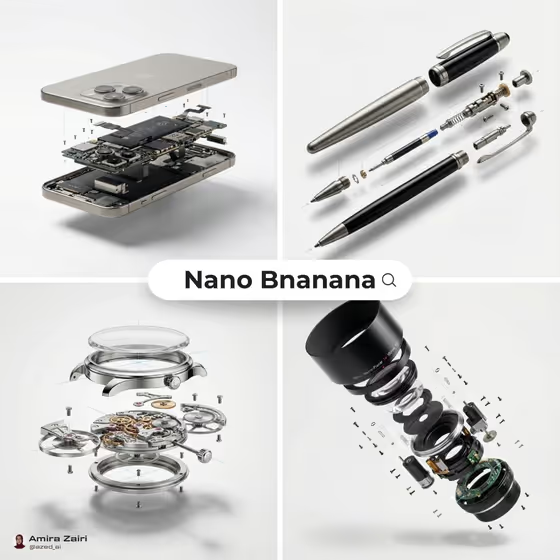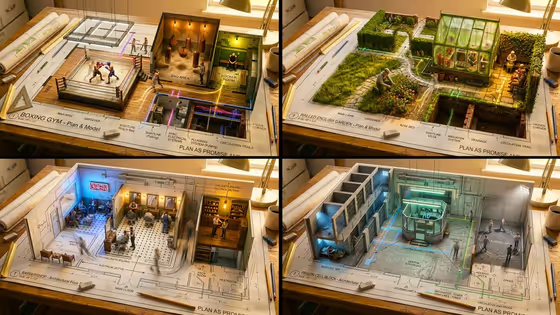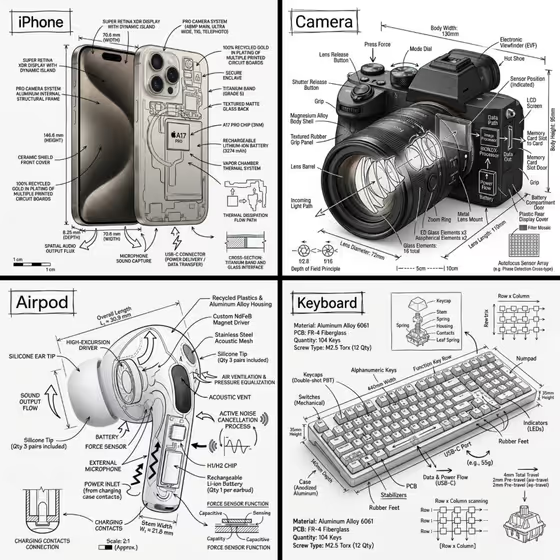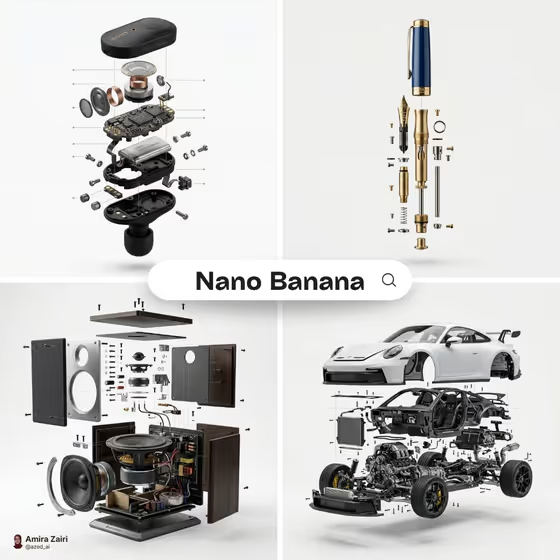
Exploded Product Mechanics turns a product into an exploded diagram image. The inner parts, screws, and shells hover apart in their correct assembly order against a clean white backdrop, much like the earbud, fountain pen, speaker, and sports car shown on the cover.
It suits product designers, makers, hardware brands, and anyone who wants to show what sits inside a device. The result is a 3:4 image that makes the engineering easy to read at a glance.
What works best as input
- In the Product field, you can describe the item in words or upload a photo of it. A clear, well-lit photo of the exact product helps the result stay faithful to its real shape and finish.
- If you upload a photo, pick one with the whole product visible, a plain background, and no heavy glare or motion blur.
- If you type instead, be specific, for example "a mechanical watch" or "a premium headphone" rather than just "a gadget".
- The Internal mechanics and Exploded alignment fields are text or choice only, so describe those in words rather than uploading anything for them.
How to use it
- Open the Exploded Product Mechanics template in Phosphene.
- Fill in Product by typing a description or adding a photo, then set Internal mechanics to the components you want revealed, such as lens, sensor, boards, and shutter.
- Fill in Exploded alignment to say how the parts separate, for example outer shell hovering directly above the core.
- Generate the image, then review it. Check that the parts sit in a believable assembly order and adjust your fields if you want a different layout.
Tips for a better result
- Name real components in Internal mechanics (drivers, batteries, hinges, wiring, springs, gears). The more concrete the list, the more convincing the interior looks.
- Match the alignment to the product's shape. A vertical stack of layers suits a pen or speaker, while front and rear shells on one axis suits a flatter device.
- Try the same product with a different alignment, such as layers rising in vertical order versus components suspended along assembly guides, to compare which reads more clearly.
- Keep the product description simple and singular. One clearly defined object gives a tidier exploded view than a bundle of several items.
Common mistakes
- Listing too many internal components at once, which can crowd the image and make the assembly order hard to follow.
- Writing a vague Product description or uploading a cluttered photo, so the exploded parts do not resemble your actual product.
- Asking for labels, text callouts, or decorative props. The template keeps the stage clean with no labels or extras.
FAQ
Do I have to upload a photo?
No. The Product field accepts either a text description or an uploaded reference photo. The other two fields are text or choice only.
What does the output look like?
A 3:4 image of your product's parts suspended in assembly order against a white background, with a soft contact shadow and no labels.
Can I control how the parts separate?
Yes. The Exploded alignment field lets you describe the separation, such as shells on one axis, vertical layers, or parts along assembly guides.
Will the internals match my real product exactly?
The template aims for realistic, believable mechanics based on what you describe, but the inner parts are generated, so treat them as an illustrative interpretation rather than a technical drawing.