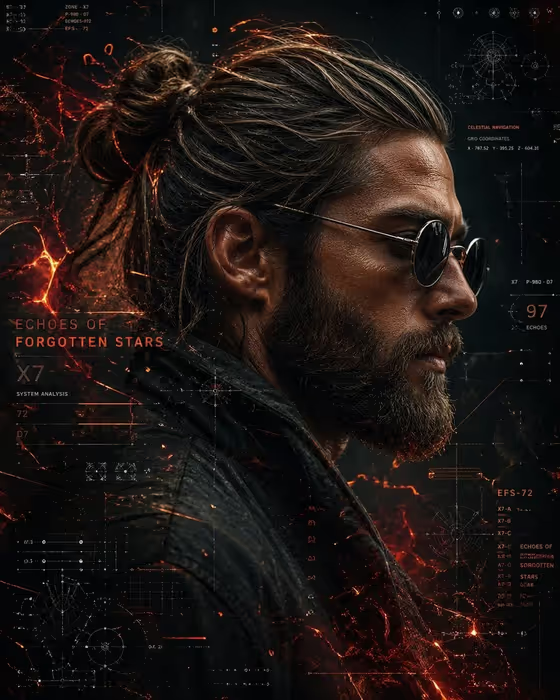
Celestial Data Operative turns a person into a cyberpunk side-profile portrait set against a dark background full of glowing orange and red star charts, grids and ember particles. The cover shows the idea well: a bearded man with tied-back hair and round dark glasses, with navigation diagrams and data readouts layered behind and around him.
It suits anyone who wants a moody sci-fi character portrait, such as a profile picture, a poster-style image, or a themed visual for a campaign or project. You can base it on your own photo or simply describe the person you have in mind. The result is a 3:4 image.
What works best as input
- For the Portrait person or subject field, you can upload a matching reference photo or type a short description. A clear portrait of a single person works best because the template frames them in side profile.
- Choose a photo where the face and hair are well lit and not hidden by hats, hands or heavy shadows. The template keeps skin, beard and texture sharp, so a photo with visible detail gives it more to work with.
- If you describe instead of uploading, be specific and brief, in the style of the examples: 'rugged bearded adult man', 'sharp-featured adult woman' or 'androgynous cyber operative'.
- Use a photo of yourself or someone who has agreed to be pictured, and keep descriptions respectful. Avoid trying to recreate a real public figure.
- Only one photo is needed. Pick the one that best shows the features you want carried into the portrait.
How to use it
- Open the Celestial Data Operative template in Phosphene.
- In Portrait person or subject, upload your reference photo or type a short description of the person.
- In Holographic interface, choose what fills the background, for example star maps and navigation diagrams, orbital telemetry and data streams, or celestial grids and warning signals.
- Generate the image, then review the profile pose, the sharpness of skin and beard, and how the orange data layers sit behind the subject. Adjust your inputs and run it again if you want a different look.
Tips for a better result
- Try each Holographic interface option with the same subject to compare how the background mood changes, from calm star maps to more urgent warning signals.
- If you are describing your subject, add one or two distinctive traits such as a beard or sharp features, since the template already handles the hair, glasses and leather styling.
- Use the 'my sci-fi data system' style idea to point the background toward your own theme, like a fictional project or world you are building.
- Because the output is 3:4, it fits portrait-oriented spaces well, so plan posters, profile frames or social posts around that shape.
Common mistakes
- Uploading a group photo or a shot where the face is small or turned away, which gives the template little to build a clean side profile from.
- Writing a long, crowded description in the subject field. Short and clear usually works better than listing many details.
- Expecting the background text and numbers to be readable or exact. The data elements are decorative, so treat them as atmosphere rather than real information.
FAQ
Do I have to upload a photo?
No. The subject field accepts either a typed description or an uploaded reference, so you can use whichever suits you.
Will the portrait always be in side profile?
Yes, the template is built around a cinematic side-profile framing, with tied-back hair, round dark glasses and textured leather as part of the look.
Can I change the colors from orange and red?
The template is designed around glowing orange and red holographic data against a dark background. What you can change is the subject and the type of holographic interface.
What does the Holographic interface setting do?
It decides what fills the background around the figure, such as star maps, orbital telemetry or celestial grids, while the overall orange ember style stays the same.