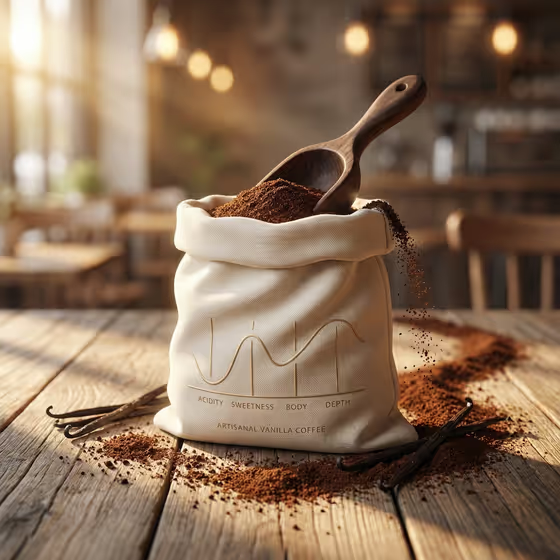
Vanilla Coffee Ritual builds a 3:4 tabletop coffee photograph around your package. The package sits on a rustic oak table with scattered grounds, a wooden scoop and flavor props curving around its base, and a thin matte-gold tasting chart printed on the front.
It suits small coffee roasters, cafe owners and anyone who needs a warm, handcrafted product image for a listing, a menu or a social post. You describe the coffee, choose the flavor story and write the tasting profile, and the template handles the setting and light.
What works best as input
- For Coffee product or package, you can type a short description or upload a matching reference photo. A clear, straight-on shot of your pouch, canister or bottle gives the template the most to work from.
- If you upload a photo, pick one where the package is fully in frame, evenly lit and not covered by hands or other objects. Keep the label readable if the design matters to you.
- If you type instead, name the format, color and material, like the examples "ivory vanilla ground-coffee pouch" or "amber cold-brew bottle".
- Flavor props is a choice field, so pick the option that matches your coffee's real flavor, such as vanilla pods, cocoa nibs or orange peel. It does not take a photo.
- In Sensory chart, keep each note short and separate them with a dot, like "low acidity · rich sweetness · full body", so the chart on the package stays clean.
How to use it
- Open the Vanilla Coffee Ritual template in Phosphene.
- Fill in Coffee product or package by typing a description or uploading a reference photo of your package.
- Choose your Flavor props, then enter the Sensory chart text with the tasting notes you want printed on the package.
- Generate the image, then check the package, props and chart text. Adjust your fields and run it again if something is off.
Tips for a better result
- Match the flavor props to the coffee. A cocoa-finish profile with cocoa nibs and beans reads as one coherent story, while mismatched props look confusing.
- Use three short notes in the sensory chart, as the examples do. Fewer words tend to stay more legible on a small printed area.
- Try the same package with different flavor props and sensory profiles to build a small set of images for a product line.
- Describe materials in the product field (paper canister, glass bottle, fabric-look pouch) so the package texture feels intentional.
Common mistakes
- Writing a long sentence in Sensory chart. The chart is meant to be restrained, so long text can end up cramped or hard to read.
- Uploading a cluttered or heavily angled package photo, which makes it harder to keep the package faithful to what you have.
- Choosing flavor props that do not match the coffee, which weakens the flavor story the image is built around.
FAQ
Do I have to upload a photo?
No. Coffee product or package accepts either a typed description or an uploaded reference. The other two fields are text or choice only.
Where does the tasting text appear?
It is shown as a thin, restrained sensory chart on the front of the package, using the notes you enter in Sensory chart.
What shape is the result?
The output is a single image in a 3:4 portrait ratio.
Can I use my own flavor ingredients?
The Flavor props field lists ready-made combinations and also suggests entering your own flavor ingredients, so you can describe what fits your coffee.