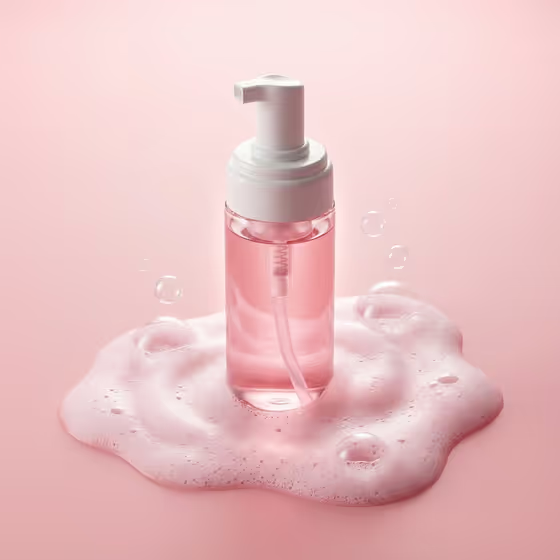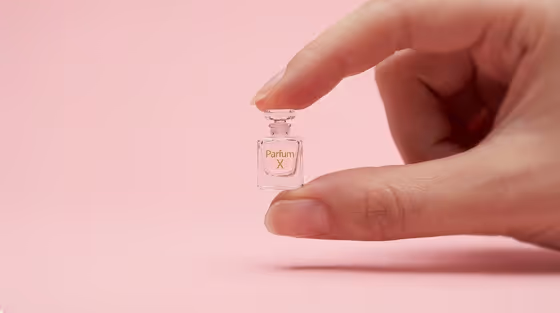
This template makes a macro-style advertising image of a tiny version of your product held between a thumb and forefinger. The cover shows a miniature perfume bottle against a soft pink backdrop, with a clean, centered composition and a gentle shadow below the hand.
It suits product owners, small brands and designers who want a playful hero image that makes an item feel precious and small. You choose the product, the material it appears to be made from, and the background color. The output is a 3:4 image.
What works best as input
- In the Miniature Product field you can either describe the item in words or upload a visual reference, since this slot accepts a photo. Pick whichever gives the clearest picture of the object.
- If you upload a photo, use one where the product is shown alone, with a clear outline and little clutter around it. A simple, well-lit shot helps the shape come through.
- If you type instead, keep it short and concrete, like the examples: classic lounge chair, retro camera, tiny running shoe, compact espresso machine.
- Choose products with a recognizable silhouette. Distinct shapes tend to read better at miniature scale than very flat or very complex objects.
How to use it
- Open the Handheld Miniature Material Ad template in Phosphene.
- Fill in Miniature Product by typing a description or uploading a reference photo, then set Craft Material (for example carved walnut or glazed porcelain).
- Set Background Color, such as powder blue, warm sand, sage green or dusty coral.
- Generate the image, then review how the hand, scale and material look and adjust your inputs if you want a different result.
Tips for a better result
- Try the same product in different materials. Translucent resin, brushed aluminum and glazed porcelain each give a very different finish to the same shape.
- Match the background to your brand. A soft color like the pink in the cover lets a light or glassy product stand out, while a deeper tone can suit darker materials.
- Add a detail or two to a typed product description (a style, an era or a feature) so the miniature has more character.
- If a result is close but not right, change one input at a time, such as only the material, so you can see what made the difference.
Common mistakes
- Describing the product too vaguely, like just "bottle" or "chair". A specific name gives the template more to work with.
- Uploading a busy photo with several objects or a cluttered background, which can make it unclear what should be shrunk down.
- Choosing a background color that is close to the material color, which can make the miniature blend in instead of standing out.
FAQ
Do I have to upload a photo?
No. The Miniature Product field accepts either a text description or a photo reference. Craft Material and Background Color are chosen without a photo.
Can I change how the hand holds the product?
The hand pose is fixed by the template. The miniature is always balanced between a thumb and forefinger, and you control the product, material and background color.
What shape will the image be?
The template produces a single image in a 3:4 aspect ratio.
Can I use any material I like?
Craft Material is a choice field, and the examples include carved walnut, translucent resin, brushed aluminum and glazed porcelain. Pick the option that best fits the look you want.