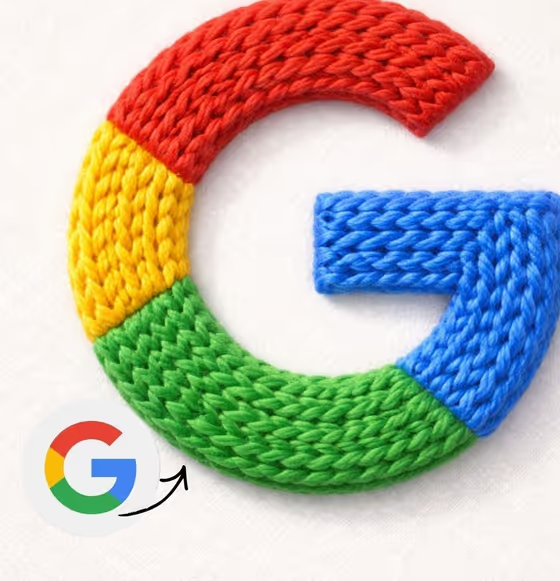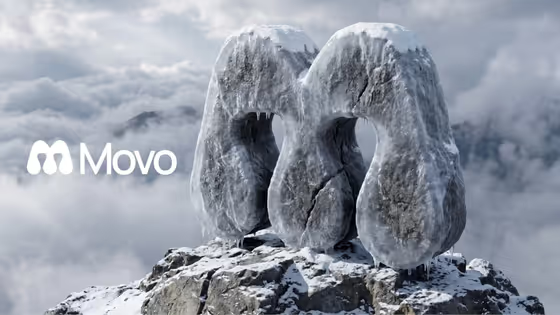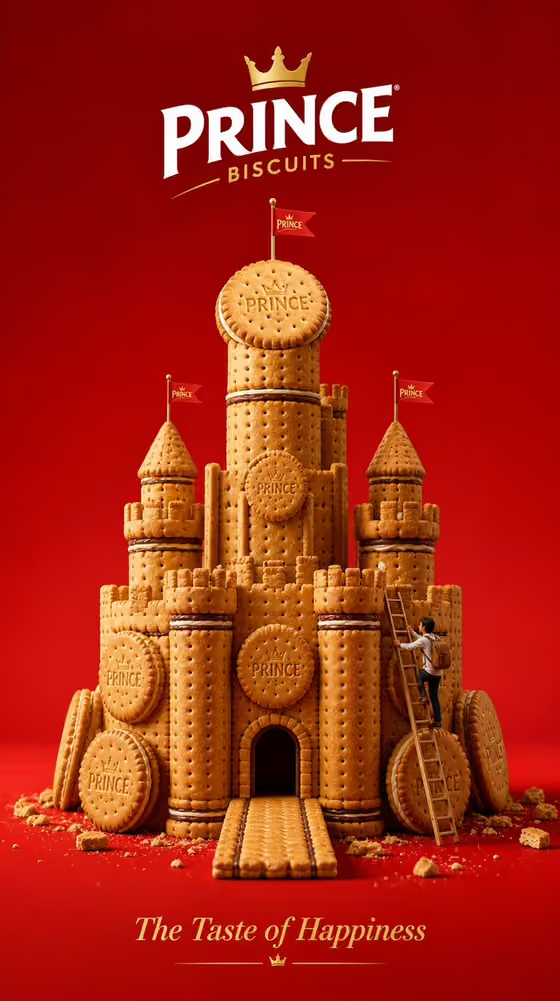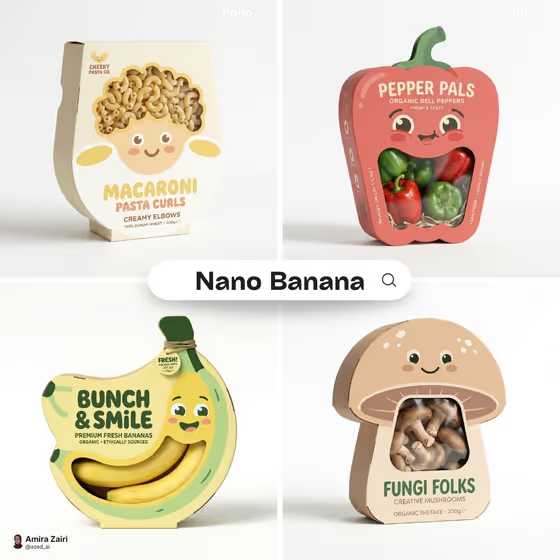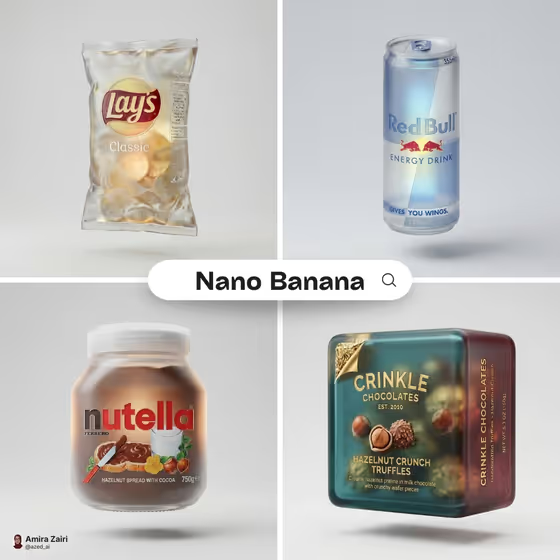
This template turns a package design into a 3D render where the packaging looks like frosted, translucent glass. The result floats at the center of a light gray field with a soft shadow beneath it, much like the cover examples of a chip bag, a slim can, a spread jar and a square tin.
It suits designers, brand owners and makers who want a stylized product visual from an existing design. The render keeps the original proportions and colors, softens the corners, and blends the branding into the glass as embossed detail.
What works best as input
- For the 'supplied package design product or object' field, you can upload a photo or type a description. A clear, exact visual reference of your package is the safest way to keep the shape and colors accurate.
- Pick a photo where the whole package is visible, evenly lit and not cropped, so the proportions carry over into the glass version.
- Use a design you own or have the right to use. The field is meant for your own supplied product, object or design.
- If you describe instead of uploading, name the package type, its main colors and any wording on it, for example 'a personal product design' with a few specifics about shape and color.
- Avoid cluttered backgrounds or heavy glare in a photo, since those can distract from the package itself.
How to use it
- Open the Frosted Glass Packaging template in Phosphene.
- In 'supplied package design product or object', upload your package photo or type a description of it.
- Choose an option in 'Product presentation', such as clean studio hero, dynamic material interaction or annotated product breakdown, to set how the final image is framed.
- Generate the image, then check that the shape, colors and branding details match your package before saving or trying again.
Tips for a better result
- Try different 'Product presentation' options on the same package to compare a clean studio look with more dynamic or annotated framings.
- Use a sharp, front-facing reference so embossed branding details have clear shapes to follow.
- Run the same design in a few package types (bag, can, jar, box) to build a consistent set, like the four-panel cover.
- If you only have a description, add details about proportions and color so the glass version stays close to the real thing.
Common mistakes
- Uploading a blurry, cropped or heavily angled photo, which makes it harder to keep proportions and branding accurate.
- Writing a vague description such as just 'a box' with no color or shape details.
- Expecting the render to stay opaque or glossy. This template always translates the package into frosted translucent glass on a light gray background.
FAQ
Do I have to upload a photo?
No. The package field accepts either an uploaded reference or a text description, though a photo of the exact package gives the closest match.
What will the background look like?
A light gray field with the package floating in the center and a soft shadow below it, as in the cover image.
What shape is the output?
The template outputs a single image in a 3:4 aspect ratio.
Will my original colors and branding be kept?
The template aims to maintain accurate proportions and original colors, with branding details embossed into the glass. Check the result against your design, since fine print may simplify.