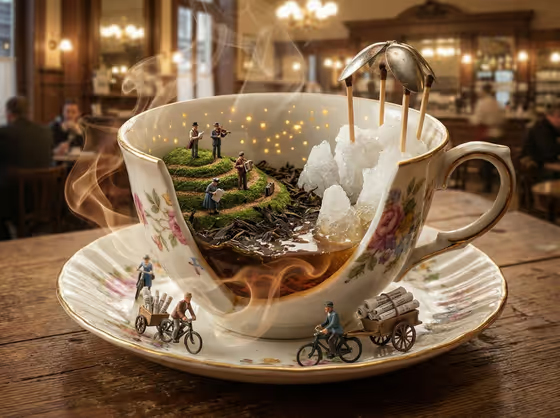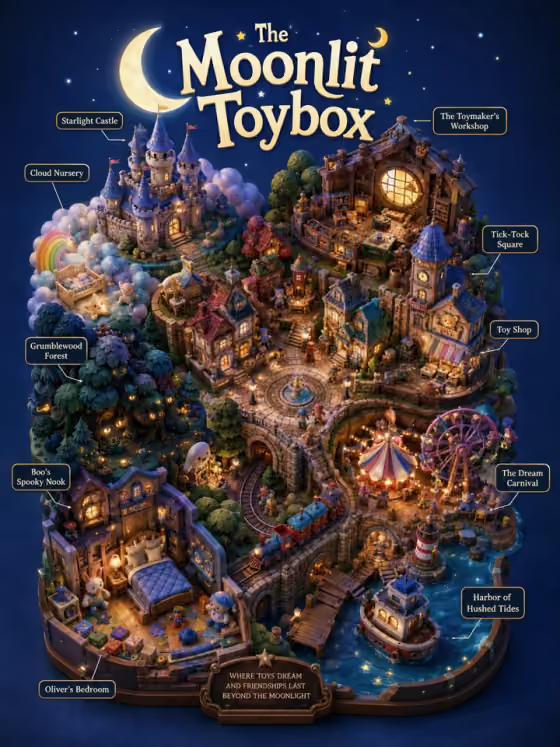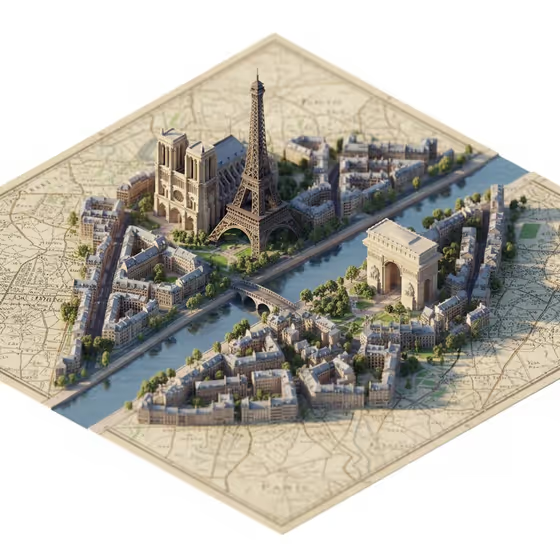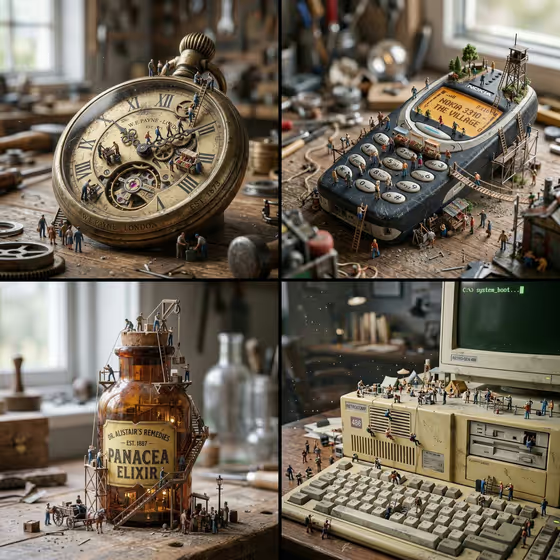
Giant Object Miniature turns an ordinary item into an oversized landmark, then fills the scene with tiny, detailed human figures who climb, build and work across its surface. The cover image shows the idea well: a pocket watch, an old mobile phone, an apothecary bottle and a retro computer, each treated like a terrain with ladders, scaffolds and small crowds.
The result is a macro-style image with a shallow depth of field, soft directional light and fine surface detail such as dust and scratches. It suits anyone who wants a playful, photographic miniature-world picture built around one object, whether that is a household item, a product or something personal.
What works best as input
- In the 'everyday object product or object' field you can either type a short description or upload a reference photo of the exact item. Use a photo when the real look of the object matters.
- If you upload a photo, choose one where the object is clear, well lit and not cropped, so its shape, materials and any markings can carry into the scene.
- If you type instead, name the object and add one or two telling details, such as the material, age or condition (for example, a worn brass pocket watch or a beige retro computer).
- Pick objects with interesting surfaces, buttons, dials, lids or curves. These give the tiny figures places to climb, stand and build, as seen on the keyboard and phone keypad in the cover image.
- Leave out other items from your description so the scene stays focused on a single hero object.
How to use it
- Open the Giant Object Miniature template in Phosphene.
- In the 'everyday object product or object' field, describe your object or upload a photo of it.
- Choose a value for 'Product presentation' to set how the finished image is framed. The default option is the macro miniature scene wording.
- Generate the image, then look it over for the object's shape, the scale of the figures and the surface detail. Adjust your object description and run it again if needed.
Tips for a better result
- Add specific wording to the object field, such as its material, wear or era, to push the scale landscape in a clear direction.
- Try the other 'Product presentation' options, like a clean studio hero or an annotated breakdown, to see the same object framed differently.
- Objects with a lot of structure (dials, keys, glass, cork) tend to suggest richer tiny worlds, with scaffolds, ladders and small buildings.
- Run the same object once from a typed description and once from a photo to compare how closely each follows the real item.
Common mistakes
- Describing too many objects at once. The template is built around one giant hero object, so a crowded description dilutes the scene.
- Uploading a dark, blurry or heavily cropped photo, which gives the template little to work from.
- Expecting readable text or logos to match exactly. Keep object descriptions simple and check any lettering in the result.
FAQ
Do I have to upload a photo?
No. The object field accepts either a typed description or an uploaded reference, so you can use whichever suits you.
What kind of image does it make?
A cinematic, photorealistic macro scene in a 16:9 frame, with tiny figures interacting with an oversized object and a softly blurred background.
What does 'Product presentation' change?
It sets how the finished image is framed. The options include the default macro miniature scene, a clean studio hero, dynamic material interaction and an annotated product breakdown.
What objects work best?
Everyday items with distinctive surfaces and parts, like watches, phones, bottles and computers, give the figures the most to explore.