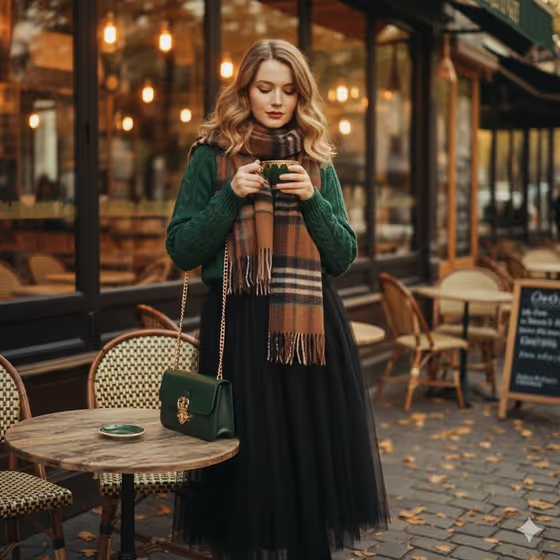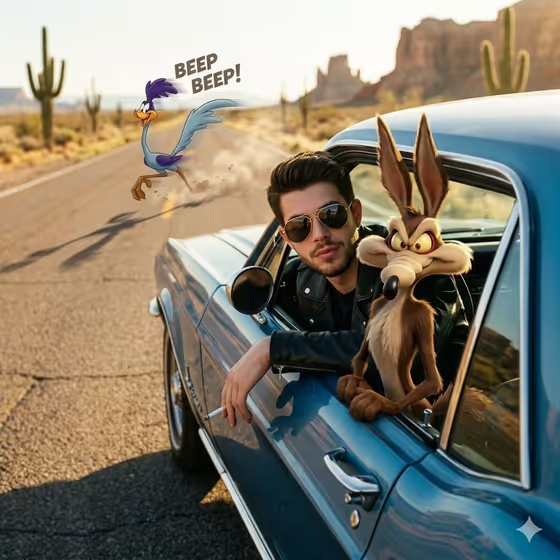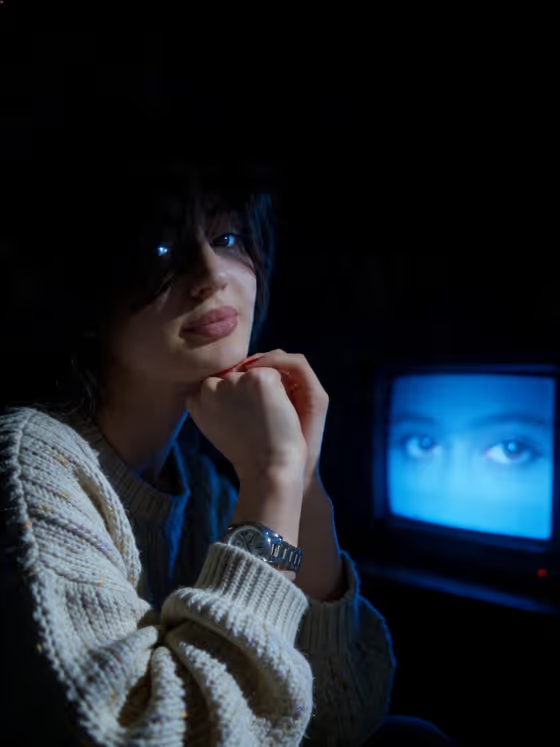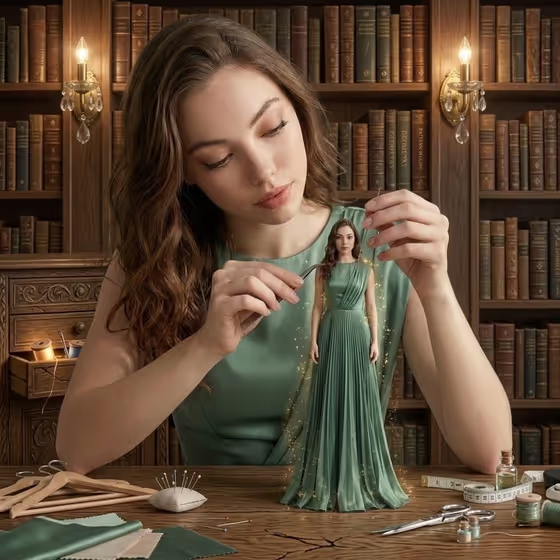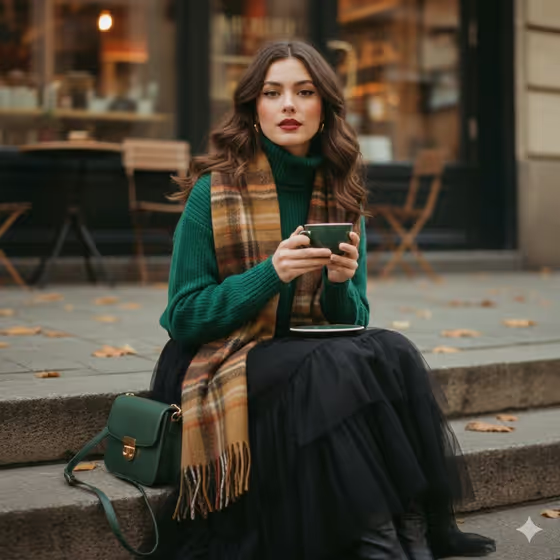
Seventies Cafe Portrait turns your subject into a cinematic, 1970s-inspired fashion portrait set on worn stone steps outside a street cafe. The styling includes a green ceramic coffee cup, wavy vintage hair, matte crimson lips, a forest-green knit sweater, a black tulle skirt and a warm plaid scarf, all under amber cafe light and autumn leaves.
It suits anyone who wants an editorial, film-style portrait with a warm, muted look. The output is a 3:4 image, which works well for portrait-format posts, profile pictures and lookbook-style layouts.
What works best as input
- The subject field (poised woman portrait subject) accepts either a text description or an uploaded photo, so use whichever gives you a clearer reference. If you upload, one photo is what the template asks for.
- Pick a clear, well-lit photo where the face is visible and unobstructed, so the portrait stays recognizable once the 1970s styling is applied.
- If you type instead, be specific about the person, for example 'a poised woman' or 'a candid everyday subject', rather than leaving a vague one-word entry.
- Avoid reference photos with heavy filters or strong sunglasses and hats, since the template adds its own hair, makeup and wardrobe.
How to use it
- Open the Seventies Cafe Portrait template in Phosphene.
- In the subject field, upload a photo or type a short description of the person you want pictured.
- Choose an option in Pose and scene, such as an intimate close portrait, a full-body editorial frame or an environmental candid frame.
- Generate the image, then review the face, outfit, cup and background, and run it again with adjusted inputs if you want a different result.
Tips for a better result
- Try the different Pose and scene options on the same subject. A close portrait emphasizes the makeup and hair, while a full-body frame shows off the skirt, scarf and bag.
- Keep the subject description short and concrete. The template already supplies the wardrobe, setting and film look, so extra styling words in the subject field may compete with it.
- If you upload a photo, choose one with soft, even light and a calm expression to match the quiet, confident mood of the scene.
- Generate a few versions and compare them, since small differences in framing and expression can change how the portrait feels.
Common mistakes
- Describing a whole outfit or location in the subject field. The 1970s wardrobe and cafe steps are built in, so use that field only for who the subject is.
- Uploading a blurry, dark or heavily cropped photo, which gives the template less to work with when keeping the person recognizable.
- Expecting a different era or setting. The template's look is fixed to warm, muted 1970s film tones with an autumn cafe scene.
FAQ
Do I need to upload a photo?
No. The subject field accepts a text description or an uploaded photo, so you can type something like 'a poised woman' if you prefer.
Can I change the clothes or the background?
The sweater, tulle skirt, plaid scarf, green cup and autumn cafe steps are part of the template's fixed direction. You mainly control the subject and the Pose and scene choice.
What does the Pose and scene option change?
It sets how the portrait is framed, with options such as an intimate close portrait, a full-body editorial frame or an environmental candid frame.
What shape is the result?
The output is a 3:4 image, a vertical portrait format.