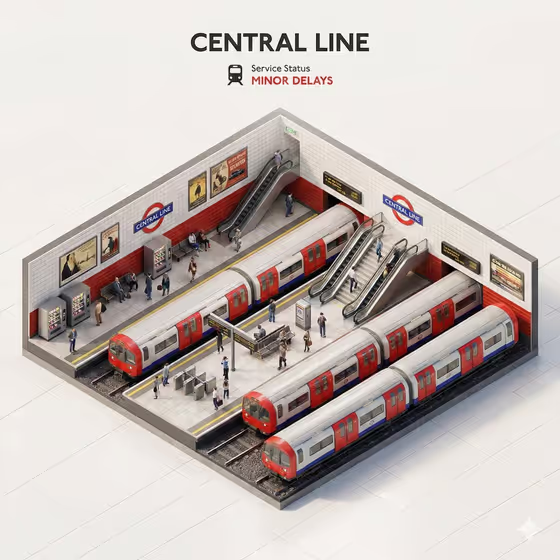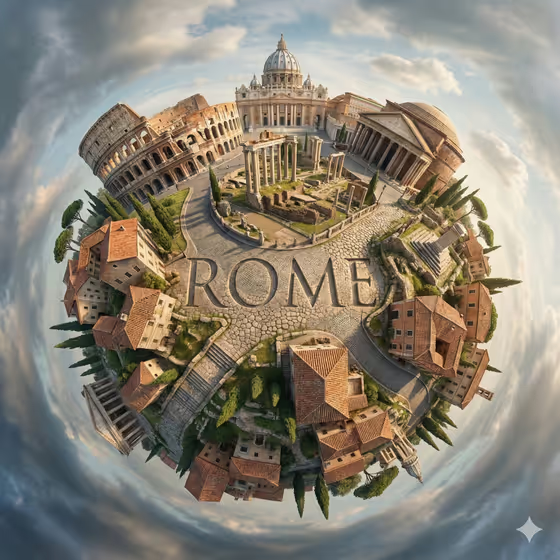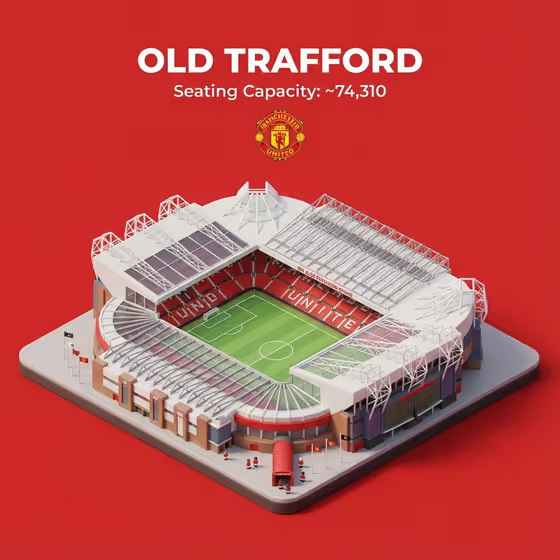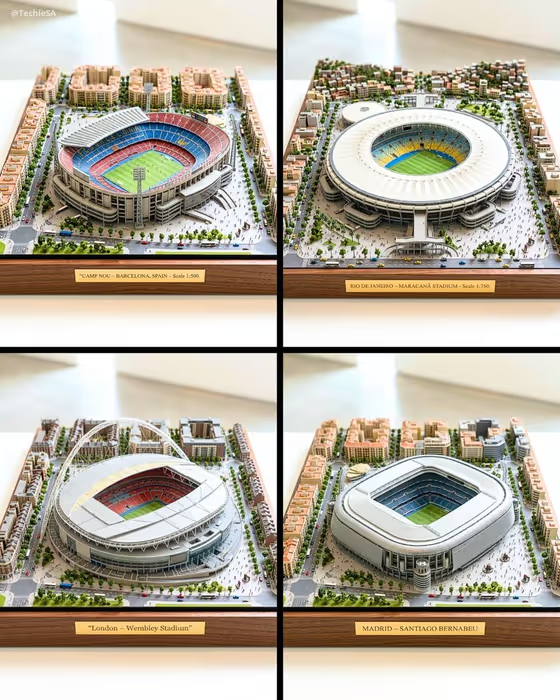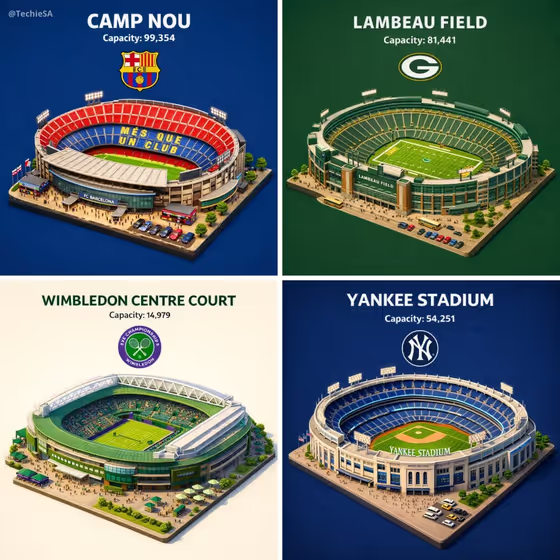
This template turns a landmark or venue into a small isometric diorama, viewed from a 45 degree top-down angle, with soft cartoon-style 3D textures and gentle lighting. The name of the place appears in bold text at the top, with its seating capacity underneath and a logo below that, all set against a clean solid background.
It suits sports fans, travel and trivia accounts, and anyone who wants a collectible-style graphic of a place they love. The cover shows four stadiums and a tennis court done this way, each with its own background color and matching text color, so it also works well for sets of related images.
What works best as input
- In the Scene subject or object field you can describe the place in text or add a photo of it, so use whichever gives the clearest identity. A recognizable, well-lit photo of the whole venue works better than a tight crop of one corner.
- If you type instead, be specific: write the full official name of the stadium or landmark (for example the name plus the city) rather than a vague phrase like 'a big stadium'.
- Choose a photo that shows the overall shape of the structure, such as its roof, stands and surrounding layout, because the miniature is rebuilt from those defining features.
- Avoid photos crowded with people, heavy filters or strong obstructions in front of the building, since they make the structure harder to read.
How to use it
- Open the Isometric Stadium Info Diorama template in Phosphene.
- In Scene subject or object, describe the venue or landmark you want, or add a photo of it.
- Pick an option for Creative direction, such as Clean editorial, Cinematic dramatic, Playful colorful or Quiet premium.
- Generate the image, then check the name, capacity figure and logo at the top, and run it again with adjusted wording if something is off.
Tips for a better result
- Try each Creative direction on the same subject to compare moods. Clean editorial and Quiet premium feel calmer, while Playful colorful pushes the palette.
- Use the full official name of the venue so the title text and logo have the best chance of matching what you expect.
- To build a matching set like the cover grid, keep the same Creative direction across several venues and vary only the subject.
- The layout puts the title, capacity and logo at the top and centers the diorama, so pick subjects with a distinct silhouette that reads clearly from above.
Common mistakes
- Entering a vague subject like 'a famous place' and expecting the right name, capacity and logo. Name the exact venue.
- Using a close-up or heavily cropped photo, which hides the overall structure the miniature is built from.
- Treating the capacity number as verified. Always check the figure and logo in the result against a reliable source before sharing.
FAQ
Do I have to upload a photo?
No. The Scene subject or object field accepts a text description, and it can also take a photo. Either works, as long as the venue is clearly identified.
What does the finished image include?
An isometric miniature of the venue on a solid background, with its name in large text at the top, the seating capacity beneath it and a logo below that.
Can I use it for things other than stadiums?
The template is built around stadiums and venues, but the subject field also suggests landmarks, neighborhoods and cultural destinations. Results are most reliable for places with a clear name and a recognizable structure.
What does Creative direction change?
It sets the overall mood of the scene. Options include Clean editorial, Cinematic dramatic, Playful colorful and Quiet premium.