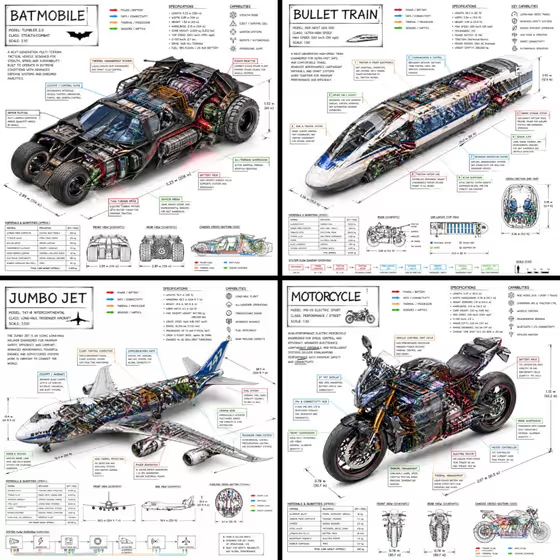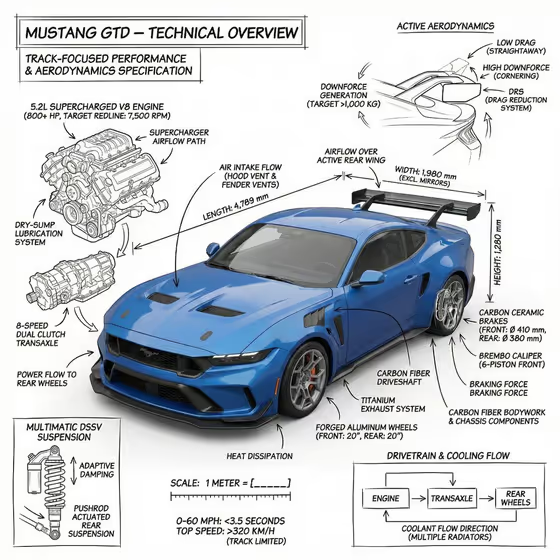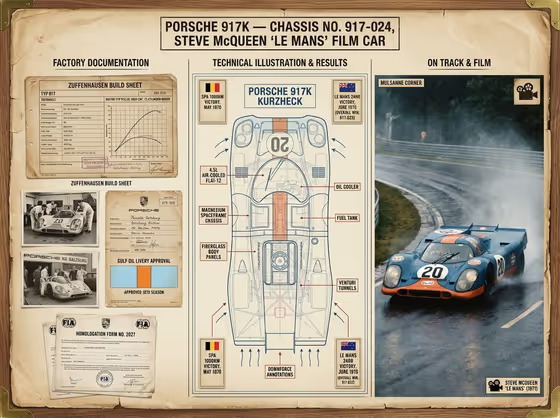
Marque History Board turns a car, its model identity and a setting into a single archival-style board. The layout reads left to right like a historian's file: factory documents, period advertising and production photos on the left, phantom-view engineering diagrams in the center, and the vehicle photographed in a chosen environment on the right, all under a formal title block.
It suits car enthusiasts, collectors, club newsletter editors, museum-style display makers and anyone who wants a poster-style tribute to a specific vehicle. The output is a 3:4 image, so it works well as a print-style portrait piece.
What works best as input
- In Vehicle Subject Product, you can describe the vehicle in words or add a reference photo of it. A clear, side-on or three-quarter shot of the exact vehicle gives the template something concrete to follow.
- If you describe instead of upload, be specific about the type of vehicle, as in the examples: a classic grand tourer, a homologation rally car, a vintage racing motorcycle or a landmark luxury sedan.
- In Model, Variant, and Year, write the documented identity the way the placeholder does, for example "GT 3.0 · 1967". Include the variant name and the year so the board's headings and documents stay consistent.
- Pick a reference photo where the whole vehicle is visible and in focus, without heavy filters, so the body shape and livery are easy to read.
- Keep the model and year truthful to the vehicle you describe or show. A mismatch between the photo and the written identity can confuse the board's details.
How to use it
- Open the Marque History Board template in Phosphene.
- Fill in Vehicle Subject Product by describing the vehicle or adding a reference photo of it, then type the documented identity in Model, Variant, and Year.
- Choose a Defining Environment from the options, such as Historic racing circuit, Alpine mountain pass, Grand city boulevard or Factory test track. This sets the photographic scene on the right of the board.
- Generate the image, then review the title block, the three panels and the vehicle itself, and adjust your inputs and run it again if something is off.
Tips for a better result
- Match the environment to the vehicle's story. A homologation rally car suits an Alpine mountain pass, while a vintage racing machine fits a Historic racing circuit.
- Be precise with the variant text. Adding a clear variant and year gives the left-hand documents and the title block more distinct wording to work with.
- Try the same vehicle in different environments to build a small set of boards, each telling a different chapter of the car's life.
- If you are using a photo, try a different angle or a cleaner shot to see how the vehicle on the right panel and the center diagrams change.
Common mistakes
- Leaving Vehicle Subject Product too vague, such as just "a car". The board works best when the vehicle type and character are clear.
- Entering a model and year that do not match the reference photo or description, which can make the board feel inconsistent.
- Expecting exact factory paperwork, real registry numbers or readable fine print. The documents and diagram labels are styled to look archival, so treat small text as decorative and check any specific facts yourself.
FAQ
Do I have to upload a photo?
No. Vehicle Subject Product accepts a written description or a reference photo. Model, Variant, and Year and Defining Environment are text and a choice only.
What does the Defining Environment control?
It sets the scene in the right-hand panel where the vehicle is shown, with options like Historic racing circuit, Alpine mountain pass, Grand city boulevard and Factory test track.
What size is the result?
The template produces a 3:4 portrait image.
Can I use it for motorcycles or sedans, not just sports cars?
Yes. The examples include a vintage racing motorcycle and a landmark luxury sedan, so describe whichever vehicle you want the board built around.