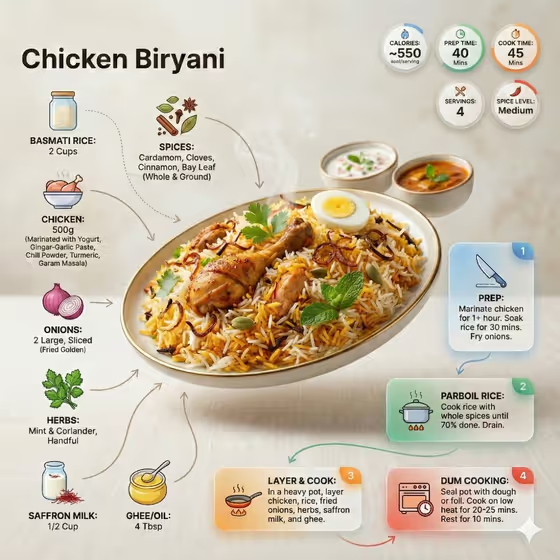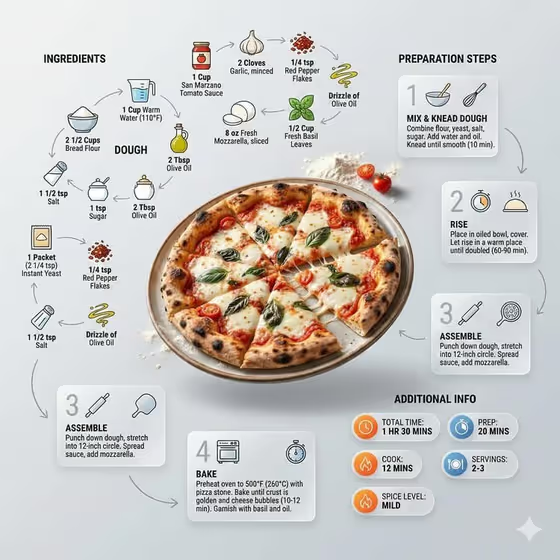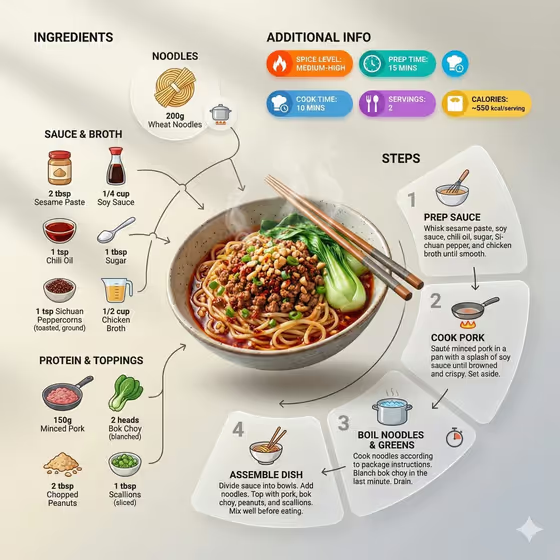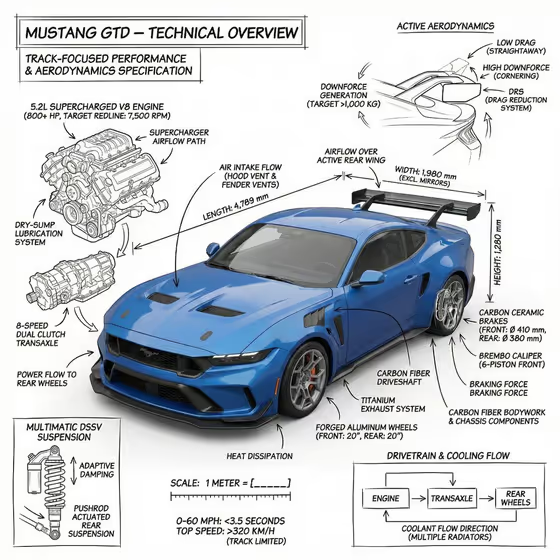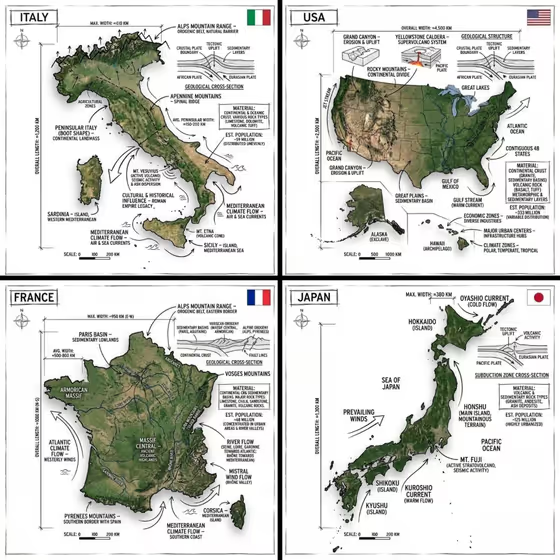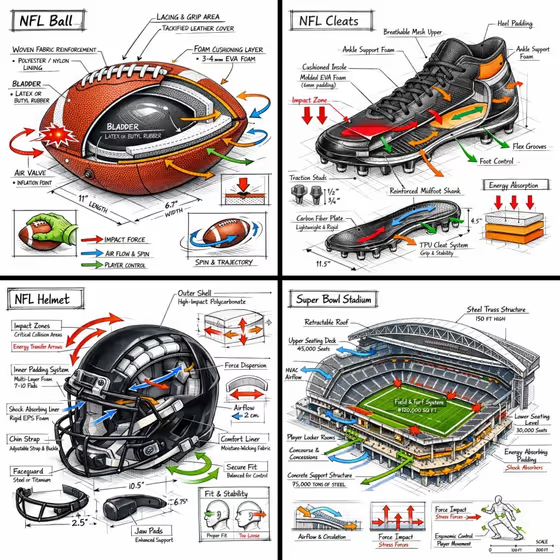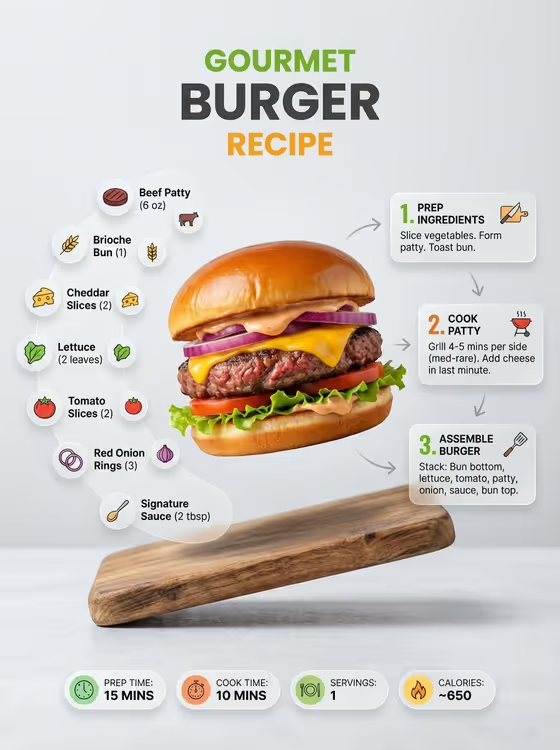
This template turns a plated dish into a recipe infographic. Your dish sits in the center at a slight angle, with ingredient icons and quantities clustered on one side and numbered step panels connected by arrows on the other, all under a large title you choose. The 3:4 portrait layout in the cover shows a burger on a wooden board with a three-step flow and small info chips along the bottom.
It suits home cooks, food bloggers, and anyone who wants a shareable recipe card with a clean, modern look. You provide the dish and the title, pick a creative direction, and the template handles the layout.
What works best as input
- Use a photo where the dish is the clear focus, well lit, and fully in frame. A single plated dish on a simple background gives the layout the most room to work with.
- The Featured product or object field accepts a photo or a text description. If you type instead, be specific about the finished dish, for example a stacked cheeseburger with lettuce, tomato and red onion.
- Pick a dish whose ingredients are visible or easy to name. The infographic arranges ingredient icons around the dish, so a recognizable dish gives you more relevant icons.
- For Rendered name or title, use a short, readable name in capitals like the examples (AURORA, YOUR NAME). The cover uses a three-line title, so concise wording tends to fit best.
How to use it
- Open the Ultra-Clean Modern Recipe Infographic template in Phosphene.
- In Featured product or object, upload a photo of your plated dish or describe it in text.
- Type your title in Rendered name or title, then choose an option for Creative direction such as Clean editorial or Quiet premium.
- Generate the image, then check that the title spelling, the dish, and the ingredient and step panels look right. Adjust your inputs and run it again if needed.
Tips for a better result
- Try different Creative direction options on the same dish. Clean editorial and Quiet premium suit a minimal look, while Playful colorful gives a livelier feel.
- Name the dish clearly in your title, such as the dish type plus the word recipe, so the finished card reads like a proper guide.
- Use a dish that is already sliced, portioned, or neatly plated. The template showcases the dish in a finished form, so a tidy presentation carries through.
- Generate a few variations with the same photo and compare layouts to find the arrangement of ingredients and steps you like best.
Common mistakes
- Uploading a cluttered photo with several competing dishes or props, which makes it unclear what the featured dish should be.
- Entering a long title or one with unusual spelling. Rendered text can come out wrong, so keep it short and double-check the result.
- Leaving the featured dish description vague, which gives the template little to base the ingredient icons and steps on.
FAQ
Can I use text instead of a photo?
Yes. The Featured product or object field accepts a photo or a text description, so you can describe your dish if you do not have a picture.
What size is the output?
The template produces a 3:4 portrait image, like the burger recipe card shown on the cover.
Does it write the recipe for me?
The template lays out ingredients and numbered steps around your dish based on what it sees or reads. Always review the quantities and instructions before sharing, since they are generated content.
What does Creative direction change?
It sets the overall mood of the infographic. Options in the template include Clean editorial, Cinematic dramatic, Playful colorful, and Quiet premium.