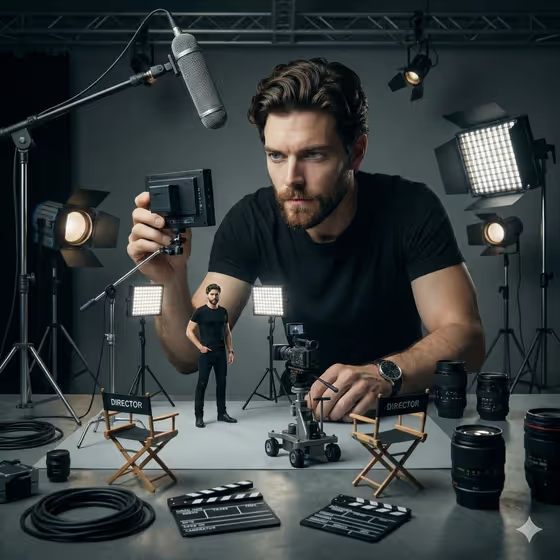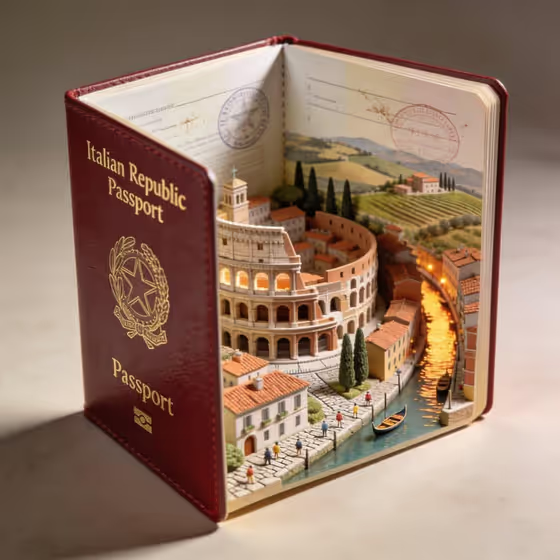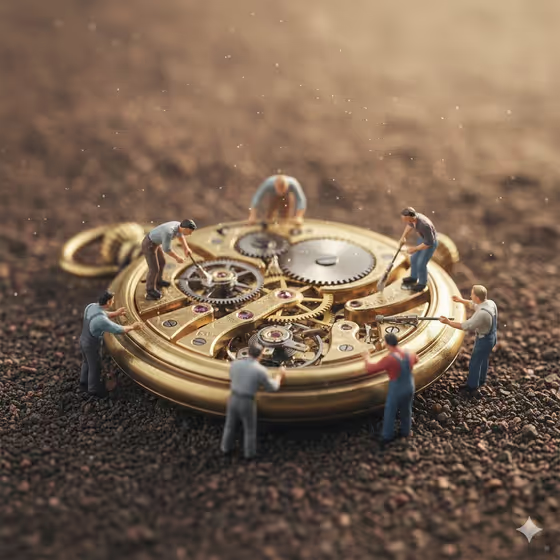
Miniature Restoration Workshop turns a mechanical object into a macro scene where tiny workers repair it by hand. In the cover image, a small crew stands around an opened brass pocket watch, brushing and adjusting the gears while dust and grain fill the foreground.
It suits anyone who likes tactile, handcrafted imagery: watch and camera enthusiasts, hobbyists, and people making a playful visual for a repair shop, a collection, or a keepsake. You choose the object, the surface it sits on, and what the crew is doing.
What works best as input
- For the Mechanical object field, you can type a short description or upload a reference photo of the object. A clear, well-lit photo of the actual item gives the template something specific to follow.
- If you upload a photo, pick one where the object fills most of the frame and its shape is easy to read. Cluttered backgrounds can make it harder to tell what the main object is.
- If you type instead, be concrete. Names like "an antique pocket watch", "a brass compass" or "a mechanical music box" work better than something vague like "old device".
- Choose objects that have visible mechanisms, such as gears, springs or dials, since the crew works among those parts.
- The Restoration surface and Miniature crew activity fields are text or choice only, so describe those in words rather than uploading anything.
How to use it
- Open the Miniature Restoration Workshop template in Phosphene.
- Fill the Mechanical object field by typing a description or adding a reference photo of the object.
- Set the Restoration surface (for example a weathered oak workbench or dark slate slab) and describe the Miniature crew activity (for example cleaning gears with fine brushes).
- Generate the image, then check that the workers, the object and the surface match what you described. Adjust a field and run it again if something is off.
Tips for a better result
- Pair the surface with the mood you want. A dark slate slab or worn leather mat gives a different feel from a pale stone table, while the cover's grainy, earthy ground reads warm and aged.
- Make the crew activity a single clear action. Examples like "polishing the open casing" or "aligning springs from blueprints" give the workers an obvious job.
- Try different objects with the same surface and activity to compare results, such as a vintage film camera versus a brass compass.
- Pick objects with a lot of fine internal detail, since the scene centers on an opened mechanism with gears and small components.
Common mistakes
- Describing the object too loosely. Without a clear name or reference, the scene has less to build on and the mechanism may look generic.
- Stacking several activities into the crew field. One focused task reads more clearly than a long list of actions.
- Expecting to upload a photo for the surface or the crew. Only the Mechanical object field accepts a photo; the other two are text or choice fields.
FAQ
Do I have to upload a photo?
No. The Mechanical object field lets you either describe the object in text or upload a reference photo. The other fields are typed or chosen.
What aspect ratio does the result use?
The template outputs a 3:4 image.
Can I change what the tiny workers are doing?
Yes. The Miniature crew activity field is where you describe their task, such as cleaning gears with fine brushes or hoisting a delicate mechanism.
What kinds of objects work well?
Mechanical objects with visible parts suit it best, like a pocket watch, vintage film camera, brass compass or mechanical music box.