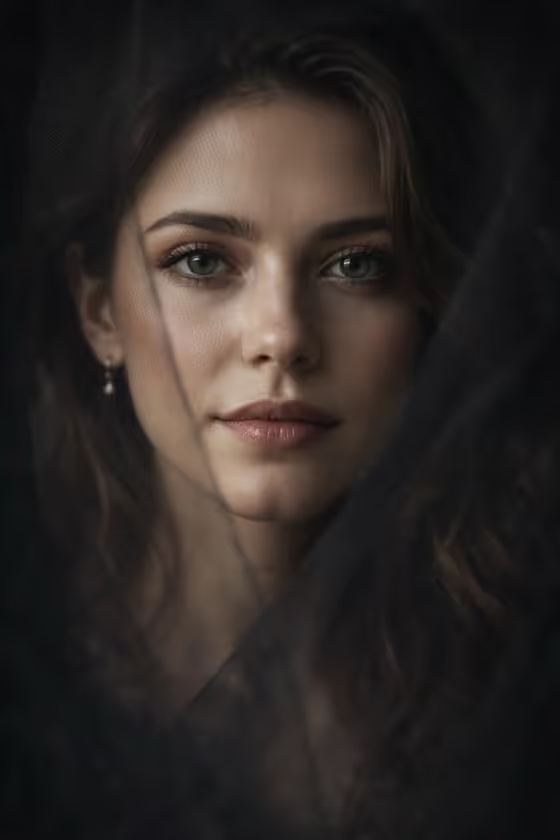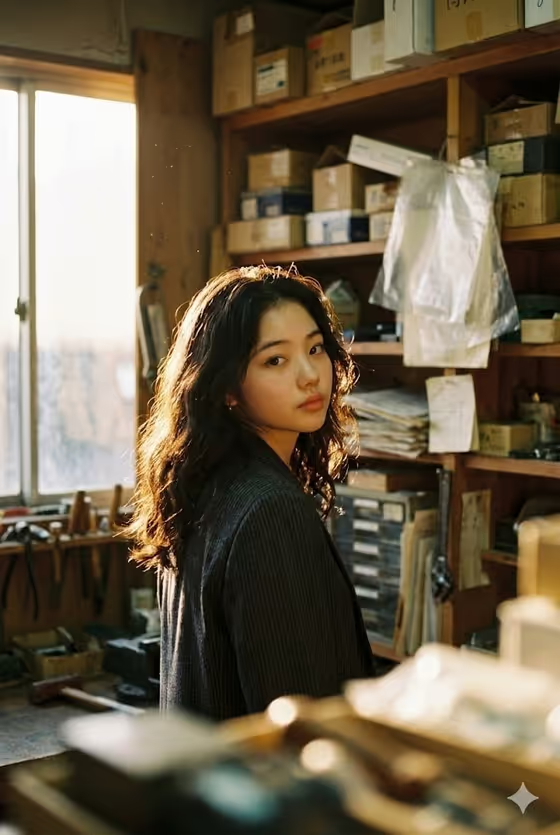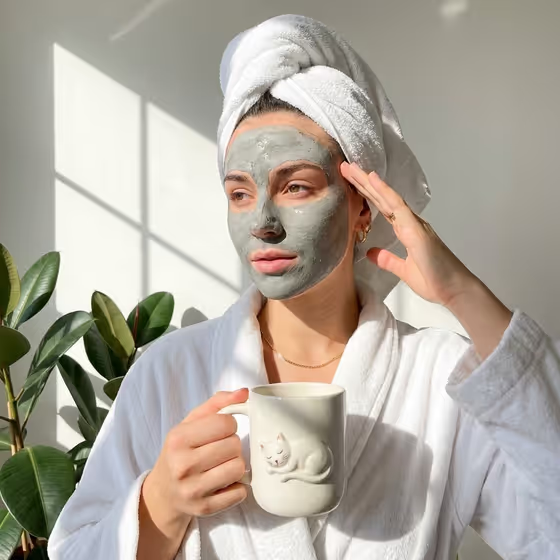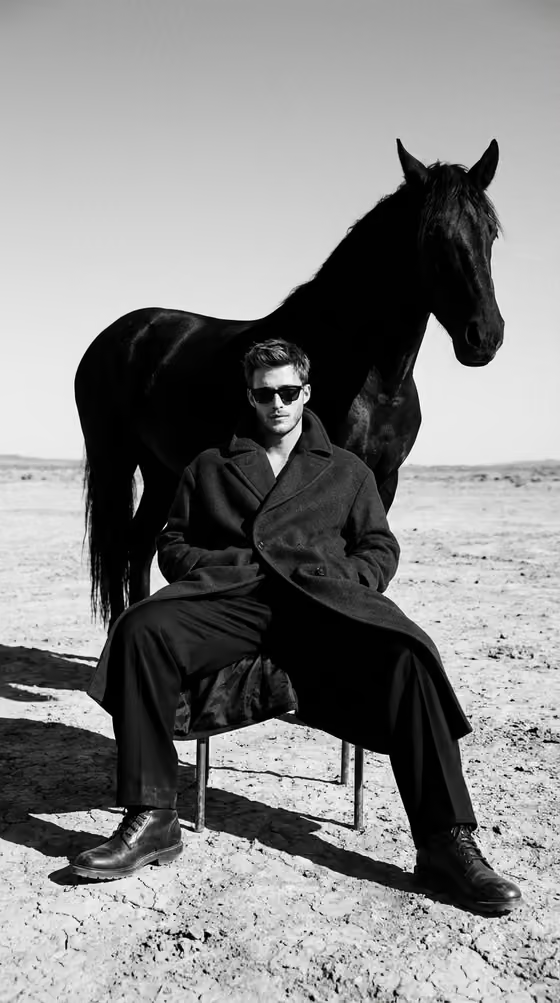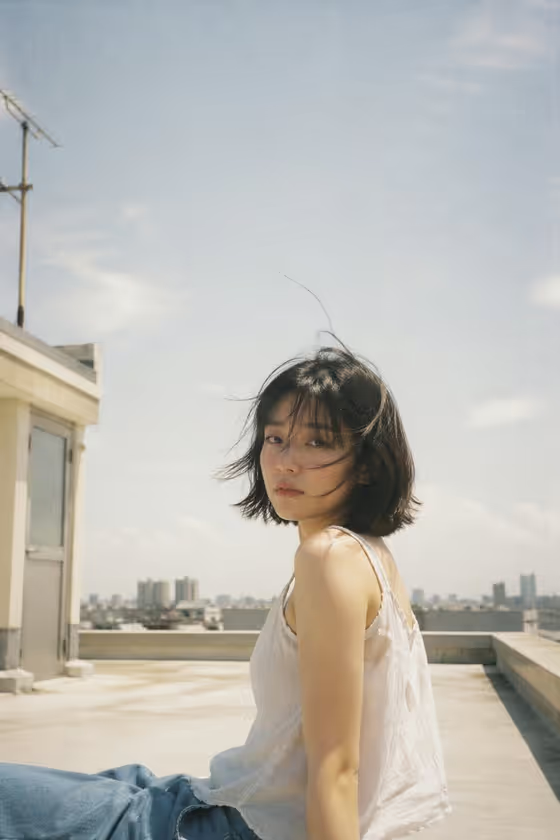
Rooftop Memory Film turns a portrait into a faded, low-contrast frame in the style of Japanese negative film. The look is built around a rooftop in summer: soft natural sunlight, slightly blown highlights, muted colors, subtle grain, and a lot of open sky around a quiet subject.
It suits anyone who wants a nostalgic, reflective portrait that feels like a found photograph rather than a posed shoot. The output is a 2:3 image, so it fits vertical portrait uses well.
What works best as input
- Use one clear photo of the person or subject you want in the scene. The first field accepts either an uploaded reference or a short written description.
- Pick a photo where the face is visible and reasonably sharp, since the template builds a calm, direct gaze toward the camera.
- Soft, even lighting in your source photo tends to sit well with the faded, low-contrast film look.
- If you describe instead of upload, keep it short and concrete, like the placeholder 'a solitary rooftop subject' or 'a candid everyday subject'.
- Only use photos of yourself or people who have agreed to it, and keep the subject portrayed respectfully.
How to use it
- Open the Rooftop Memory Film template in Phosphene.
- In the first field, upload your reference photo or type a short description of the subject.
- In 'Pose and scene', choose how you want the image framed, such as an intimate close portrait, a full-body editorial frame, or an environmental candid frame.
- Generate the image, then review it for the faded colors, open sky, and relaxed pose before saving or trying another framing.
Tips for a better result
- Try the different framing options on the same subject. A close portrait emphasizes the gaze, while an environmental candid frame leaves more room for the sky and rooftop.
- Keep the subject description simple. The template already supplies the wind, the rooftop edge, and the quiet mood, so extra detail can compete with it.
- Use a reference with a natural, unposed expression to match the 'not posing' feel the template aims for.
- Generate a few versions and compare them, since small differences in composition and grain can change how nostalgic the result feels.
Common mistakes
- Uploading a heavily filtered or high-contrast photo, which can fight the muted, faded look the template is built around.
- Writing a long, busy description in the subject field. The style relies on minimal elements and empty space, so crowded details work against it.
- Expecting a bright, glossy portrait. This template deliberately favors low contrast, slight overexposure, and soft grain.
FAQ
Do I have to upload a photo?
No. The subject field accepts either an uploaded reference or a text description, so you can type something like 'a candid everyday subject' instead.
What does the 'Pose and scene' option change?
It sets how the image is framed, for example an intimate close portrait, a full-body editorial frame, or an environmental candid frame, without changing the core film look.
What shape is the result?
The output is a single image in a 2:3 vertical ratio.
Can I make it look sharper or more colorful?
The faded, muted, low-contrast film style is fixed by the template, so the result will stay soft and nostalgic rather than crisp and vivid.