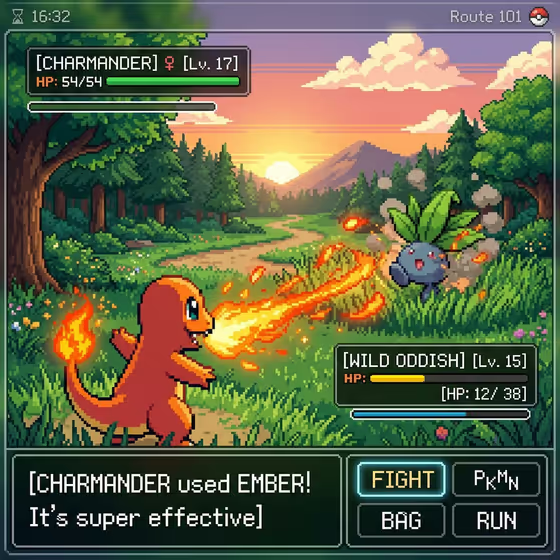
Pixel Battle Screen turns a subject of your choice into a detailed pixel-art creature battle staged like a game screen. The result is a 3:4 image with a lush pixel landscape, move effects such as flames and smoke, health bars, and a clean, modern, minimal battle menu along the bottom.
It suits anyone who wants a retro-game look for a personal concept, an original character, a pet, or a favorite idea. Think fan-style art for your own world, a shareable game-screen graphic, or a playful way to see a subject reimagined as a battle encounter.
What works best as input
- The first field, labeled as the turn-based creature battle scene subject or object, accepts either a typed description or a reference photo. Pick whichever matches what you have, and keep the subject clear and specific.
- If you upload a photo, choose one where the subject is easy to see and not buried in clutter, since the template uses it as the visual reference for the battle.
- If you type instead, name the creature or character and what it is doing, for example the kind of creature, its look, and the move it is using, so the effects can match.
- Use only a subject you own or have the right to use, such as your own character, pet, product, or original concept.
How to use it
- Open the Pixel Battle Screen template in Phosphene.
- In the subject field, type a description or upload a reference photo of the person, character, object, or scene you want to feature.
- Pick an option in the Scene framing field, such as a wide environmental view, a medium narrative frame, or a close detail study.
- Generate the image, then review the pixel art, move effects, and battle UI, and adjust your subject or framing if you want a different result.
Tips for a better result
- Mention the move or element you want, like fire, water, or smoke, so the effects in the scene fit your subject.
- Try a wide environmental view to show off the pixel landscape, or a close detail study to focus on the creature and its attack.
- Describe the setting you want, such as a forest path at sunset, since the template is built around a detailed pixel environment.
- Run the template again with the same subject but a different Scene framing choice to compare compositions.
Common mistakes
- Writing a vague subject like 'a battle' gives the template little to work with. Name the creature or character and what makes it distinct.
- Uploading a cluttered or very small reference photo can make the subject hard to read in the pixel-art result.
- Cramming several unrelated subjects into one description can muddle the scene. Keep the focus on one main creature or subject.
FAQ
Can I use a photo, or do I have to type?
The subject field accepts either a typed description or a reference photo. The Scene framing field is a choice, not a photo upload.
What does the final image look like?
It is a 3:4 pixel-art creature battle shown as a game screen, with move effects and a minimal battle UI at the bottom.
What does Scene framing change?
It controls how the scene is framed, with options like a wide environmental view, a medium narrative frame, or a close detail study.
Can I make an original character instead of an existing one?
Yes. The subject field suggests options like an original subject or a personal visual concept, so you can describe your own creature or character.