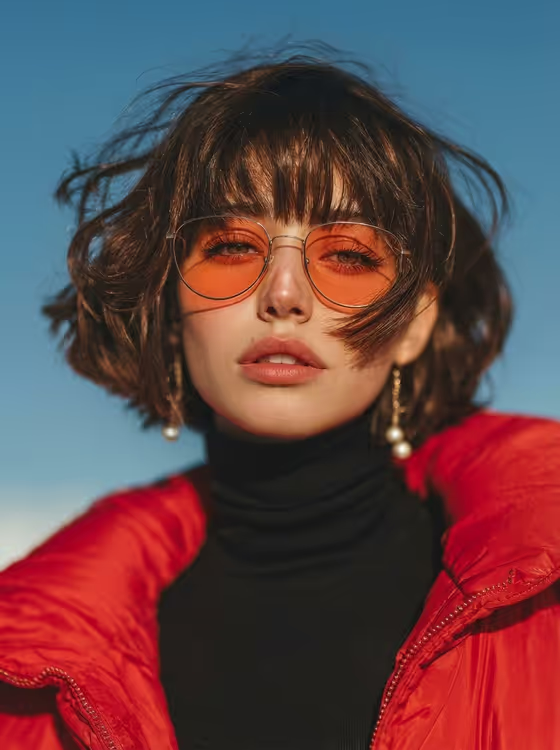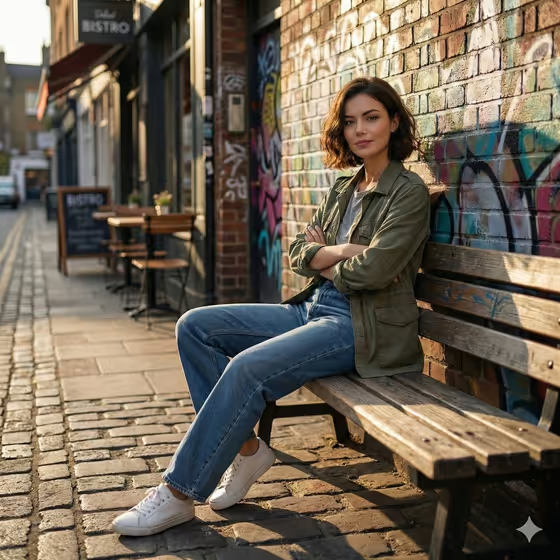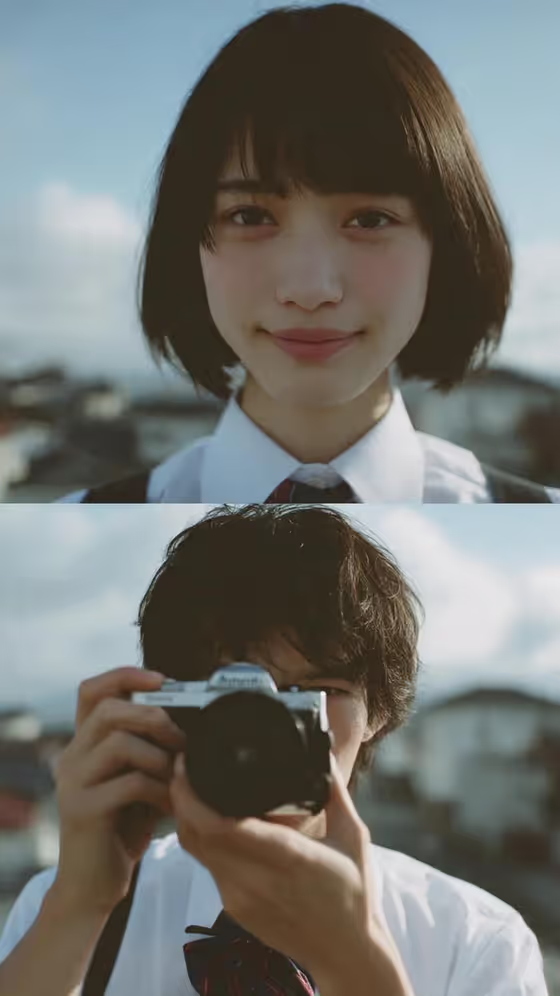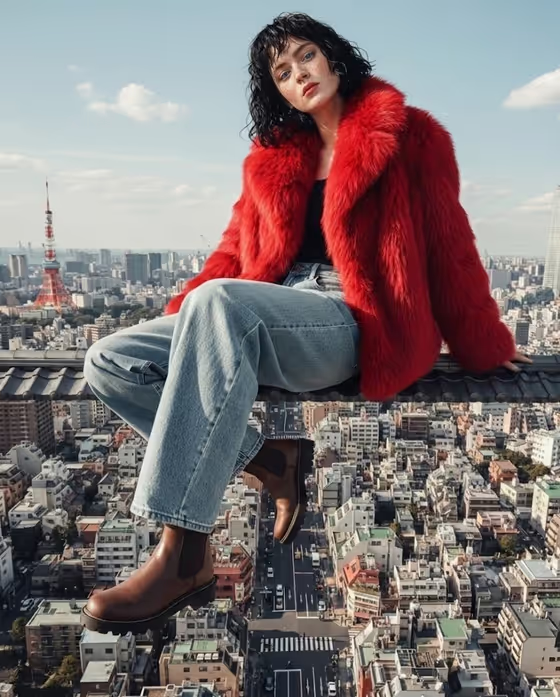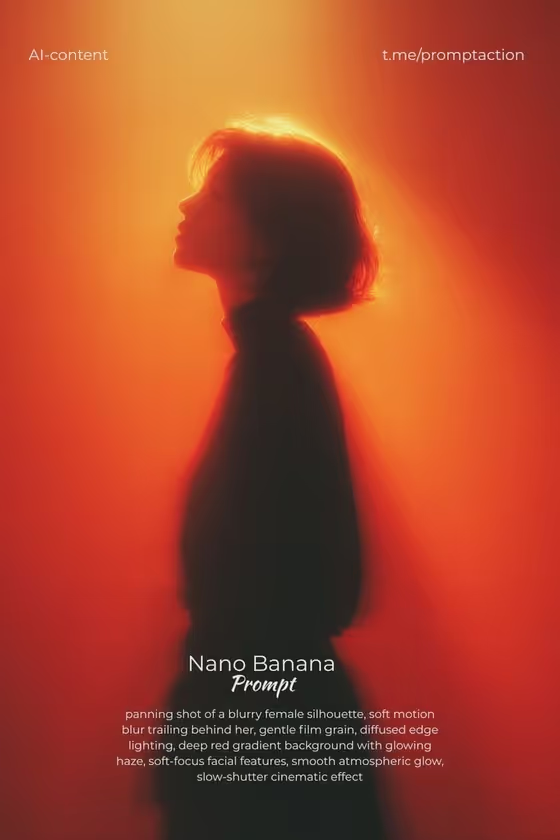
Red Panning Silhouette turns a portrait into a soft, glowing silhouette lit in deep red. The result is a 3:4 image with a slow-shutter feel: motion blur trails behind the figure, gentle film grain adds texture, and a hazy red-to-orange gradient fills the background.
It suits anyone who wants a moody, cinematic portrait for a poster, profile image or social post. It works best when you want atmosphere and mood rather than a crisp, detailed likeness.
What works best as input
- Upload one portrait photo of an adult. The template expects a single reference, so pick the image that best shows the shape you want to carry into the silhouette.
- Choose a photo with a clear head-and-shoulders outline, ideally in profile or three-quarter view. The cover image reads well because the outline of the head and shoulders is easy to recognize.
- Use a photo where the face and body are not hidden by hats, hands or other people, so the silhouette stays clean.
- In the Portrait subject field you can keep the default idea, an adult subject matching your reference, or describe the person in words, such as an adult woman or man with a distinctive presence.
- Only use photos of yourself or people who have agreed to be included.
How to use it
- Open the Red Panning Silhouette template in Phosphene.
- Upload your portrait photo and check the Portrait subject field. Keep the suggested description or edit it to fit your photo.
- Fill in Pose or expression. You can keep the source pose and energy, or choose something like calm editorial stillness, confident direct presence or candid spontaneous energy.
- Generate the image, then review the 3:4 result. If the outline or mood is off, adjust the fields or swap the photo and generate again.
Tips for a better result
- Try different Pose or expression choices. Calm editorial stillness suits the quiet, glowing look of the cover, while candid spontaneous energy gives the motion trails more to work with.
- Start with a photo that has a strong side or three-quarter profile. A clear outline gives the soft blur a shape to hold onto.
- Keep your Portrait subject description simple and consistent with the photo, so the result stays true to your reference.
- Generate a few versions and compare them. Small changes to the pose field can shift how the blur and glow fall around the figure.
Common mistakes
- Uploading a busy photo with several people or cluttered edges. The silhouette looks best when there is one clear figure.
- Describing a subject that does not match the uploaded photo, which can pull the result away from your reference.
- Expecting sharp facial detail. This template deliberately softens features into a blurred, atmospheric look.
FAQ
Do I need to upload a photo?
Yes. The template asks for one uploaded photo, and the Portrait subject field can also hold a short description of the person.
What colors and mood will I get?
A deep red gradient background with a glowing haze, soft edge lighting, film grain and a slow-shutter motion blur, as shown in the cover image.
What size is the output?
The image is made in a 3:4 aspect ratio, which suits portrait-style posts and posters.
Will the face stay sharp?
No. Facial features are intentionally soft-focus so the image reads as a silhouette rather than a detailed portrait.